- Home
- Products
- About Us
- OEM&ODM
- News
- Contact Us
 USB C Docking & Hub
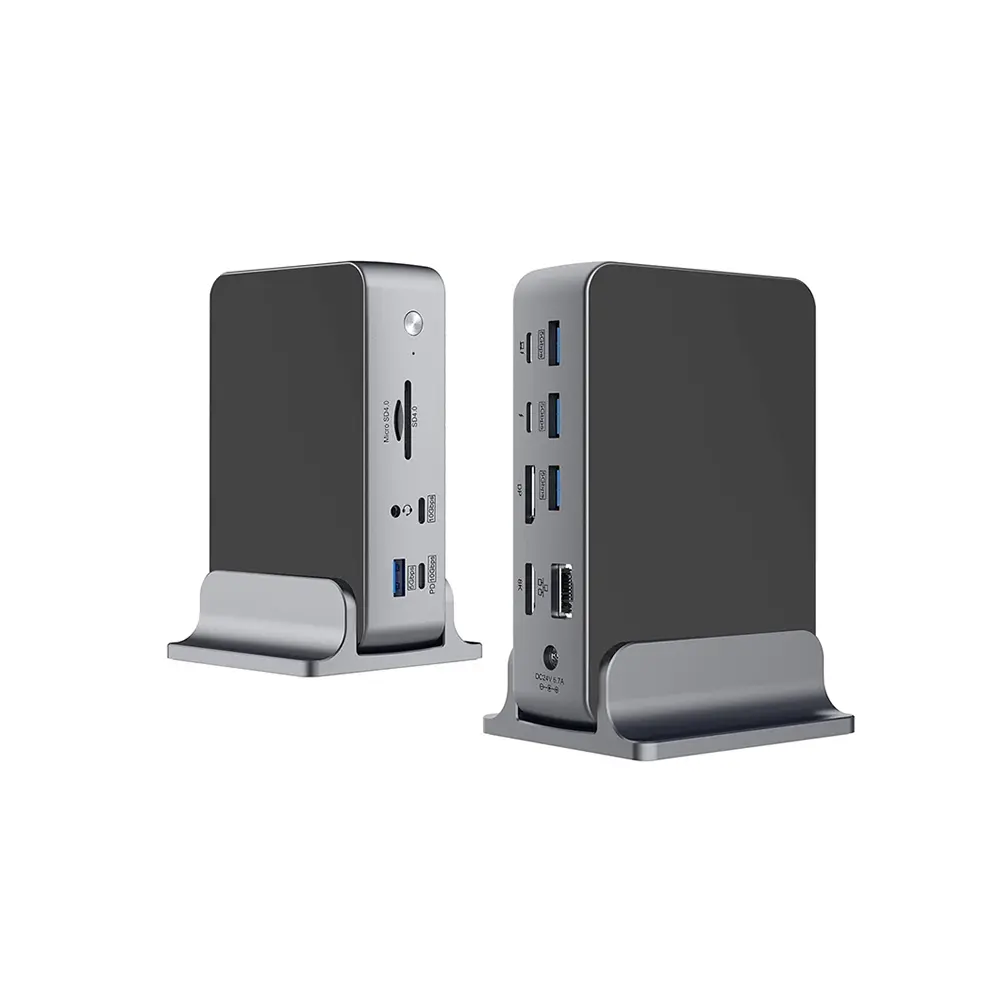 USB C Docking Station
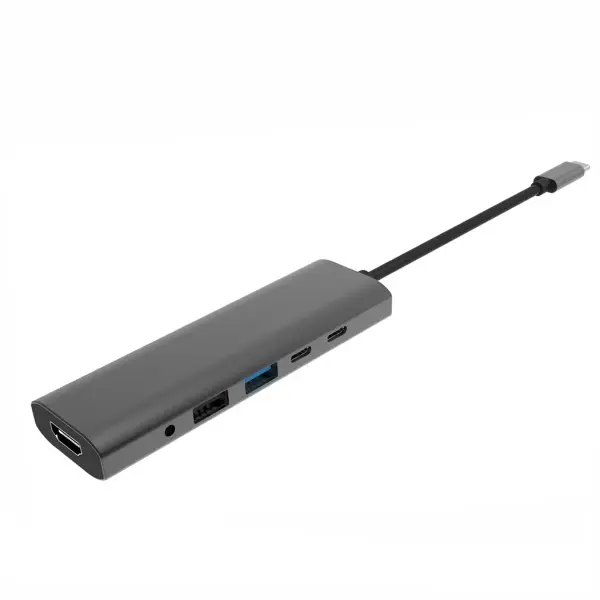 USB C Hub-H Series
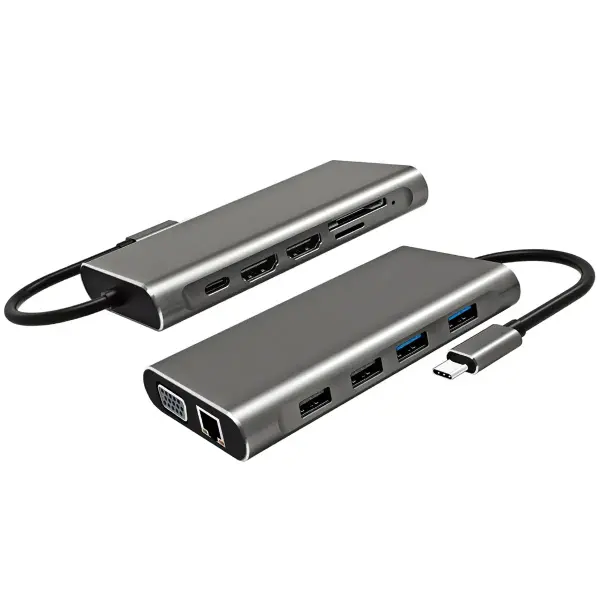 USB C Hub-H Series High End
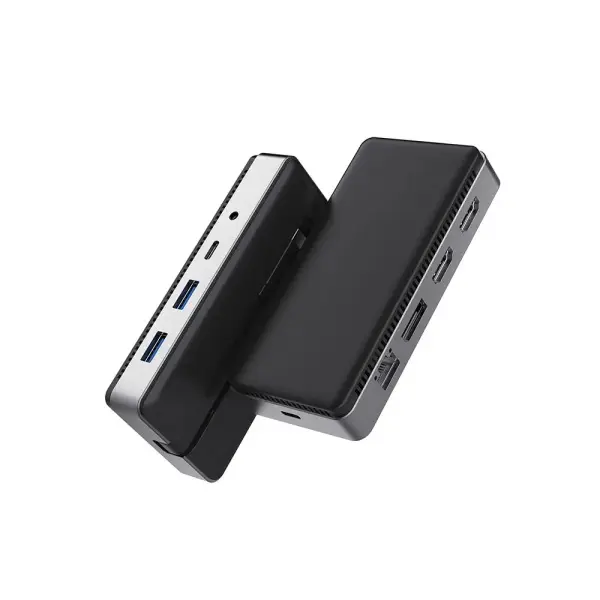 USB C Hub-X Series High End
 HDMI Cable
 4K HDMI Cable
 8K HDMI Cable
 16K HDMI Cable
 AOC HDMI Cable
 HDMI Conversion Cable
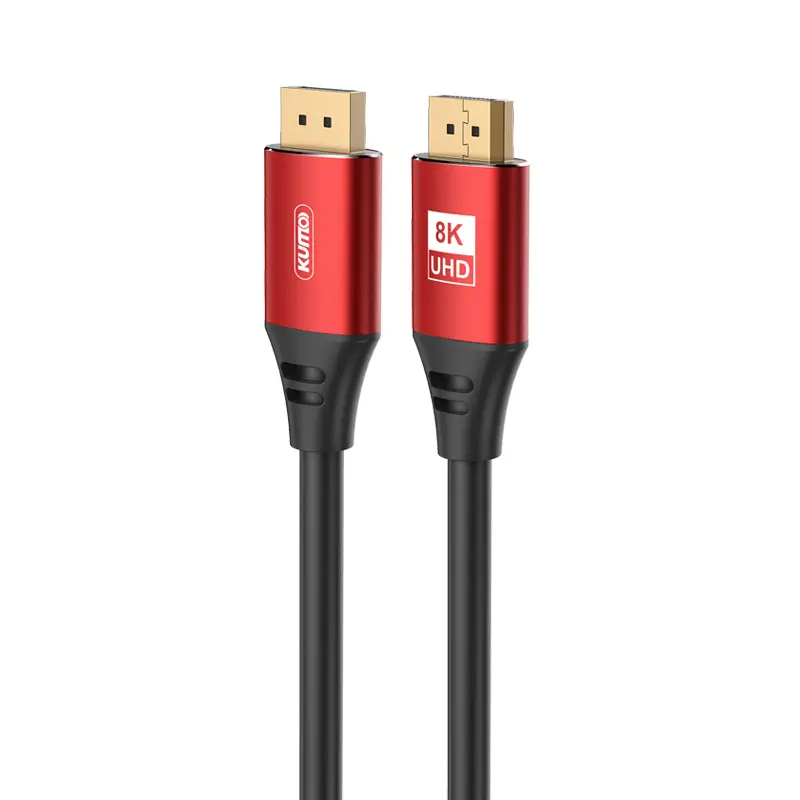 8K DisplayPort Cable
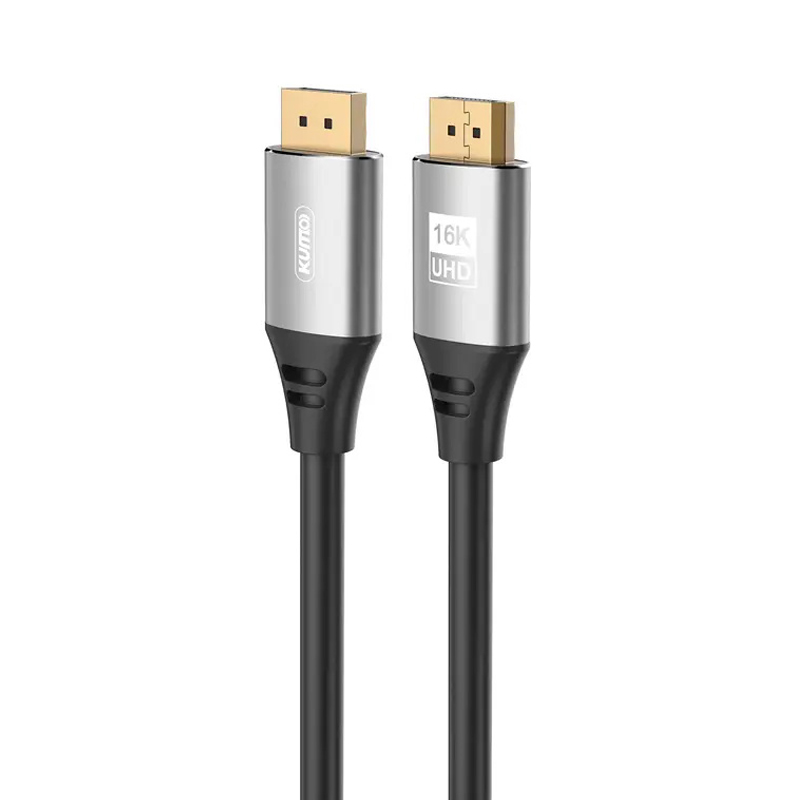 16K DisplayPort Cable
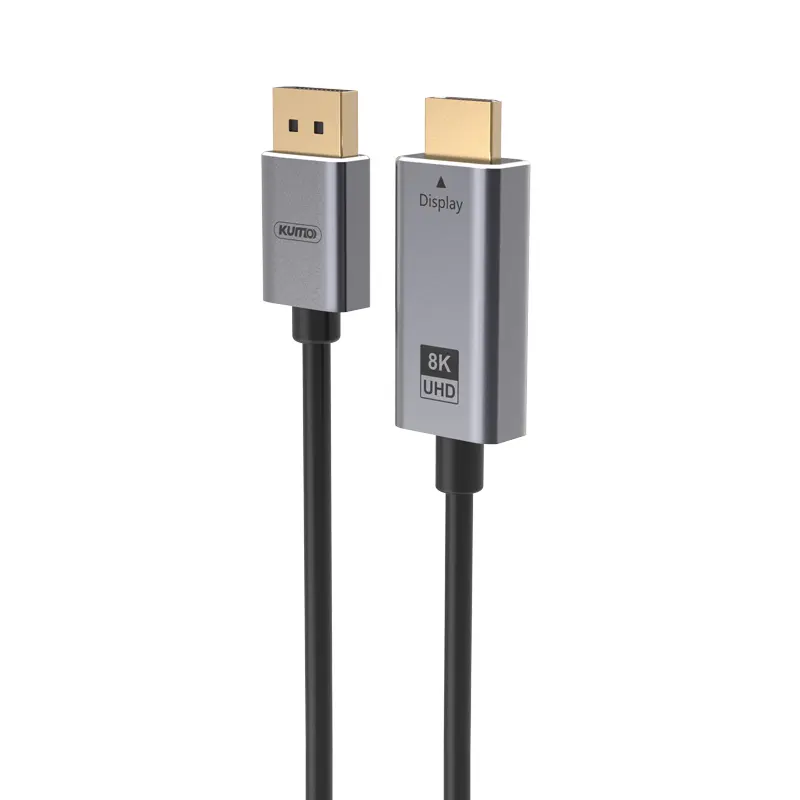 DisplayPort Conversion Cable
 XLR Cable
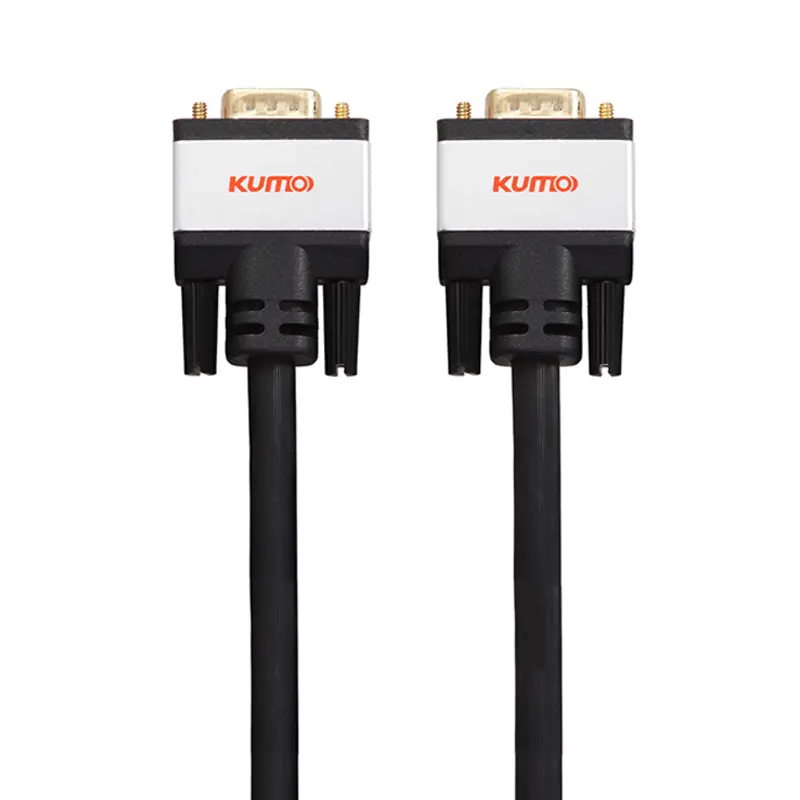 VGA Cable
 DVI Cable
 Type C To HDMI
 Type C to DP
 Type C to DVI
 Type C Adapter
 USB A to C Cable
 USB C to C Cable
 Micro USB Cable
 USB4 Cable
Inquiry
Form loading...
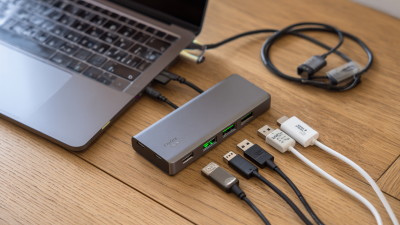
Choosing a Usb Type C Multi Port Adapter in 2026 is no longer about counting ports. It is about matching real devices, power needs, and daily working habits. A slim adapter may connect your laptop, monitor, keyboard, and camera card. However, attractive metal housing does not guarantee reliable performance. Port labels matter. So does the chipset inside.
I have tested compact adapters at crowded desks and airport tables. Some became warm during sustained file transfers. Others reduced display quality when power delivery was active. One model even disconnected a portable SSD after several minutes. That experience changed my buying checklist. I now check USB data speeds, HDMI resolution, charging limits, Ethernet compatibility, and heat management. I also compare the manufacturer’s technical documentation with independent test results. Marketing claims can be incomplete.
Small details often decide whether an adapter feels dependable. A 100-watt input rating may not provide 100 watts to your laptop. The adapter itself consumes part of that power. A short cable can reduce desk clutter, but it may strain a side-mounted port. A longer cable feels safer, though it travels poorly. There is no perfect design.
This guide explains how to evaluate a Usb Type C Multi Port Adapter for work, travel, study, and creative tasks. It considers current USB standards, display requirements, operating-system support, warranty terms, and practical reliability. Some recommendations may change as newer devices appear. That limitation deserves honesty. The best choice is not always the most expensive one. It is the adapter that performs consistently with your actual setup.
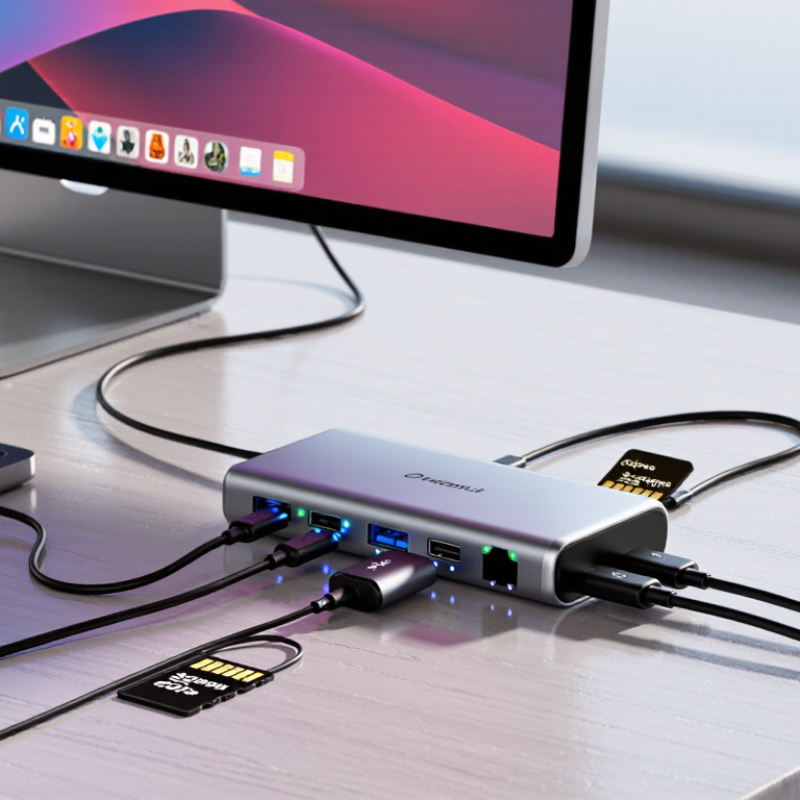
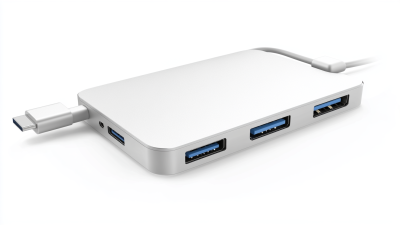
A USB Type-C multi-port adapter expands one compact connector into several practical interfaces. It can combine charging, data transfer, display output, wired networking, audio, and memory-card access. The connector shape alone proves little. Internal standards determine real performance.
IDC recorded about 1.24 billion smartphone shipments worldwide in 2024, increasing demand for compact connectivity tools. USB-IF specifications state that USB4 Version 2.0 can reach up to 80 Gbps under suitable hardware and cables. That speed is not guaranteed by every adapter. Check the port labels, protocol version, and supported bandwidth before buying. My first assumption was wrong.
Power delivery is another core function. A capable adapter negotiates charging power with the host device, while managing heat during sustained use. A 100-watt input rating may still provide less power to the computer after adapter losses. Display output also depends on DisplayPort Alt Mode, resolution, refresh rate, and the device’s graphics support. In practical testing, I look for stable video, fast file transfers, and a cool enclosure after thirty minutes. Small details matter. Industry reports from Grand View Research indicate continued double-digit growth in the USB Type-C market, but compatibility remains uneven. That gap deserves more attention.
| Selection Dimension | What to Check | Common Specification | Recommended Choice | Why It Matters |
|---|---|---|---|---|
| Definition | A compact device that expands one USB Type-C connection into several interfaces. | USB ports, display output, wired networking, card readers, audio, and charging pass-through. | Choose functions that match the computer and daily workflow. | Different adapters support different protocols, speeds, and power limits. |
| Host Connection | USB Type-C plug and supported host protocols. | USB 3.x, USB4, or Thunderbolt-compatible connection, depending on the device. | Use an adapter whose host interface is supported by the computer. | A USB Type-C connector does not automatically guarantee high data speed, video output, or charging. |
| USB Data Ports | Number, connector type, and transfer rate of downstream ports. | USB-A and USB-C ports commonly support 5 Gbps or 10 Gbps; some newer systems support higher rates. | Select at least one 10 Gbps port for external SSDs and fast storage. | Actual performance is limited by the adapter, host port, cable, and connected device. |
| Video Output | Display connector, resolution, refresh rate, and video protocol. | HDMI or DisplayPort; support may range from Full HD to 4K at different refresh rates. | For office use, choose 4K at 60 Hz when the host supports DisplayPort Alternate Mode. | Video capability depends on the host GPU, USB-C port mode, adapter chipset, cable, and display. |
| Multiple Displays | Number of independent monitors and supported operating systems. | Single-display or multi-display support; some solutions use DisplayLink technology. | Verify operating-system support and required drivers before choosing a multi-monitor model. | Native video output and driver-based display technologies have different compatibility and performance characteristics. |
| Power Delivery | Charging input, maximum pass-through rating, and power reserved by the adapter. | Common ratings include 60 W, 85 W, 100 W, or higher input support, with actual output reduced by internal consumption. | Choose a rating that exceeds the computer's charging requirement. | Power Delivery performance depends on the charger, cable, computer, and the adapter's power-management design. |
| Network Port | Wired Ethernet speed and negotiation support. | 100 Mbps, 1 Gbps, or 2.5 Gbps Ethernet. | Use 1 Gbps for general office work and 2.5 Gbps when the network and computer support it. | Real throughput also depends on the router, switch, cabling, network service, and system load. |
| Memory Card Readers | Supported card formats and simultaneous read/write behavior. | SD and microSD slots are common; some models support UHS-I or faster standards. | Check the required card format and stated read/write speed. | Card speed is limited by the card, reader controller, adapter connection, and file type. |
| USB-C Port Function | Whether the additional USB-C port supports data, charging, video, or a combination. | Many pass-through USB-C ports support charging only, while others also support data. | Confirm the exact function instead of relying only on the connector shape. | USB Type-C describes the connector; it does not define every supported feature. |
| Compatibility | Operating system, device type, drivers, and port capabilities. | Compatibility may include laptops, tablets, phones, desktop computers, and selected gaming devices. | Check the product specification against the exact host device and operating system. | Some functions, especially video, Ethernet, and multi-display output, may require specific hardware or drivers. |
| Thermal Design | Housing material, ventilation, controller efficiency, and heat under load. | Aluminum housings are common; compact adapters can become warm during simultaneous high-speed use. | Choose a model with adequate thermal design for continuous storage or network workloads. | Excessive heat can contribute to performance reduction or intermittent operation. |
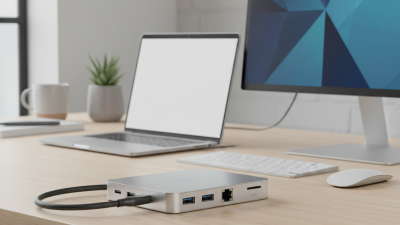
| Port Layout | Spacing, cable direction, accessibility, and connector placement. | Side-mounted ports, detachable host cables, or fixed short cables. | Select a layout that leaves room for wide USB devices, charging cables, and display connectors. | A practical layout reduces cable strain and prevents neighboring ports from being blocked. |
| Portability | Weight, dimensions, cable storage, and durability. | Small travel adapters usually provide fewer ports; larger desktop-oriented models provide more interfaces. | Prioritize compact size for travel and a broader port selection for fixed workstations. | More ports and higher power handling generally require more space and cooling capacity. |
| Security and Reliability | Over-current, over-voltage, short-circuit, and over-temperature protection. | Protection features should be clearly listed in the technical documentation. | Choose an adapter with documented electrical protection and compliance information. | Protection helps reduce risk to the adapter, connected peripherals, and host computer. |
| Best Use Case | Primary workload and required interfaces. | Travel, office productivity, creative work, networking, storage expansion, or desktop docking. | Match the port combination to the main task rather than selecting the highest port count. | The most suitable adapter balances speed, compatibility, power delivery, thermal performance, and portability. |