Inquiry
Form loading...

How to Choose the Best USB C Hub with Ethernet in 2026?

Choosing the best USB-C hub with Ethernet in 2026 is less about collecting ports and more about avoiding everyday bottlenecks. A Type C Hub Ethernet adapter should match your laptop’s USB-C capabilities, your wired network, and the devices you actually connect. Check the hub’s stated Ethernet speed, power pass-through, and display support before buying. USB-C describes the connector, not a guarantee that every port supports the same features. That detail is easy to miss.

Sun Microsystems technologist John Gage is widely associated with the phrase, “The network is the computer.” It is not a buying rule, but it captures why a dependable wired connection still matters for video calls, large file transfers, and crowded Wi-Fi environments. Look beyond the product photos. A compact hub may offer Gigabit Ethernet, HDMI, and USB-A, yet still require a separate charger for stable laptop power. Some models can also run warm during sustained use. Small details matter.

This guide will compare the features that affect real desk setups: port layout, supported speeds, build quality, operating-system compatibility, and warranty clarity. It will also flag claims worth checking against the manufacturer’s specifications. A good checklist helps. But no checklist replaces confirming your laptop’s port limits. Reflect on your own setup, too: a hub with ten ports is not automatically better if you only need Ethernet, one display, and charging. The right choice should connect cleanly, stay reliable, and avoid paying for ports that will sit unused.
How to Choose the Best USB C Hub with Ethernet in 2026?

What a USB-C Hub with Ethernet Does and How It Works

How to Choose the Best USB C Hub with Ethernet in 2026?

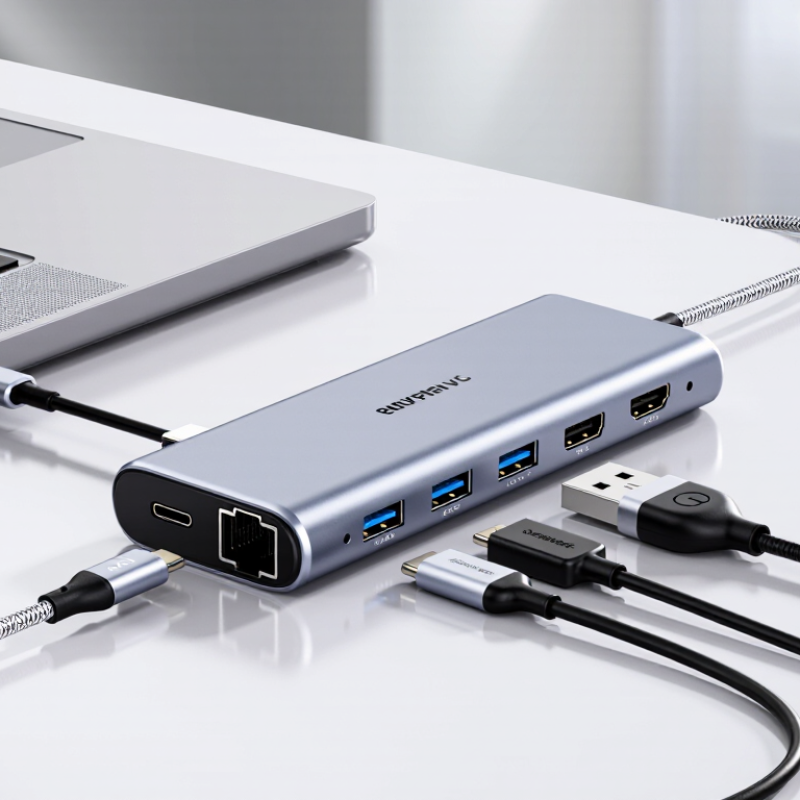
A USB-C hub with Ethernet adds a wired network connection to a laptop or tablet through one USB-C port. Inside, a small controller converts network data into signals the host device can process. The Ethernet socket connects to a router or wall port using a standard network cable. When connected, the device may prefer the wired link over Wi-Fi, but network settings can affect this.

The hub also shares the host’s USB-C connection with other ports, such as USB-A, HDMI, or card readers. That connection has limited bandwidth, so several active ports can compete for capacity. Ethernet speed depends on the hub’s hardware, your internet plan, the router, and the cable. A “gigabit” port cannot make a slower connection faster. USB-C describes the connector, not every feature it supports; check that your device supports data through that port. It is easy to assume any hub will work. That assumption can be costly.

Tips: Check your laptop’s port specifications and the hub’s supported Ethernet speed. For steady video calls, connect the cable firmly and test the link before an important meeting. If speeds seem low, compare a direct router connection when possible.
How to Check Device Compatibility and USB-C Port Capabilities

A USB-C connector does not guarantee every feature a hub advertises. Check your computer’s specifications for USB data speed, video output, and power delivery support. A port may transfer files but lack DisplayPort Alt Mode, so a hub’s HDMI socket might not work. Look for the exact capabilities listed for your device, not just the connector shape. Small detail, big difference.

I check the laptop’s manual or support page, then compare its port capabilities with the hub’s requirements. For Ethernet, confirm the operating system supports the hub’s network adapter and whether a driver is needed. If you use a managed work computer, installation permissions may matter. I once treated charging support as proof that a port could handle everything. It wasn’t. Pass-through charging and data features are separate.

Also check how the hub draws power. A bus-powered model may work well for a mouse and wired network connection, but connected drives can increase power demand. Test the setup with your actual device: connect the hub, plug in an Ethernet cable, and confirm the system reports a wired connection. Then transfer a large file. Results can vary with network equipment and internet service, so a single speed test is only a clue. The port’s fine print matters.

USB-C Hub Compatibility: Compare Host Port Speeds

A USB-C connector does not guarantee a particular data speed or feature set. Check your device’s specifications for its supported USB protocol and speed. Also verify that the port supports any features you need, such as video output or USB Power Delivery. These figures are nominal interface signaling rates; actual transfer speeds are typically lower and can depend on the hub, cable, and connected devices.

How to Compare Ethernet Speed, Port Selection, and Data Rates

When comparing USB-C hubs with Ethernet, start with the network connection you actually have. A 1Gbps Ethernet port can deliver up to about 125MB per second before protocol overhead, but real transfers are slower. Check the link. A 2.5Gbps port may help with a compatible router, switch, or network storage device. If your internet plan and home equipment support only gigabit speeds, the upgrade may not change everyday browsing.

Port selection matters just as much. Count the devices you use at the same time: perhaps a wired network cable, mouse receiver, external drive, and display. Then check which ports support data, video, or charging; USB-C connectors can look identical while doing different jobs. This is easy to overlook. A hub with many sockets may still lack the specific display output or fast USB port your setup needs.

Compare USB data rates alongside Ethernet speed. The hub connects through one upstream USB-C link, and attached devices may share its available bandwidth. A fast Ethernet connection and a busy external drive can compete during large transfers, depending on the hub’s design. Read the specifications for the hub and your computer, not just the port labels. It is tempting to buy the highest number, but that can mean paying for speed your network cannot use. Real transfer results also vary with cables, device limits, and workload.

How to Evaluate Power Delivery, Build Quality, and Heat Management

Power Delivery figures deserve careful reading. A hub’s maximum input rating is not always the power reaching your laptop. Some power may serve the hub and its connected devices. Check the charger’s output, the hub’s pass-through limit, and your computer’s charging requirement. Check the numbers. For a practical test, connect the charger, Ethernet cable, and a storage device, then use them while the laptop charges. If the battery still drains under ordinary work, the available power may be insufficient. Leave a little headroom rather than choosing a hub that only just meets the laptop’s stated requirement.

Build quality shows up in small details. Look for a cable that resists sharp bending, a connector that fits without wobbling, and enough space between ports for wider plugs. The Ethernet jack should hold its cable firmly. Heat needs a more careful check. A metal case can feel warm while moving data; that alone does not prove a fault. I would not trust a quick touch test as proof, because hands judge temperature poorly. Instead, run a large file transfer for 20 to 30 minutes and watch for dropped connections, stalled transfers, or charging interruptions. Keep the hub uncovered during the test. Warm is not automatically bad, but repeated disconnects deserve attention.

How to Match Hub Features to Your Setup and Budget

Start with the devices and tasks you actually use. A laptop for email, video calls, and one external display rarely needs a costly hub with every port. Count your displays, USB accessories, and charging needs, then check the laptop’s USB-C port supports video and power delivery; the connector alone does not guarantee either. For wired internet, match the hub’s Ethernet speed to your router, switch, and service plan. A 2.5-gigabit port adds little if every other link is limited to one gigabit.

Ookla’s 2024 Speedtest Global Index placed worldwide median fixed-broadband download speed at roughly 90 Mbps. That is a useful reality check, not a ceiling: a fast local network, large file transfers, or future upgrades may justify faster Ethernet. The Ethernet Alliance’s 2024 Ethernet Roadmap includes 2.5, 5, and 10 GbE tiers, giving buyers practical options beyond standard gigabit. That is enough.

Set a budget around the bottleneck you can verify. Pay for dependable power delivery if you often charge through the hub, and check its rated wattage against your laptop’s needs. A compact model may run warmer when several ports are busy; reviews that test sustained use matter more than a long feature list. It is easy to overbuy here. I’d still leave room for one imperfect choice: a port you rarely use may feel worthwhile later, but don’t pay extra without a real use case.

How to Choose the Best USB C Hub with Ethernet in 2026? - How to Match Hub Features to Your Setup and Budget

Compare common USB-C hub configurations by connection needs, compatibility, and typical budget. Prices are approximate retail ranges and vary by region and specification.
Setup or User Type Useful Hub Features Ethernet and Video Power and Compatibility Checks Typical Budget (USD) Best Match
Basic desk setup Three or more USB-A ports, one USB-C data port, and a compact design Gigabit Ethernet; HDMI output commonly supports up to 4K at 30 Hz, depending on the hub and host Confirm the computer's USB-C port supports video output if HDMI is needed. A USB-C connector alone does not guarantee video support. $20–$40 Everyday browsing, office documents, and a wired network connection
Work-from-home setup Gigabit Ethernet, multiple USB ports, HDMI, and USB-C power pass-through Gigabit Ethernet; many models support a single 4K display at up to 60 Hz with a compatible computer and display Check the hub's power-pass-through limit and reserve enough charger capacity for the laptop. Power delivered to the laptop is usually lower than the charger's rated output. $35–$70 Video calls, external keyboard and mouse, one monitor, and reliable wired networking
Travel and mobile use Lightweight housing, short attached cable, HDMI, USB-A, and Ethernet Gigabit Ethernet is common; display resolution and refresh rate depend on the hub, computer, and cable Look for a sturdy cable and a compact build. Check whether the hub needs external power when several devices are connected. $25–$60 Working from hotels, shared offices, or meeting rooms
Dual-display workstation Two display outputs, Ethernet, USB ports, and power pass-through; a docking station may be more suitable than a small hub Display support varies widely. Two screens may require specific host video capabilities, supported display protocols, or display-link technology. Verify the exact operating-system, computer, resolution, and refresh-rate combination. Some computers support fewer external displays than the hub has outputs. $70–$180+ Users who need two external screens and several connected peripherals
Large file transfers or faster network 2.5GbE Ethernet, a high-speed USB-C data connection, and clear bandwidth specifications 2.5GbE can exceed Gigabit Ethernet only when the router or switch, cabling, and internet or local network support it Check the host port's data rate and avoid assuming that a USB-C charging port also supports high-speed data. Ports on a hub may share bandwidth. $50–$120 Fast local network transfers, compatible network storage, or a network faster than 1Gbps
Budget-conscious student Essential USB-A ports, HDMI if needed, and Gigabit Ethernet without unnecessary extras Gigabit Ethernet; a single display output is often enough for a study desk Prioritize a compatible host connection and a dependable return policy. Confirm whether charging pass-through is included. $20–$45 Online classes, research, presentations, and basic wired connectivity