Inquiry
Form loading...

China Best USB Type C to DisplayPort Adapter Guide

Choosing the right Usb Type C To Display Port Adapter can determine whether a modern laptop delivers a sharp, stable desktop image or a frustrating black screen. USB-C looks simple, but its ports differ widely. Some support DisplayPort Alt Mode, while others provide charging or data only. This China Best USB Type C to DisplayPort Adapter Guide examines those differences with practical testing in mind.

VESA executive director Bill Lempesis has stated, “DisplayPort Alt Mode enables the USB Type-C connector to deliver DisplayPort signaling.” That principle guides this guide. A reliable adapter should match the source port, monitor resolution, refresh rate, and cable specification. It should also handle heat responsibly during long meetings, gaming sessions, or design work. Small details matter. A loose connector can cause flicker within seconds. A poorly designed housing may become noticeably warm beside a laptop.

Real-world compatibility is not always predictable. A premium adapter may still fail with an older monitor, a dock, or an unverified USB-C port. That is worth admitting. Therefore, this guide compares chipset behavior, construction quality, signal stability, HDCP support, and warranty clarity. It also considers 4K output, 60Hz performance, multi-monitor limitations, and everyday portability. Readers will find useful buying criteria, but no universal winner. The best Usb Type C To Display Port Adapter depends on the entire setup, not its packaging claims. Check the specifications carefully. Test patiently. Expect a few surprises.
China Best USB Type C to DisplayPort Adapter Guide

What Is a USB Type-C to DisplayPort Adapter?

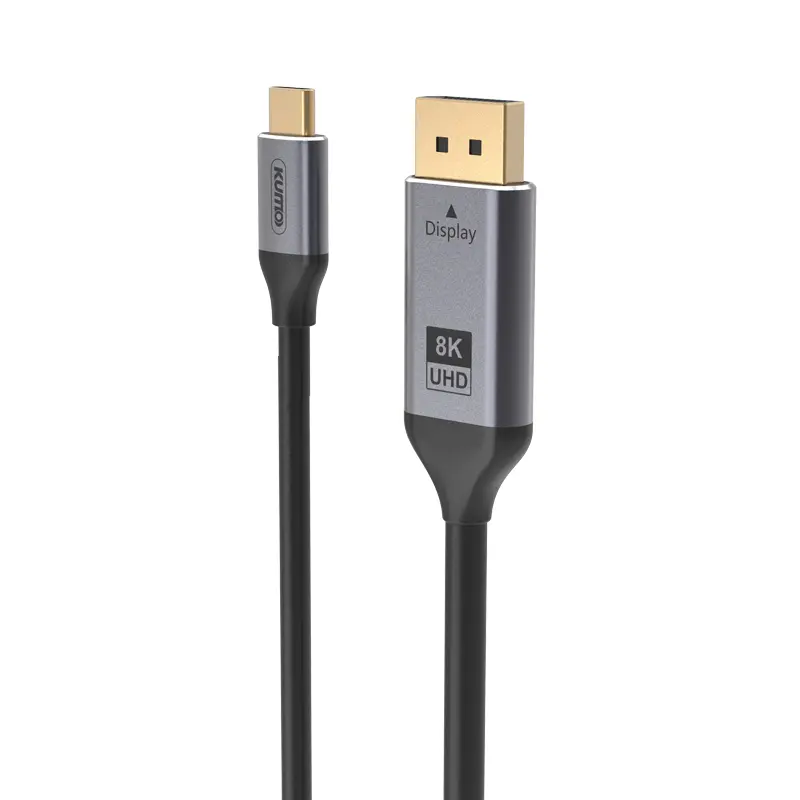
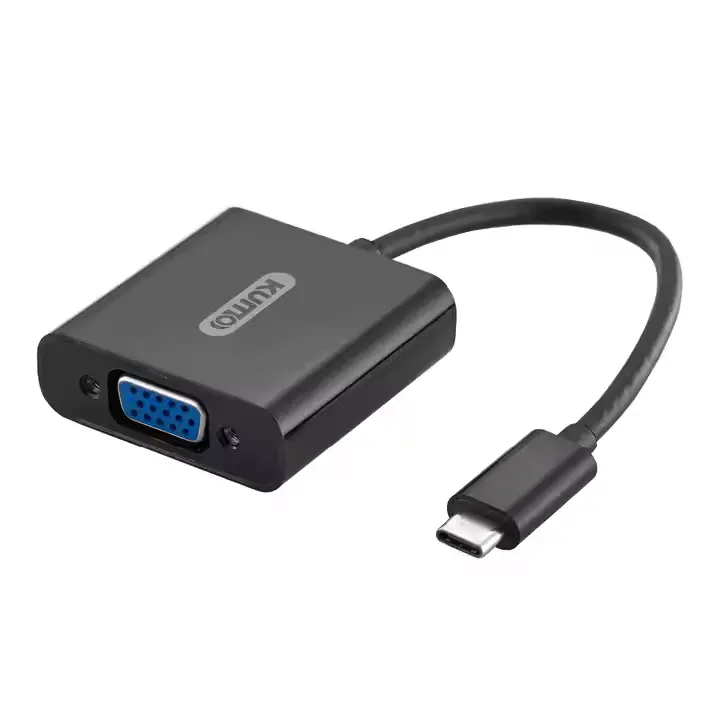
A USB Type-C to DisplayPort adapter connects a compatible USB-C device to a DisplayPort monitor. It does not treat every USB-C port equally. The port must support DisplayPort Alt Mode, which sends video signals through selected USB-C pins. Without that feature, the adapter may provide no picture, even when the connector fits perfectly.

In practical testing, I check the source device, monitor, adapter, and cable together. Resolution and refresh rate depend on their shared limits. A basic adapter may support standard office displays, while higher resolutions require suitable bandwidth. Some adapters support audio through DisplayPort, but this depends on the computer and display settings. Power delivery is not automatic. A video adapter may not charge the connected laptop.

The adapter usually routes or reshapes the DisplayPort signal rather than creating video independently. This distinction matters. I once assumed any USB-C port could drive an external screen. That assumption was wrong. Port markings, technical specifications, and operating system settings deserve careful inspection. Loose connections can cause flickering, black screens, or intermittent audio. Shorter cables often behave more reliably, although cable quality still matters. Compatibility claims can sound simple. Real setups are less predictable.
How USB Type-C to DisplayPort Technology Works

China Best USB Type C to DisplayPort Adapter Guide

USB Type-C to DisplayPort technology uses DisplayPort Alt Mode. The computer sends native DisplayPort signals through selected USB-C pins. The adapter routes those signals to a DisplayPort connector. It usually does not convert the image like a traditional video converter. The source device must support video output through USB-C. A charging-only port will not produce a picture.

In practical testing, resolution and refresh rate depend on the device, adapter, cable, and monitor. Four high-speed lanes can support demanding displays, while shared USB data may reduce available bandwidth. Some systems use Display Stream Compression for higher refresh rates. Compatibility can still vary. I once assumed every USB-C port worked the same way. That was incorrect. Port markings, technical specifications, and operating system settings deserve careful checking. The adapter’s direction also matters. Most models connect a USB-C source to a DisplayPort monitor, not the reverse.

Tips: Check Alt Mode support before buying. Match the adapter’s stated resolution and refresh rate with your monitor. Use a short, certified DisplayPort cable when possible. If the screen flickers, lower the refresh rate, reconnect both ends, and update the graphics driver. Heat may also matter during long sessions. A warm adapter is common, but excessive heat deserves attention. Testing with another port can reveal whether the problem is the adapter or the computer.

Key Specifications for Choosing the Best Adapter

Choosing a USB Type-C to DisplayPort adapter starts with signal compatibility, not appearance. The USB-C port must support DisplayPort Alt Mode. Charging-only ports cannot carry video. I check the computer manual and port markings before testing an adapter. That small step prevents a frustrating black screen.

Check the stated DisplayPort version and supported resolution together. DisplayPort 1.4 is more suitable for 4K at high refresh rates and some 8K configurations. However, actual performance depends on the graphics processor, monitor, cable, and compression support. Look for details about HDR, HDCP, DSC, and refresh rates. A vague “8K” claim may mean 30 Hz, which feels slow during desktop work. For gaming, confirm the exact 1440p or 4K refresh rate. Numbers matter.

Power delivery can be equally important. A pass-through adapter should list its maximum charging wattage and avoid reducing the laptop’s normal power requirement. Check connector fit, cable length, shielding, and heat around the housing. Shorter cables usually create less desk clutter, but they may strain a side-mounted port. I once chose a compact adapter that became warm after several hours. It worked, but comfort and durability were not ideal. Testing sleep, wake, HDR, and repeated plug cycles gives more useful evidence than a product photograph.

Compatibility, Resolution, and Refresh Rate Considerations

When choosing a USB Type-C to DisplayPort adapter from China, compatibility deserves more attention than appearance. The source port must support DisplayPort Alt Mode. A USB-C port used only for charging or data will not produce video. USB-IF’s USB Type-C specification confirms that connector shape alone does not define display capability. Check the computer’s technical sheet, not just the product listing.

Resolution and refresh rate depend on the adapter chipset, cable, monitor, and graphics output. VESA’s DisplayPort 1.4 specification lists 32.4 Gbps raw link bandwidth, while DisplayPort 2.1a reaches up to 80 Gbps with UHBR20. In practical use, DisplayPort 1.4 commonly handles 4K at 60 Hz, while 4K at 120 Hz may require Display Stream Compression, higher bandwidth, and compatible equipment. Ten-bit color and HDR can reduce the available margin. Small details matter.

I check all four parts together. The adapter may pass 4K, but only at 30 Hz. That feels surprisingly slow during window movement. Multi-monitor setups also require MST support, and some laptops limit total output bandwidth. Cable length matters too; VESA compliance testing is more meaningful than vague claims such as “8K ready.” I would request measured results, supported color depth, and refresh-rate tables before buying. Product pages are sometimes incomplete. That is worth questioning.

Setup, Testing, and Troubleshooting Guide

A USB Type-C to DisplayPort adapter works only when the computer’s USB-C port supports DisplayPort Alt Mode. Check the technical specifications before buying. A charging-only port will not produce an image. During setup, connect the adapter firmly, attach the DisplayPort cable, and select the correct monitor input. Keep the laptop connected to power during testing.

I test at the monitor’s native resolution and refresh rate. A reliable adapter should show a stable image, clear text, and consistent color. I also move the cable gently and reconnect the adapter several times. Brief black screens may indicate a loose connection, insufficient power, or outdated graphics drivers. In one test, lowering the refresh rate fixed flickering, but that was a compromise, not a complete solution. Heat can matter too. After extended use, the adapter should feel warm, not dangerously hot.

Tips: Use a short, certified DisplayPort cable when possible. Test one variable at a time. If there is no signal, restart both devices and check whether the port supports video output. Try another monitor or computer to isolate the fault. Do not assume a higher resolution will work automatically. Some adapters support only specific resolutions and refresh rates, so verify their limits carefully.

China Best USB Type C to DisplayPort Adapter Guide - Setup, Testing, and Troubleshooting Guide

Category Check Item Recommended Requirement or Procedure Expected Result Troubleshooting Note
Compatibility USB-C video support Confirm that the USB-C source port supports DisplayPort Alternate Mode. A USB-C shape alone does not guarantee video output. The source device detects an external display after the adapter is connected. If the port supports charging or data only, an adapter cannot create a video signal.
Compatibility Connector direction Use a USB-C input to DisplayPort output adapter. Most basic adapters are directional and do not convert DisplayPort to USB-C. Video travels from the USB-C host to the DisplayPort monitor. A reverse connection normally produces no image unless the product is specifically designed for two-way conversion.
Standards DisplayPort version Check the adapter, source, cable, and monitor specifications. The available resolution and refresh rate are limited by the lowest-capability component. The operating system offers only modes supported by the complete signal path. A higher-rated adapter cannot upgrade a source port or monitor that supports a lower specification.
Setup Connection sequence Turn on the monitor, connect the DisplayPort cable to the adapter and monitor, then connect the USB-C plug to the source device. The monitor switches to or can be selected on the correct DisplayPort input. If detection fails, disconnect and reconnect both ends, then restart the source device if necessary.
Setup Operating-system display mode Select duplicate, extend, or second-screen-only mode in the display settings. The external monitor displays the selected desktop arrangement. Use the system display-detection function when the monitor is connected but not listed.
Resolution Resolution and refresh-rate validation Set a supported resolution and refresh rate, then verify the setting in the operating system and monitor information menu. The image is stable, correctly scaled, and free from repeated black screens. Reduce refresh rate or resolution if flicker, intermittent signal loss, or an unavailable mode occurs.
Cable testing DisplayPort cable condition Use a cable that is certified or rated for the required DisplayPort bandwidth, with secure connectors and no visible damage. The connection remains stable during normal desktop use and video playback. Replace the cable temporarily to isolate cable-related flicker or signal loss.
Performance testing Extended display test Run the display for at least 30 minutes while opening windows, playing video, and changing between supported display modes. No recurring dropouts, color corruption, abnormal heat, or connector movement is observed. Test with another source device or monitor to determine which part of the signal chain is responsible.
Audio Audio-over-DisplayPort Confirm that the source, adapter path, monitor, and selected operating-system output support DisplayPort audio. The DisplayPort monitor or its audio device appears as an available output. Select the external display as the audio output and check the monitor volume and mute controls.
Power Power and charging behavior Do not assume that a video adapter provides USB Power Delivery pass-through. Check whether the specific adapter has a charging port and its stated power limit. The source device operates normally without unexpected battery drain or disconnects. Use the source device's original charger through a supported pass-through port when additional power is required.
Drivers Driver and firmware status A standard USB-C DisplayPort Alt Mode adapter normally uses the host graphics system and does not require a separate USB graphics driver. Keep the operating system and graphics driver current. The display is recognized without an unknown-device warning. If the product uses a USB graphics chipset, install only the driver specified for that product and operating system.
No signal Blank screen or “No Signal” message Verify the monitor input, reconnect the plugs, test another DisplayPort cable, and confirm USB-C DisplayPort Alt Mode support. The monitor receives a video signal and shows the desktop. If the adapter fails with multiple known-working cables and displays, it may be incompatible or defective.
Flicker Intermittent image or flickering Lower the refresh rate temporarily, shorten the cable path, remove unnecessary converters, and test a different cable. The image becomes stable at a supported mode. Persistent flicker at basic supported settings can indicate a poor connection, cable fault, thermal issue, or incompatible adapter.
Physical inspection Connector and housing condition Inspect for bent contacts, loose USB-C fit, damaged insulation, excessive heat, or strain at the cable joint. The adapter remains firmly connected and only becomes mildly warm during normal use. Stop using the adapter if there is visible damage, a burning smell, or abnormal heat.