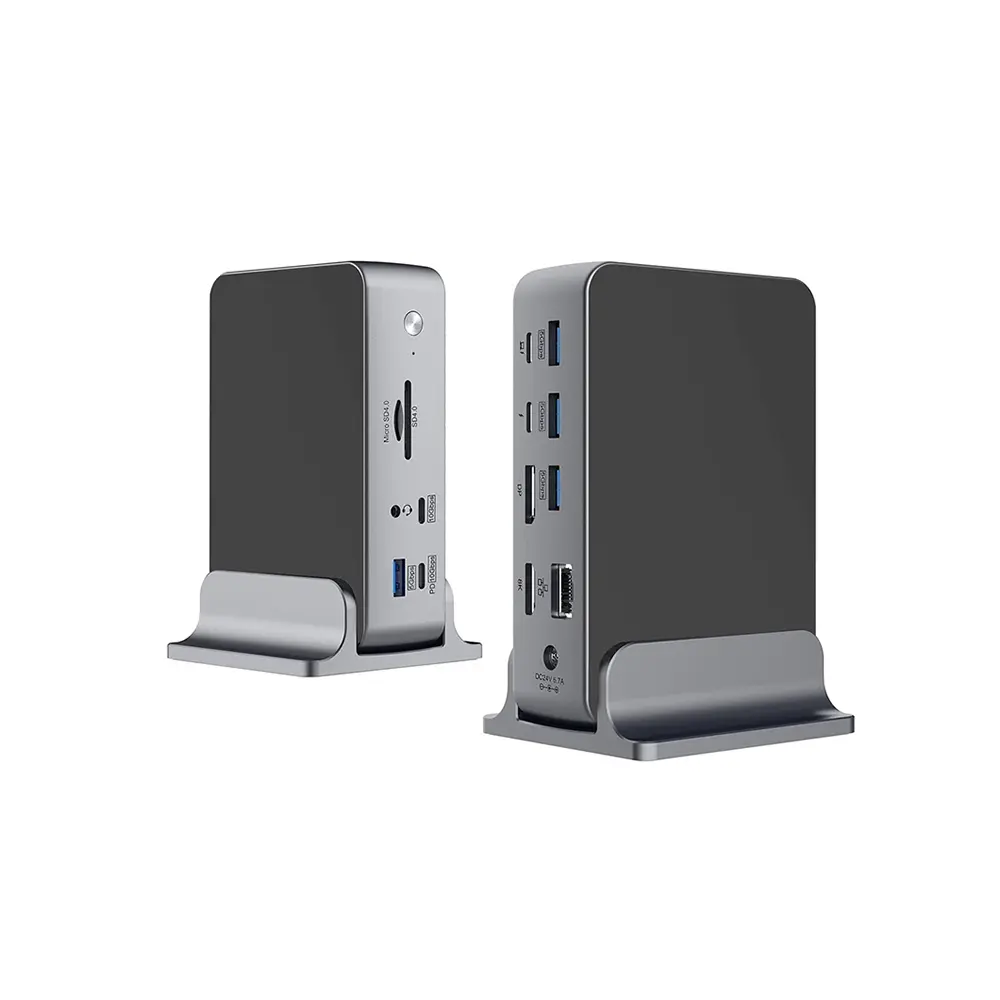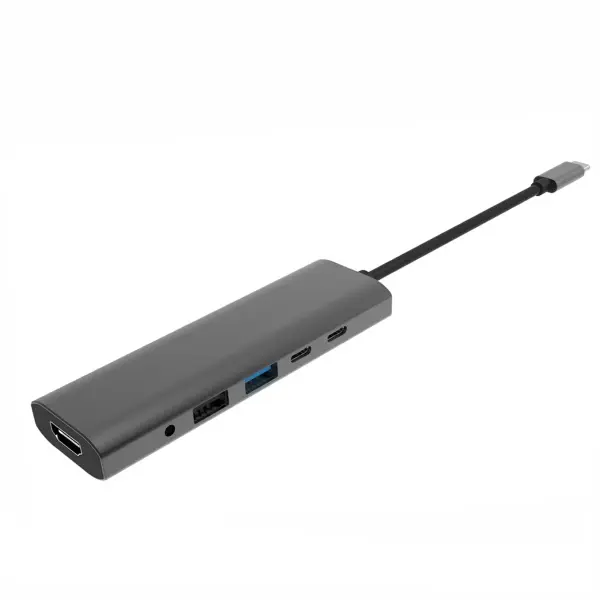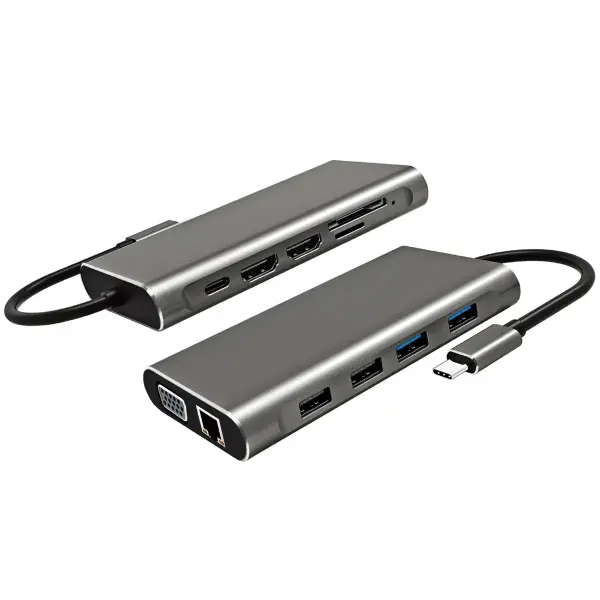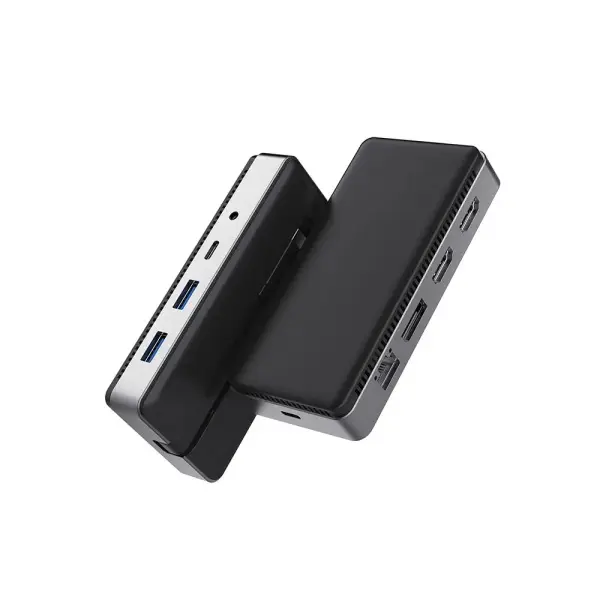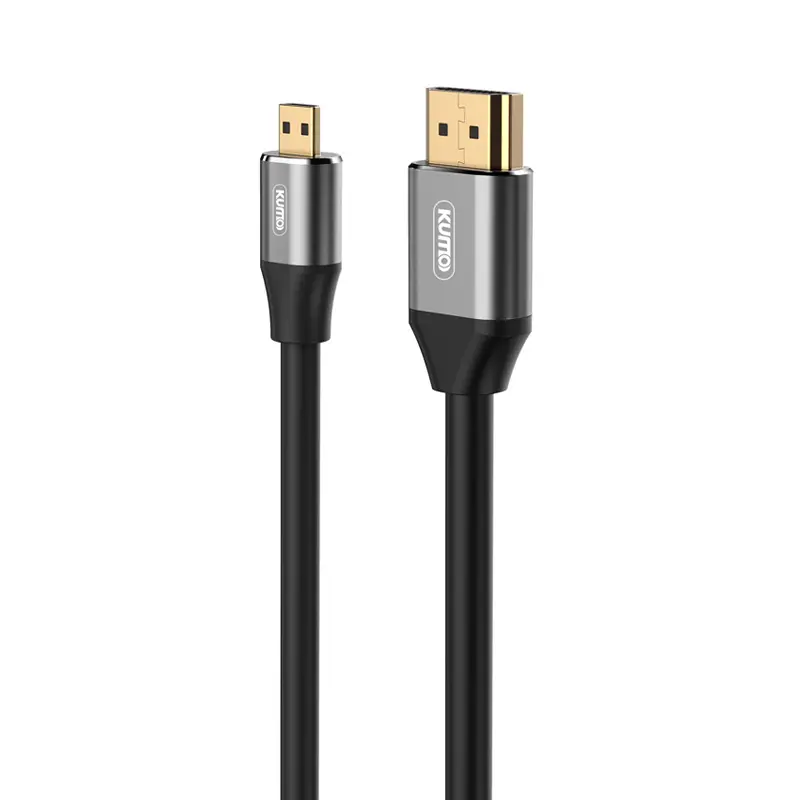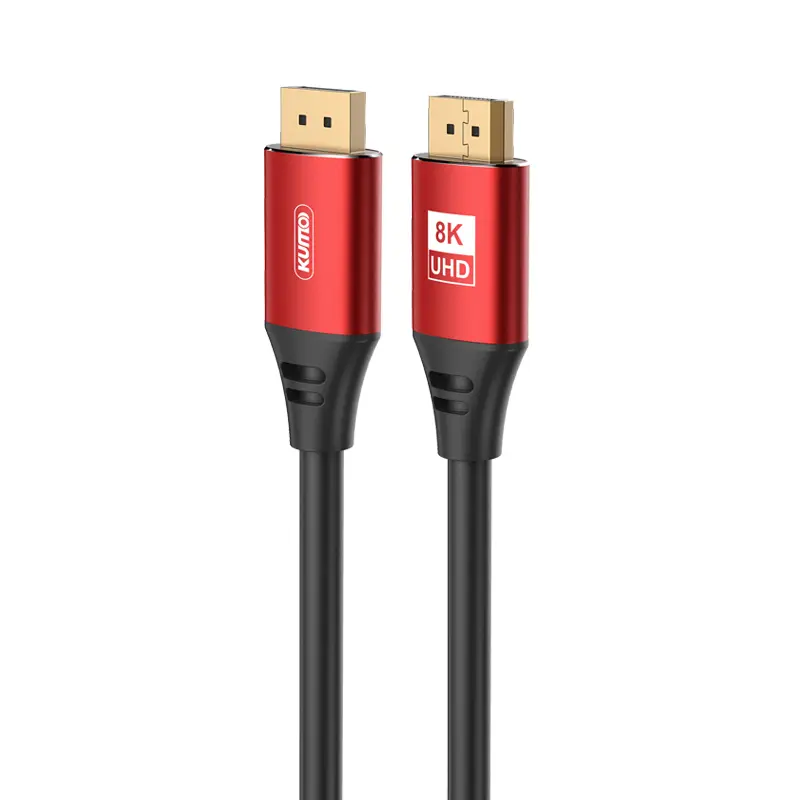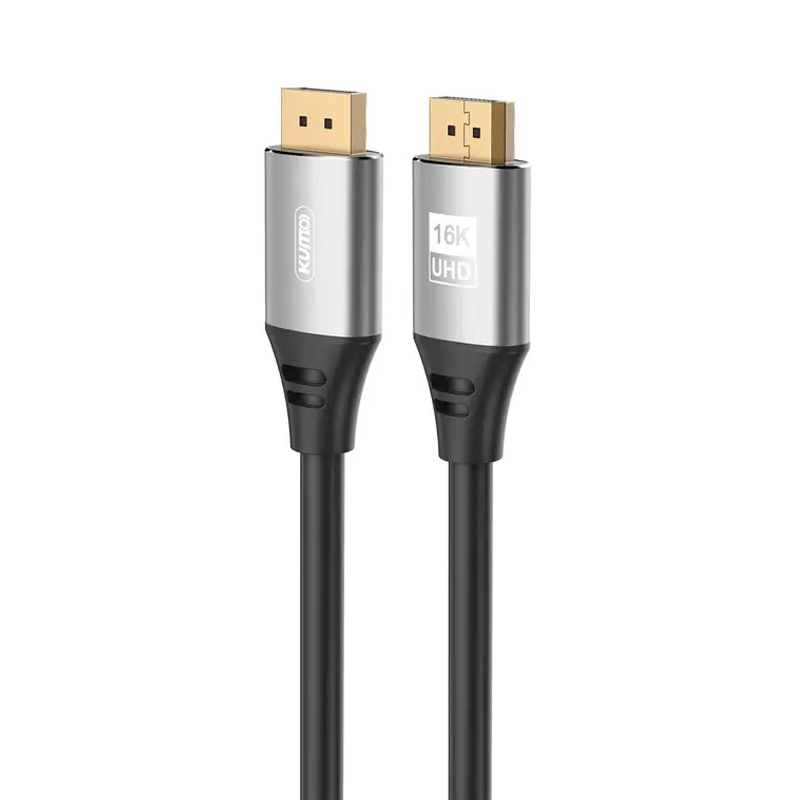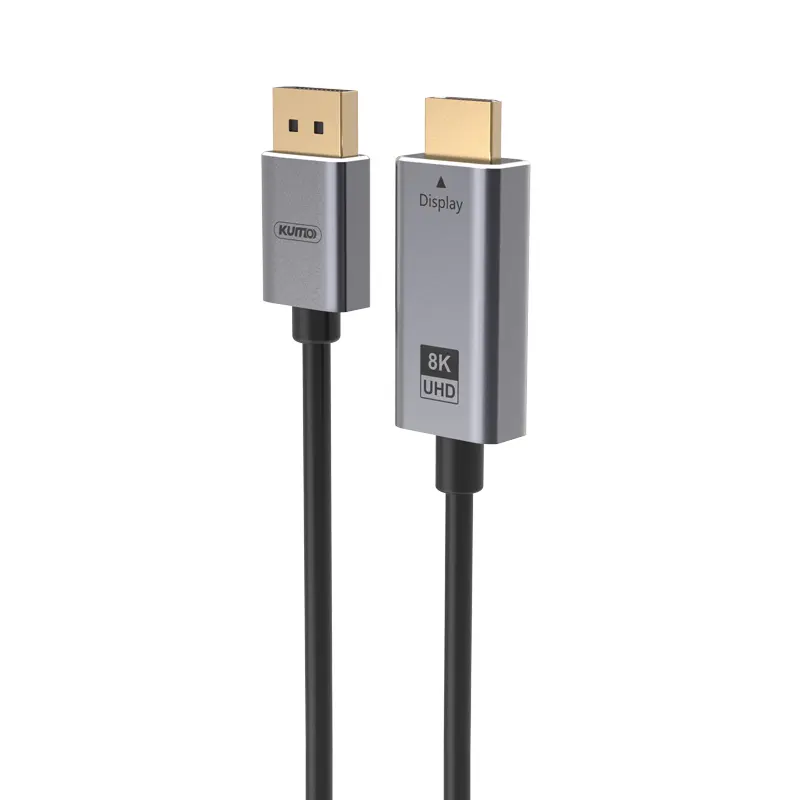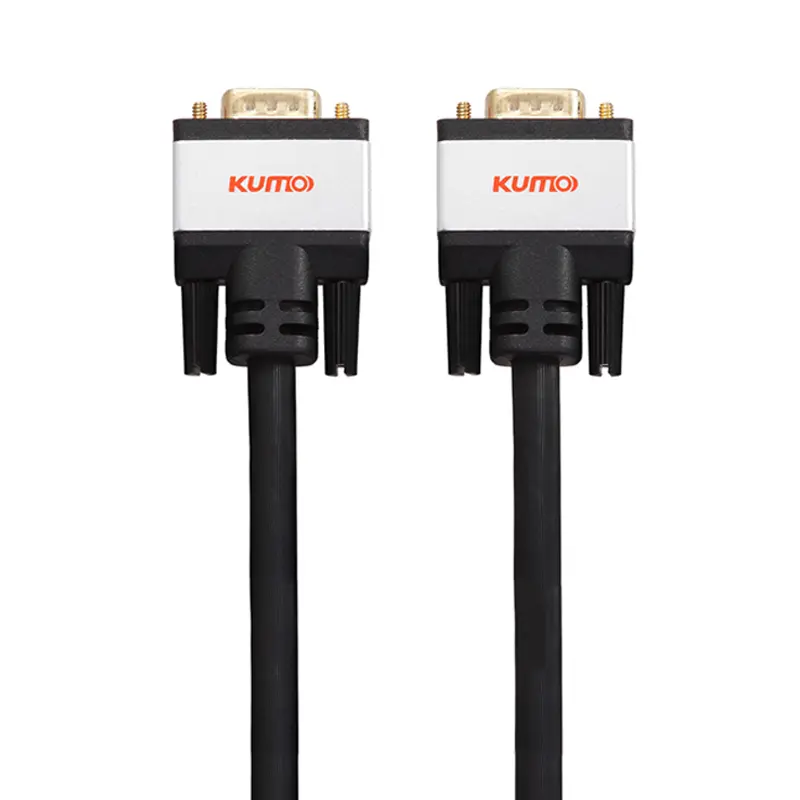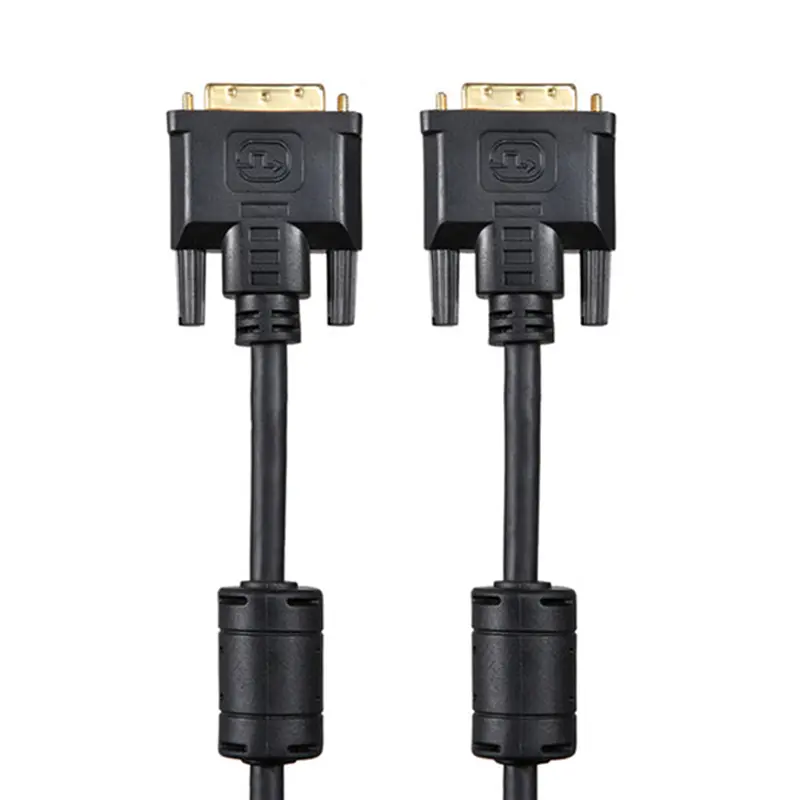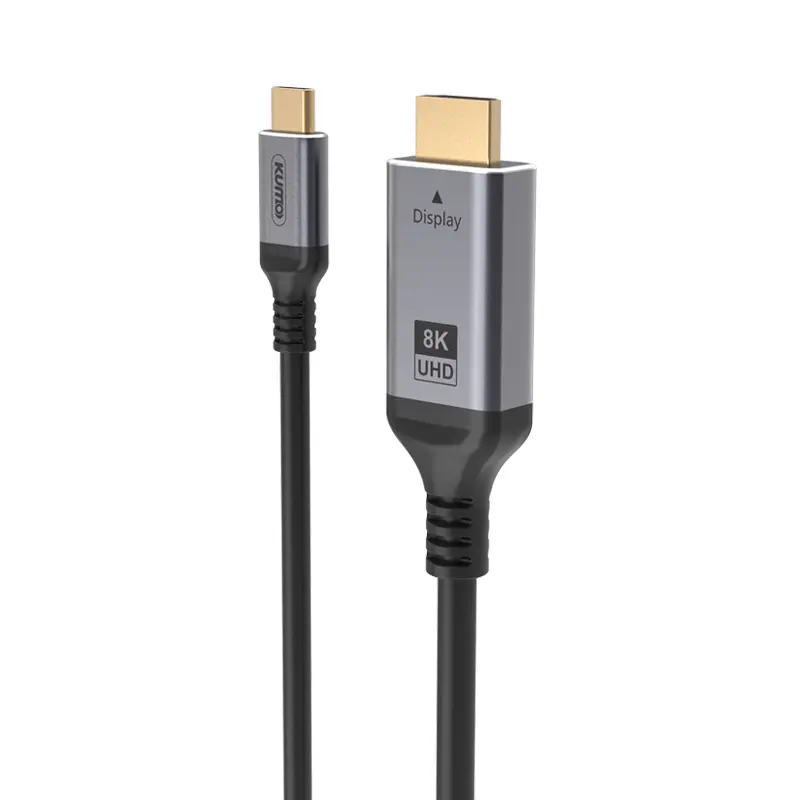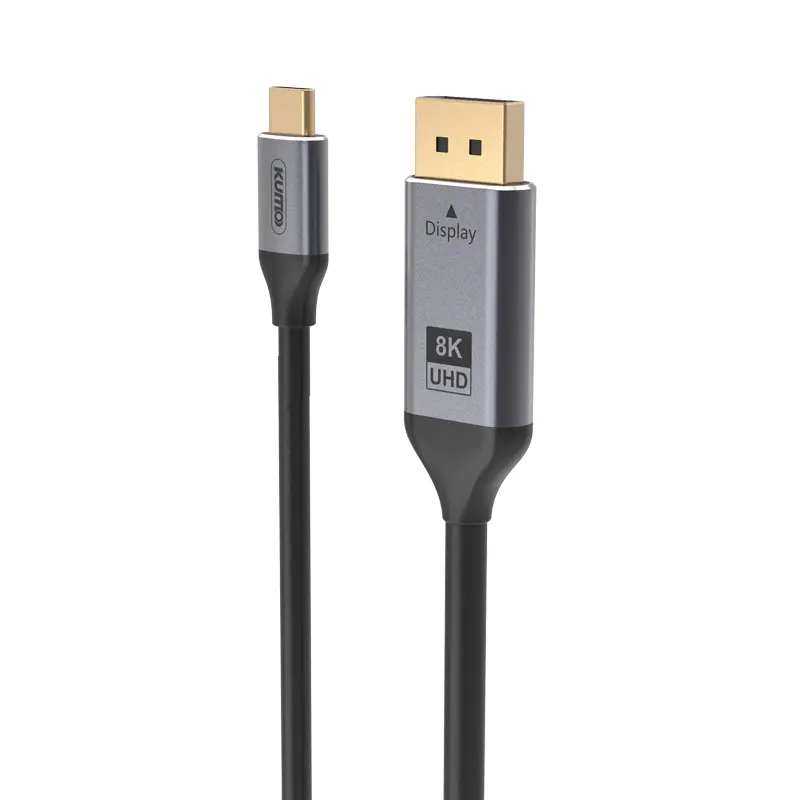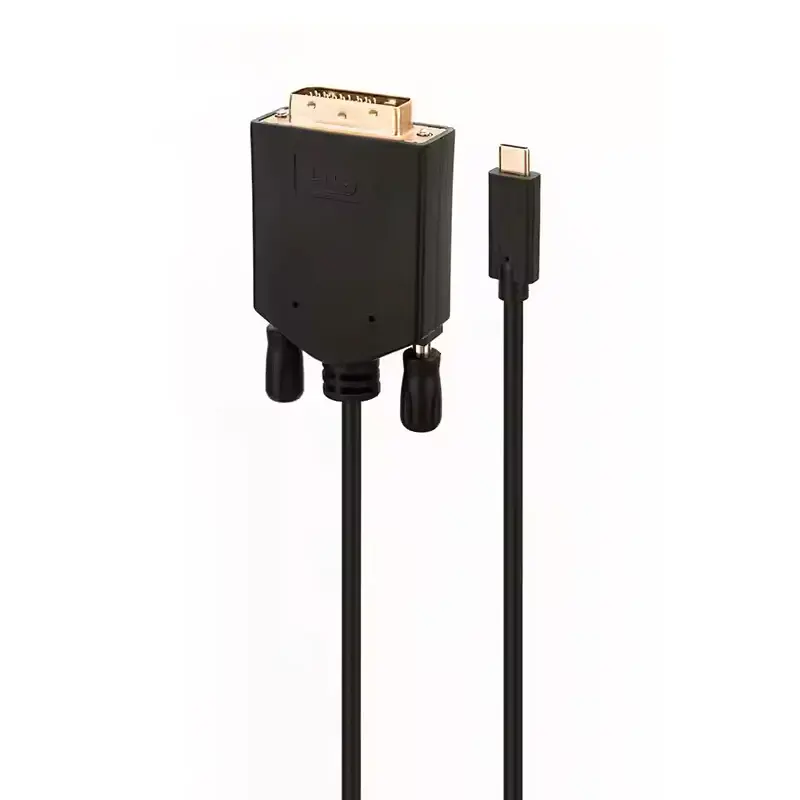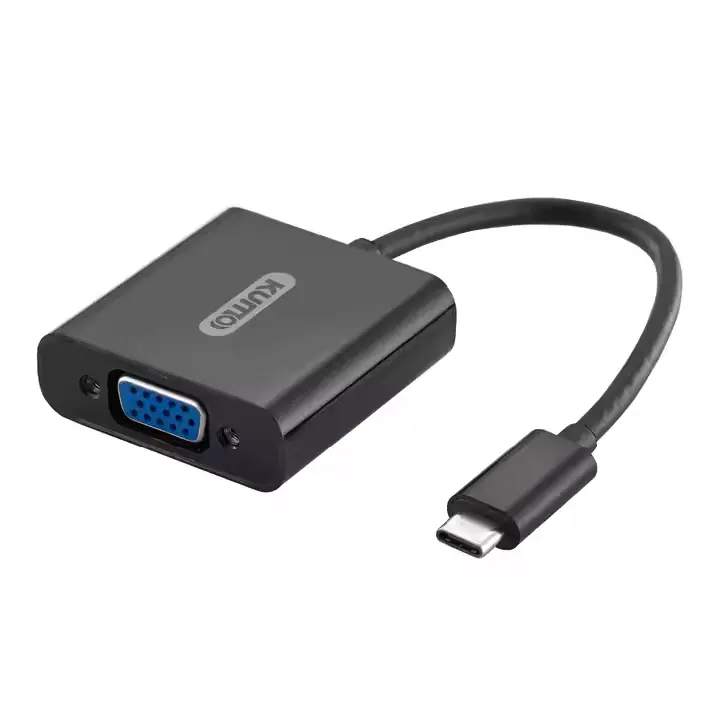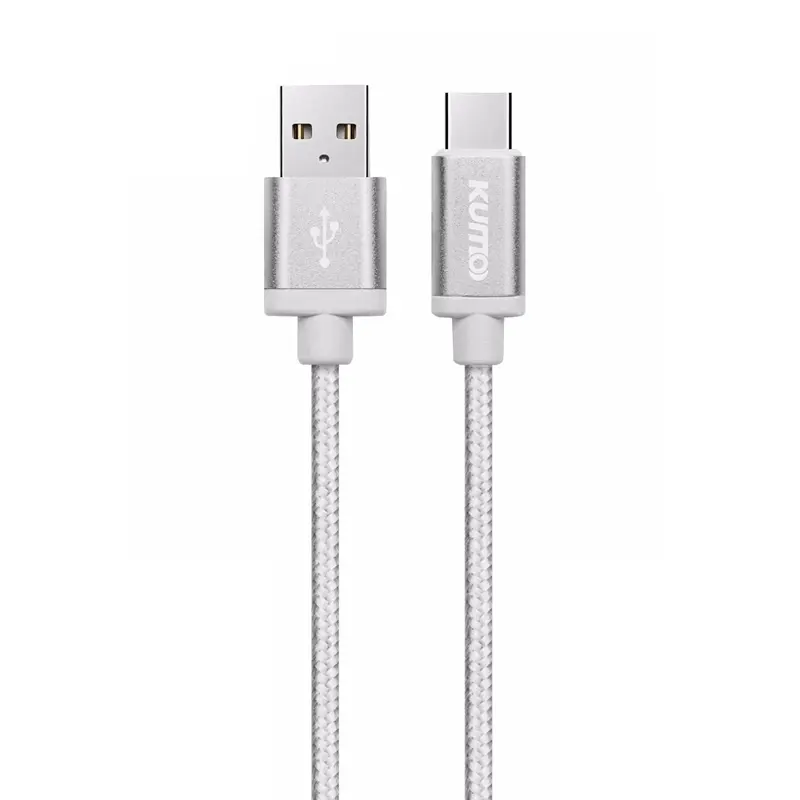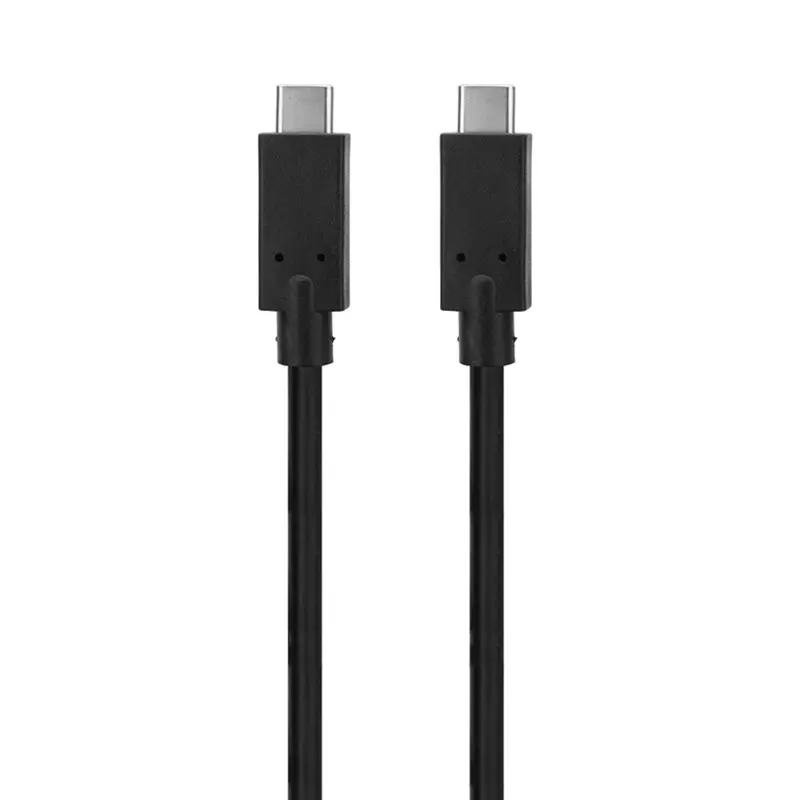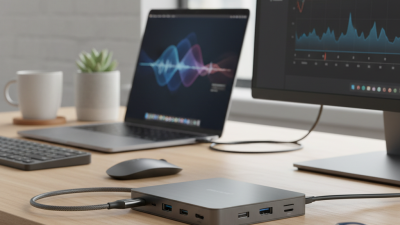
Choosing a Type C Docking Station For Laptop can turn a crowded desk into a more practical workspace. One cable may connect a laptop to a monitor, keyboard, mouse, and network, while also supplying power on compatible models. The right setup depends on your laptop’s USB-C capabilities, not just the shape of its port. Some ports support video and charging; others do not. Check the manufacturer’s specifications before buying.
This guide introduces ten docking stations available from Chinese brands and suppliers, comparing useful details such as port selection, display support, power delivery, build, and portability. A compact aluminum hub may suit a commuter carrying a laptop between meetings. A larger dock with Ethernet and several USB ports may fit a permanent home-office setup better. Small details matter. A long cable can keep a dock from dangling beside a laptop, while crowded ports can make larger adapters awkward to use. Product specifications and availability can change, so confirm current details with the seller and laptop maker. These picks are a starting point, not a promise that every model suits every device. I may give too much weight to ports on paper; real desk use can be less tidy. Compare the features you need, and leave room for that uncertainty.
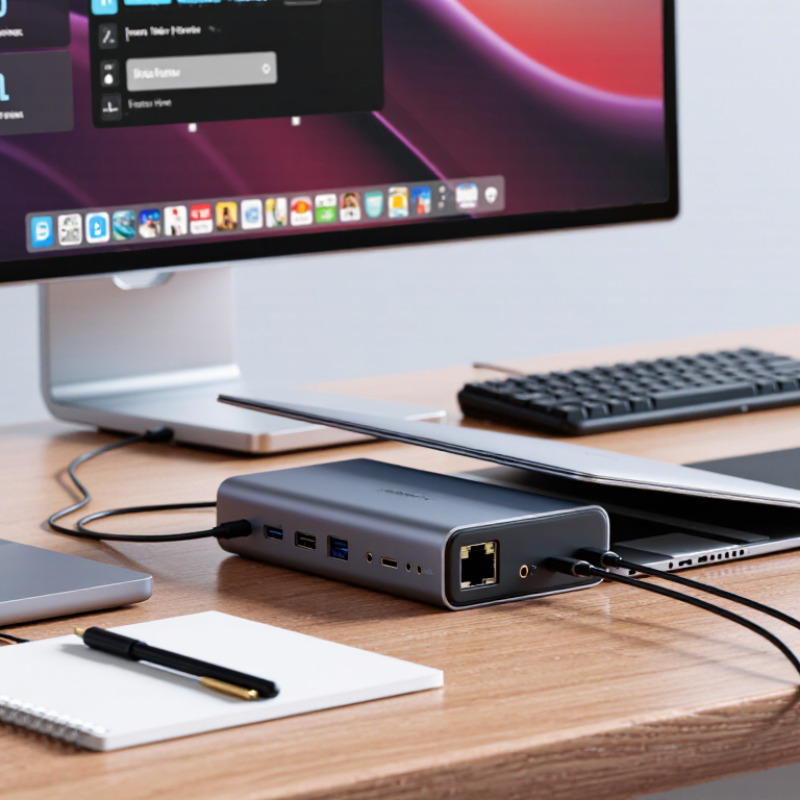
USB-C docking stations can make a laptop desk feel less crowded, but their ports do not all perform alike. USB4 supports up to 40Gbps of theoretical bandwidth. That is a ceiling, not a promise for every connected device. The laptop, dock, cable, and peripherals must all support the relevant USB4 features. Check the specifications on each item. A cable that looks sturdy may still have lower data rates.
Bandwidth is shared when several devices transfer data at once. For example, copying large files to an external drive while using displays and network storage can reduce the speed available to each connection. Display output also depends on the laptop’s graphics capabilities and the dock’s supported resolution. Small details matter.
Look for clearly stated USB4 data rates, display limits, charging capacity, and port layouts when comparing docking stations sold in China. A short, certified cable can help avoid connection problems, though certification labels are easy to overlook.
I would not choose a dock by port count alone; a crowded row of sockets is not much use if the host connection becomes a bottleneck. Specifications can be confusing, and even careful comparisons leave room for surprises.
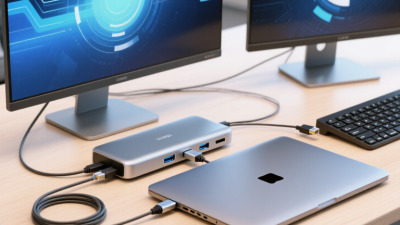
Key Selection Metrics: Ports, Compatibility, Display Output, and Power Delivery
A useful USB-C dock should match your daily desk setup, not just display a long port list. Count the devices you connect: perhaps a mouse, keyboard, external drive, network cable, and headset. Then leave one spare port for a camera or thumb drive. Check whether USB-A, USB-C data, Ethernet, and audio ports are included. A charging-shaped USB-C port may not transfer data. Small details matter.
Compatibility needs careful checking. Some laptop USB-C ports support charging and data but not video output. Confirm DisplayPort Alt Mode or Thunderbolt support in your laptop specifications. For monitors, compare the dock’s supported resolution and refresh rate with your screen. A dock might drive one 4K display smoothly but limit two displays to lower refresh rates. Operating system support and graphics hardware can also affect results. I would verify these details before buying; product descriptions are not always clear.
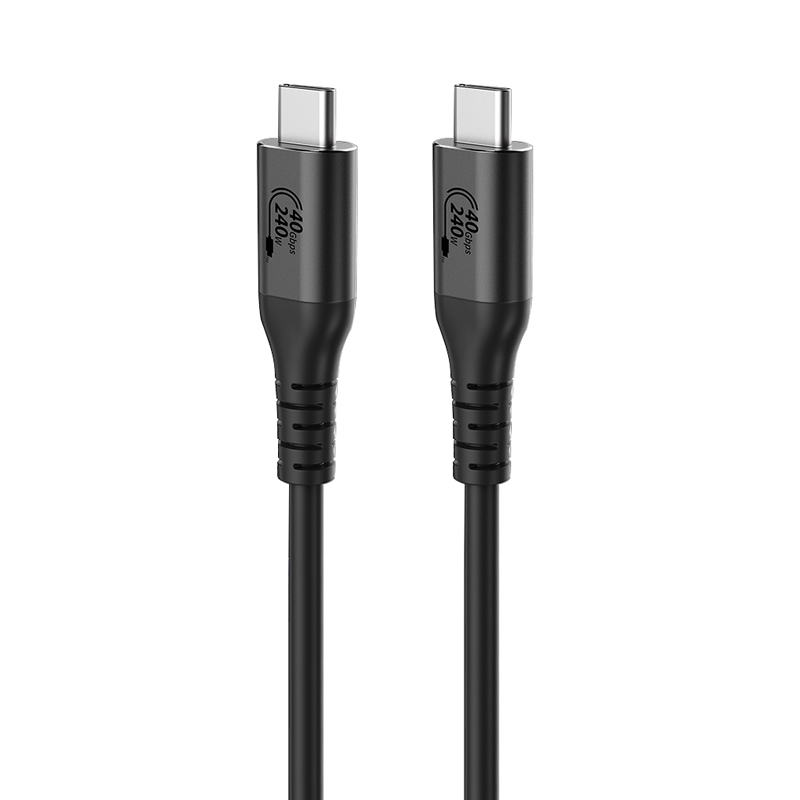
For laptop docking stations, USB Power Delivery 3.1 changes the charging conversation. USB-IF’s 2021 specification describes Extended Power Range support up to 240W, using as much as 48V at 5A. That can accommodate demanding laptops, but only when the computer, dock, charger, and cable all support the required power profile. A 240W label alone proves little. Check the dock’s stated host-charging output, not just its adapter rating.
Display performance needs its own check. VESA’s DisplayPort 2.1 specification supports up to 80 Gbps of raw link bandwidth with UHBR20, but a dock may offer less, and laptops differ in video output. Resolution, refresh rate, connected screens, and USB data traffic can all affect the result. Tiny details matter. Before buying, match the dock’s listed display modes against the laptop’s port capabilities and your monitors. I would also verify whether the advertised charging figure applies while every display and peripheral is connected; product pages do not always make that clear. The standards set a ceiling, not a guarantee of real-world performance.
China’s top ten laptop docks are best compared by what they actually deliver, not by port count alone. Check whether the USB-C connection supports video, data, and laptop charging; these functions are not guaranteed by the connector’s shape. A dock with HDMI, DisplayPort, Ethernet, and several USB ports may suit a desk setup, while a smaller model can be easier to carry. Details matter. Confirm your laptop’s display limits and the dock’s supported resolution before buying.
Performance depends on shared bandwidth, power delivery, and heat management. If you connect two monitors, an external drive, and wired internet, traffic may compete for available bandwidth. Compare the dock’s stated charging output with your laptop’s needs, and look for clear information about supported display modes. Value means more than a low price: included power supplies, cable quality, warranty terms, and useful port placement all affect everyday convenience. Specifications can look impressive, yet still leave practical questions unanswered.
Tips: Sketch your actual setup before comparing models. Count the screens and devices you use, then check each connection against the dock’s specifications. Leave room for future needs, but avoid paying for ports that will stay unused. One limitation: product listings may not explain real-world performance clearly, so verify key details with the seller.
Choosing a Type-C docking station starts with the laptop’s own ports. USB-C is only a connector; video output and charging depend on the laptop’s supported features. Check its manual before comparing docks. Start with the laptop, not the dock. For office work, look for stable network access, enough USB ports, and power delivery that matches the computer’s needs. A dock that charges slowly can leave a busy workday frustrating.
Travel favors a compact, lightweight dock with the connections you actually use. Extra ports look useful, but they add little if the dock stays in a bag. Keep the power adapter in mind, too. Multi-monitor setups need closer checking: confirm supported screen count, resolution, and refresh rate, along with the laptop’s display limits. Two video sockets do not always mean two independent displays. That detail is easy to miss.
For gaming, verify refresh-rate support and connect demanding peripherals directly to the laptop when practical. A dock can simplify a desk, but it may not suit every high-refresh display or setup. Check the specifications rather than relying on port labels alone. It is tempting to choose the model with the most connections; a better fit is the one that handles your daily screens, charging, and travel routine without awkward compromises.