Inquiry
Form loading...

How to Choose the Best Type C Hub for Global Sourcing?

Choosing the right Type C Hub can protect a global sourcing project from costly surprises. Product photographs are not enough. A hub may support charging, data transfer, and display output, yet fail under real working conditions.

Benson Leung, a former Google engineer known for testing USB-C products, once warned, “USB-C is a mess.” His comment remains relevant for buyers comparing similar-looking devices. A reliable Type C Hub should match the required USB version, power delivery rating, video protocol, and port combination. Check whether it supports HDMI, DisplayPort, Ethernet, SD cards, or multiple screens. Confirm the actual transfer speed. Marketing labels can be vague.

Experience matters here. Ask suppliers for chipset details, safety test records, operating-system compatibility, and independent certification evidence. Request samples from different production batches. Test them with the laptops, monitors, chargers, and cables used by your customers. Watch for heat around the aluminum case. Check connection stability after several hours. Small errors multiply.

Global sourcing adds another layer. Verify plug and power-adapter requirements for each destination market. Review packaging language, warranty terms, firmware support, and replacement procedures. A low unit price may hide higher return costs. I would also audit factory process controls, though an audit alone cannot guarantee long-term reliability. That is an uncomfortable truth.

The best Type C Hub is not simply the one with the most ports. It is the one that performs consistently, travels safely, and fits the buyer’s complete equipment ecosystem. Careful comparison creates stronger sourcing decisions.
How to Choose the Best Type C Hub for Global Sourcing?

Define Type-C Hub Requirements for Global Use

Defining Type-C hub requirements starts with the devices it must support worldwide.

List the host computers, tablets, monitors, storage devices, and network equipment used by your customers. Do not assume every USB-C port offers identical performance. Some support charging only, while others handle video, data, or multiple functions.

Set clear technical targets before comparing suppliers. Specify data speeds, video resolution, charging power, Ethernet rate, card formats, and the number of active ports.

For global use, request tested compatibility across different operating systems and regional power conditions. Confirm the hub’s input voltage range, heat control, cable length, and enclosure durability.

Product documents should include test reports, safety information, and traceable quality procedures. In my sourcing work, missing power details often caused more problems than missing ports. That lesson still needs reviewing.

Tips:

Build a practical test list with real devices. Test displays waking from sleep, large file transfers, simultaneous charging, and network stability.

Check whether the hub becomes uncomfortable after several hours. Ask suppliers for sample units, inspection records, and failure-rate data.

A small pilot order can reveal connector looseness, unstable video output, or confusing instructions before larger purchasing decisions. Keep a written acceptance standard, even if it feels unnecessary.
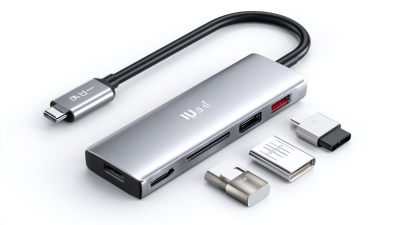
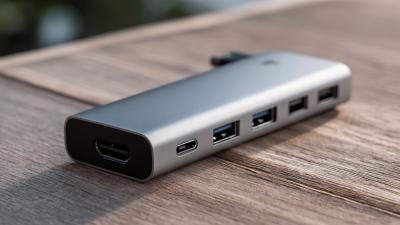
Compare Ports, Data Speeds, Charging, and Display Support

How to Choose the Best Type C Hub for Global Sourcing?

Compare Ports, Data Speeds, Charging, and Display Support

When sourcing a Type C hub, start with the devices your buyers actually use. Count the required ports, not the attractive ports listed on a product page. A compact model may offer USB-A, HDMI, Ethernet, and card readers, but shared bandwidth can reduce performance. A product that looks flexible may disappoint during real office use.

Data speed needs careful verification. USB 3.2 can be much faster than USB 2.0, even when both use similar connectors. Ask suppliers for test results, chipset details, and transfer conditions. I once approved a sample after copying a small file. That shortcut was a mistake. Larger video folders exposed unstable speeds and heat issues. Test with realistic files.

Charging support also deserves precise attention. Check power delivery input, output limits, and whether the hub reserves power for itself. A 100-watt input does not always mean 100 watts reaches the laptop. Display support requires similar caution. Confirm resolution, refresh rate, connector type, and the number of independent screens. Some hubs support high resolution only at lower refresh rates. Others mirror displays instead of extending them.

Keep records.

For global sourcing, request samples from different production batches. Test them with common laptops, monitors, chargers, and memory cards. Regional plug standards may change the bundle, but compatibility testing should remain consistent. I still find this stage imperfect. Supplier specifications can be accurate yet incomplete, so practical evidence matters more than polished listings.

How to Choose the Best Type C Hub for Global Sourcing? - Compare Ports, Data Speeds, Charging, and Display Support
Hub Type Typical Port Configuration Data Performance Charging Support Display Support Network and Card Features Best Use Case Global Sourcing Checkpoints
Compact 4-in-1 Hub 1 × USB-C host connector
1 × USB-C power input
2 × USB-A data ports
1 × HDMI output
USB 3.2 Gen 1 data ports up to 5 Gbps each; actual throughput is lower when several ports share the hub bandwidth. USB-C Power Delivery pass-through commonly up to 100 W input; host-device charging output is usually lower after power conversion. Typically supports one HDMI display up to 4K at 30 Hz, depending on host USB-C DisplayPort Alt Mode support. Usually no Ethernet or card reader. Travel, presentations, keyboards, mice, and basic external storage. Confirm whether the USB-C host port supports video output and whether the HDMI mode is 4K/30 Hz rather than 4K/60 Hz.
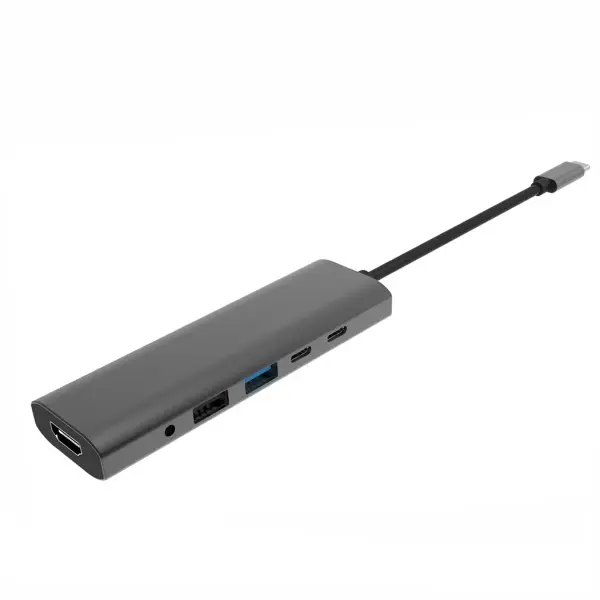
Balanced 6-in-1 Hub 1 × USB-C host connector
1 × USB-C power input
2 × USB-A data ports
1 × USB-C data port
1 × HDMI output
Usually includes USB 3.2 Gen 1 ports up to 5 Gbps; some configurations provide one USB-C port at USB 3.2 Gen 2 up to 10 Gbps. Power Delivery pass-through commonly rated at 100 W input, with approximately 85 W available to the host in many designs after internal power use. Normally one HDMI output up to 4K at 60 Hz when the host, cable, and hub chipset support the required DisplayPort bandwidth. May include a USB-C data port but generally lacks wired Ethernet and card slots. Office productivity, external SSDs, one monitor, and everyday business travel. Request separate test results for simultaneous HDMI output, USB data transfer, and Power Delivery charging.
Multimedia 8-in-1 Hub 1 × USB-C host connector
1 × USB-C power input
2 × USB-A data ports
1 × USB-C data port
1 × HDMI output
1 × Gigabit Ethernet
1 × SD or microSD card slot
USB data ports are commonly 5 Gbps; card readers often use a shared bus and may not reach the theoretical speed of the memory card. Power Delivery pass-through commonly up to 100 W input; practical host charging is often below the input rating. One HDMI output is commonly available up to 4K at 60 Hz; display support is host-dependent and may be limited to 4K at 30 Hz on some computers. Gigabit Ethernet supports up to 1,000 Mbps link speed under suitable network conditions; SD and microSD slots may share bandwidth. Content creation, photography, remote work, and users who need wired networking. Check Ethernet controller compatibility, card-slot simultaneous-use behavior, regional certification, and heat performance during long transfers.
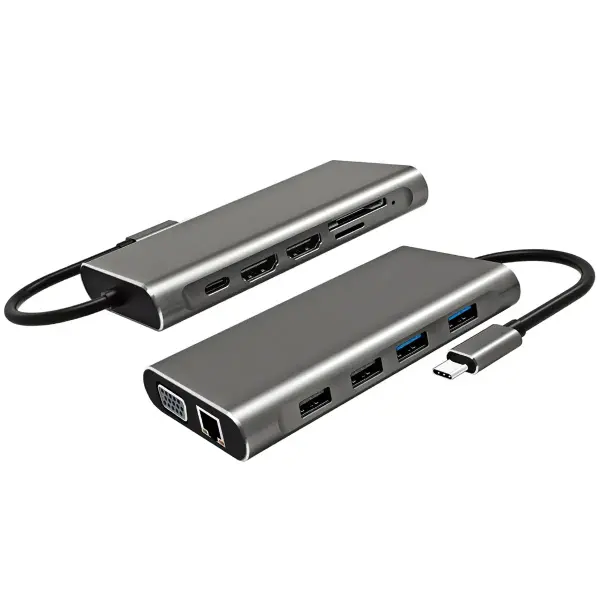
Performance 10-in-1 Hub 1 × USB-C host connector
1 × USB-C power input
2 × USB-A 5 Gbps ports
1 × USB-A 10 Gbps port
1 × USB-C 10 Gbps data port
1 × HDMI output
1 × Gigabit Ethernet
1 × SD slot
1 × microSD slot
Selected ports may support USB 3.2 Gen 2 up to 10 Gbps; total performance is limited by the host connection and internal hub architecture. Power Delivery input commonly up to 100 W; the hub may reserve several watts for its own operation, so the computer receives less than the advertised input rating. Typically one HDMI output up to 4K at 60 Hz. HDR, color depth, and refresh rate depend on the source device, display, cable, and chipset. Gigabit Ethernet plus separate SD and microSD readers; simultaneous card and USB use may reduce shared throughput. High-volume file transfers, media workflows, business laptops, and multi-peripheral workstations. Validate 10 Gbps performance with certified cables, confirm thermal throttling limits, and test sleep, wake, hot-plug, and operating-system compatibility.
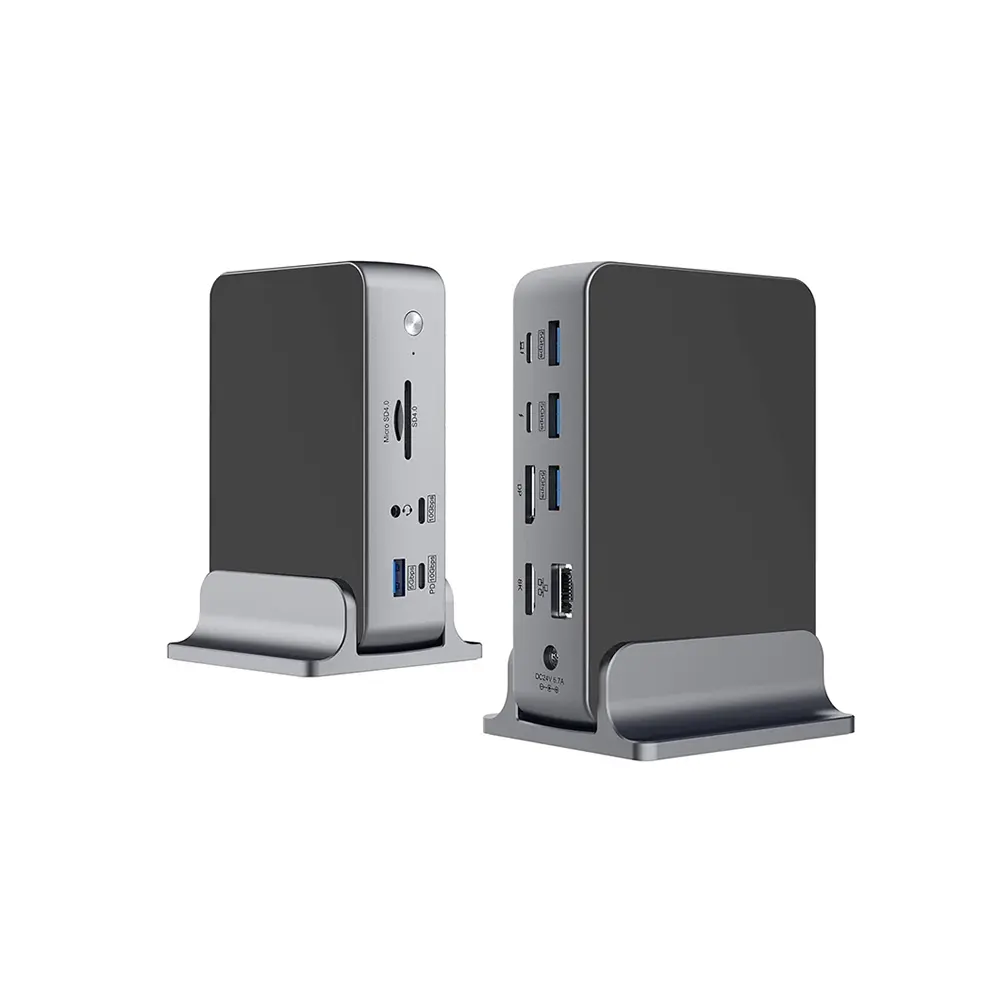
Desktop-Class Type-C Dock 1 × USB-C host connection
1 × USB-C Power Delivery input
3–4 × USB-A ports
1–2 × USB-C data ports
1–2 × video outputs
1 × Gigabit Ethernet
Audio input/output
Optional card reader
May combine USB 3.2 Gen 1 and Gen 2 ports; some models use DisplayLink for additional displays, which requires software and may add compression or latency. Commonly designed for 100 W or higher Power Delivery input; the host charging level depends on the dock design and computer charging requirements. May support one 4K/60 Hz display natively, or multiple displays through DisplayPort Alt Mode, MST, or DisplayLink. Multi-display support is not universal across operating systems. Usually includes Gigabit Ethernet, audio, multiple USB ports, and optional memory-card access. Permanent desks, conference rooms, shared workstations, and users requiring multiple peripherals. Verify display protocol, driver requirements, power-adapter inclusion, electrical safety approvals, firmware update process, and regional plug options.
Technical note: USB-C describes the connector shape, not the guaranteed speed or feature set. Before sourcing, verify USB data standard, DisplayPort Alt Mode capability, Power Delivery profile, supported operating systems, cable requirements, thermal behavior, and the maximum number and resolution of external displays. All stated speeds are theoretical link rates; real-world performance varies with the host computer, shared bandwidth, storage device, cable quality, firmware, and connected peripherals.

Evaluate Compatibility Across Devices, Operating Systems, and Regions

How to Choose the Best Type C Hub for Global Sourcing?

A reliable Type C hub must match every device in your target market. Check whether laptops, tablets, and phones support data, charging, and video through their Type C ports. Similar connectors can hide different capabilities. A hub may transfer files but fail to display a monitor. Test common operating systems, including current desktop and mobile versions. Some functions work automatically, while network ports or display outputs may require drivers. Updates can also change performance. I once trusted a compatibility chart that overlooked an older tablet, causing unstable charging during testing.

Tips: Request samples before placing a large order. Test each port separately. Try different cables, screen resolutions, and power levels. Keep written results.

Regional conditions deserve equal attention. Confirm the included power adapter suits local voltage and plug formats. Check certification requirements for each destination before shipment. Materials, labeling, and safety documents may vary by region. Avoid assuming one approval covers every market. A hub designed for office use may struggle in warm warehouses or crowded travel bags. Inspect heat levels after several hours of file transfer and charging. Small details matter. They affect returns, support costs, and customer trust. Compatibility is not only a software question; it is a real-world operating condition.

Assess Suppliers, Certifications, Quality Control, and Warranty Terms

How to Choose the Best Type C Hub for Global Sourcing?

Choosing a Type C hub starts with evaluating the supplier, not the product photos. In sourcing work, I ask for factory details, production capacity, and recent quality records. A reliable supplier should explain its testing process clearly. Vague answers often signal weak control.

Certifications need careful checking. Request current certificates, test reports, and the exact product model covered. A certificate alone does not prove stable quality. Confirm whether testing includes heat, charging safety, data transfer, and electromagnetic performance. Requirements may differ across destination markets. I have seen attractive samples fail during repeated port testing. That mistake is expensive.

Tips: Order samples from different production batches. Inspect connector fit, cable strain, casing gaps, and surface scratches. Ask for an inspection plan with measurable limits. During mass production, use independent inspections when possible. Keep records of defects and corrective actions. A small spreadsheet helps.

Warranty terms deserve equal attention. Check the warranty period, replacement process, response time, and responsibility for shipping costs. Ask how defective units are identified and reported. A long warranty sounds reassuring, but unclear return procedures create delays. Define acceptable failure rates in writing. I would also test support before ordering. Send practical questions and measure the response. Sometimes, the fastest reply is not the most useful one. Supplier performance should be reviewed after delivery, because my first assessment can be wrong.

How to Choose the Best Type-C Hub for Global Sourcing?

Power capability is one objective checkpoint when comparing suppliers. The chart shows recognized USB-C and USB Power Delivery power levels: 15 W at 5 V/3 A, 60 W at 20 V/3 A, 100 W at 20 V/5 A, and 240 W at 48 V/5 A under USB PD 3.1. Buyers should verify the hub’s actual power profile, test reports, safety certifications for the destination market, quality-control records, and written warranty terms before placing an order.

Calculate Total Sourcing Costs, Lead Times, and Supply Risks

How to Choose the Best Type C Hub for Global Sourcing?

Calculate Total Sourcing Costs, Lead Times, and Supply Risks

A low unit price rarely shows the real cost of a Type C hub. Build a landed-cost sheet before comparing suppliers. Include tooling, samples, testing, packaging, freight, insurance, duties, inspection, and payment fees. A hub quoted at $6 may reach $9 after delivery and quality checks. Small details matter. Extra cables add weight. Custom packaging increases carton volume.

Lead time also needs practical measurement. Ask for sample time, production time, inspection time, and transport time separately. A supplier may promise 20 production days, while port delays add another 10 days. Keep a buffer for component shortages and rework. Confirm the hub’s chipset, power delivery rating, video resolution, and port layout before approving samples. One missing specification can delay an entire shipment.

Supply risk deserves a written review. Check whether critical chips have alternative sources and whether the factory can provide recent test reports. Request batch traceability, pre-shipment inspection, and a clear defect-handling process. Avoid relying on one supplier for every order. Split volume only when the second supplier can match performance and delivery standards. This may increase coordination costs, but it can reduce disruption.

I still underestimate communication delays sometimes. Time zones, unclear drawings, and late approvals quietly extend schedules. A shared specification sheet helps, although it will not solve everything. Evaluate samples under real use, not only on a clean inspection table. A hub that works at home may overheat during continuous office use.