Inquiry
Form loading...

What Is a 4 Port USB C 3.0 Hub?

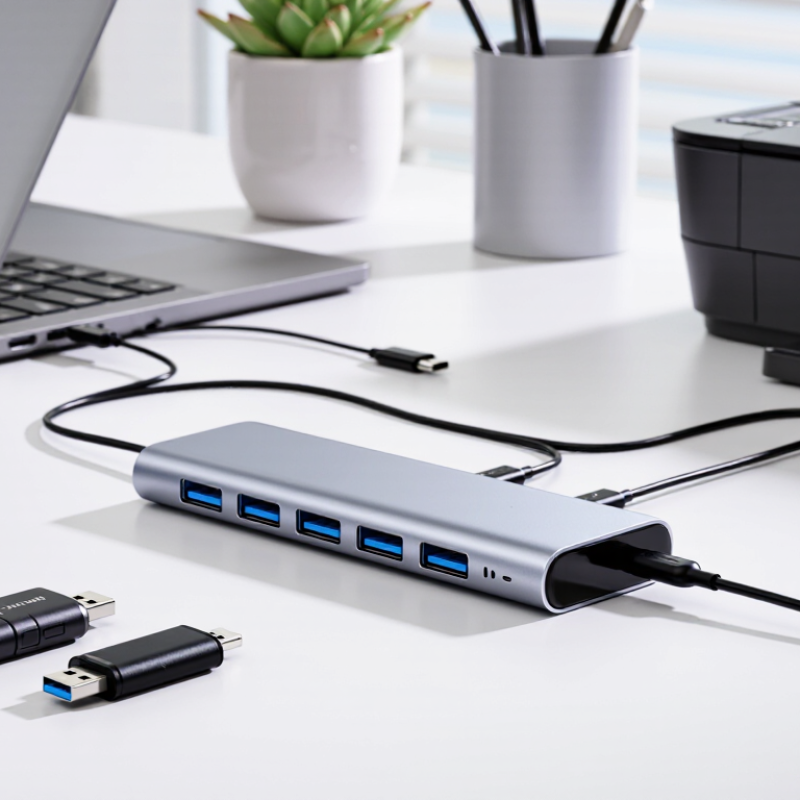
A Usb-C 3.0 Hub 4 Ports is a compact adapter that connects four USB devices through one USB-C host connection. It can bring a keyboard, mouse, flash drive, and printer together on a laptop’s single port. Small enough for a desk edge. Yet the name can be confusing: USB-C describes the connector shape, while USB 3.0 describes data-transfer capability.

USB-IF technical specifications list USB 3.0’s signaling rate as up to 5 Gbps. That is a theoretical maximum, not a promise for every file transfer. When several devices use a four-port hub, they share the upstream connection, so actual speeds can vary. USB-IF’s naming updates also identify the familiar 5 Gbps tier as USB 3.2 Gen 1. Check the product’s specifications, not just its headline.

USB-IF President Jeff Ravencraft has described USB Type-C as “the next-generation USB connector and the future of USB.” His remark concerns the connector standard, not a guarantee that every hub supports charging, video, or identical performance. That distinction matters. A hub may offer four data ports without Power Delivery or display output. Before choosing one, confirm its stated speed, power limits, and compatibility with your computer. A tidy desk is useful; a clear specification sheet is more useful.
What Is a 4 Port USB C 3.0 Hub?

Definition and Core Components of a 4-Port USB-C 3.0 Hub

A 4-port USB-C 3.0 hub is a compact device that connects several USB accessories to one computer port. Its core parts include an upstream USB-C cable or connector, four downstream ports, a hub controller, and power-management circuitry. The controller routes data between the computer and connected devices. The casing protects these parts and helps manage heat.

USB-IF’s USB 3.0 specification sets a theoretical signaling rate of 5 Gbps. That is a shared connection, not a promise of 5 Gbps for every port at once. File transfers can be slower because of the computer, cable, device, or other active ports. Real speeds vary.

USB-IF’s USB Type-C specifications also distinguish the connector from the data protocol: a USB-C plug alone does not guarantee USB 3.0 speed or high-power charging.

Power is another core component. A hub may draw power from the host computer or accept power through a separate input. This affects practical use with devices such as portable drives, webcams, and keyboards. Check the hub’s stated data rate and power limits, not just its port count.

A phone may connect neatly, yet a power-hungry drive might disconnect under load. That distinction is easy to miss.
How the Hub Connects to a USB-C Host Device

What Is a 4 Port USB C 3.0 Hub?

How the Hub Connects to a USB-C Host Device

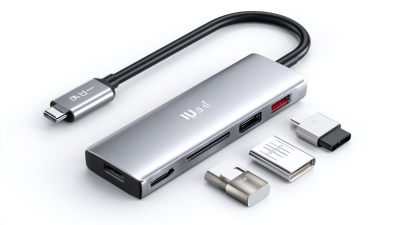
A four-port USB-C 3.0 hub connects to a host through one upstream USB-C cable. The cable carries data between the computer and the hub; the hub then makes that connection available to four downstream ports. A USB-C-shaped socket alone does not guarantee data support. Check the host port’s specifications, especially on tablets and slim laptops, where some ports may support charging or display output without USB data. Small detail, big difference.

USB-IF’s published USB 3.2 specification sets USB 3.2 Gen 1 signaling at up to 5 Gbps, the familiar USB 3.0 link rate. That is a theoretical maximum for the shared upstream connection, not a speed each port receives independently. Several drives copying files at once can divide available bandwidth, and real transfer rates are lower because of overhead and device limits. The USB Type-C connector specification also describes a reversible plug, which makes connection orientation simple; it does not define every host port’s capabilities. Check the label. In practice, confirming the host’s data support and the hub’s upstream connector prevents a surprisingly common mismatch.

USB 3.0 Data Transfer and Port Capabilities

A four-port USB-C 3.0 hub lets one computer connection serve several USB devices. Its USB 3.0 link has a theoretical maximum of 5 Gbps, but that capacity is shared across the hub’s downstream ports. A file copy to an external drive can slow when a webcam and another storage device are active at the same time. Real transfer rates also depend on the computer, cable, and connected device.

The USB-C connector describes the plug shape, not the data speed. Check the hub’s specifications to confirm USB 3.0 support; some USB-C hubs offer slower data rates. Not always obvious. A 5 Gbps rating is a theoretical ceiling, not a promise that one drive will reach that speed. Protocol overhead and device limits reduce real-world performance. For example, copying a large folder may take longer than the headline number suggests.

Port count also does not guarantee enough power for every device. A keyboard and mouse usually draw little, while a portable hard drive may need more. Some hubs accept a separate power adapter, but that does not increase data bandwidth. I used to treat extra ports as extra capacity; that was an imperfect assumption. Check whether the hub supports the devices you plan to connect, and whether its power input is required for them.

Device Compatibility and Power Considerations

What Is a 4 Port USB C 3.0 Hub?
Device Compatibility and Power Considerations

A 4-port USB-C 3.0 hub expands one compatible USB-C connection into four USB-A ports. It can connect items such as a keyboard, mouse, flash drive, or card reader. Check your computer’s port specifications before buying. USB-C describes the connector shape, not every feature it supports. A USB-C port may lack USB 3.0 data speeds, video output, or charging support. Small detail, big difference.

The four ports share the hub’s connection to the computer. USB 3.0 offers up to 5 Gbps under ideal conditions, but real transfer speeds vary. Several active drives may slow each other down. Power matters too. A bus-powered hub draws energy from the computer, which is often enough for low-power accessories. Portable hard drives or multiple devices may need more power than the port can provide. Disconnects can happen. I’ve found that checking device power needs is easy to overlook.

Tips: Connect high-demand devices one at a time and watch for dropouts. Check whether the hub includes an optional power input. Keep the cable short and firmly seated, especially during large file transfers. If reliability matters more than portability, a powered hub may be worth considering.

What Is a 4 Port USB C 3.0 Hub? — Device Compatibility and Power Considerations

A four-port USB-C 3.0 hub connects several USB devices through one USB-C host connection. The chart compares nominal link rates: USB 3.0 supports up to 5 Gbit/s, while USB 2.0 supports up to 480 Mbit/s. These are theoretical rates; actual transfer speeds are lower.

USB 3.0 bandwidth is shared among devices using the hub’s upstream connection, and a USB-C connector alone does not guarantee USB 3.0 speeds. USB 2.0 devices can generally connect but operate at USB 2.0 rates. Available power depends on the host and hub design; bus-powered hubs may not supply enough power for multiple high-draw devices, so check device requirements and whether the hub needs an external power adapter.

Common Uses and Practical Limitations of the Hub

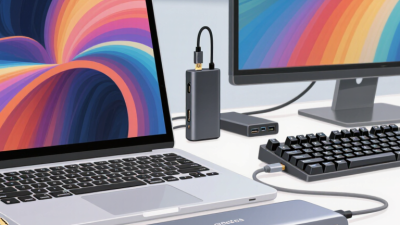
A 4-port USB-C 3.0 hub connects several USB devices to one computer port. Usually, its USB-C plug connects to the computer, while four USB-A sockets serve accessories. A typical setup might include a keyboard, mouse, flash drive, and wired headset. Handy on a crowded desk. It can also help when a thin laptop has few built-in ports.

The four sockets share the hub’s connection to the computer, which is rated for up to 5 Gbps under USB 3.0 specifications. That is a theoretical maximum, not a promise that every device will reach it. Copying large files from two fast drives can take longer than using one drive alone. Small devices draw power through the hub, but a bus-powered model may struggle with several power-hungry accessories. Check whether it has an external power input if you plan to connect portable drives or other demanding devices. A USB-C connector alone does not guarantee charging pass-through or video output; those features need explicit support. Easy to overlook. I would also check the cable length before buying: a short lead can leave the hub dangling beside a laptop, which is workable but awkward.

What Is a 4 Port USB C 3.0 Hub? — Common Uses and Practical Limitations

Aspect Typical specification or behavior Common use Practical limitation
What it is A compact adapter that connects to a computer through one USB-C upstream connection and provides four downstream USB ports. Port types vary by model. Adding ports to a laptop or other compatible host with limited built-in connectivity. “Four-port” describes the number of downstream ports, not the number of devices that can operate at full speed or power simultaneously.
USB 3.0 speed USB 3.0 is commonly marketed as USB 3.2 Gen 1 and has a signaling rate of up to 5 Gbps. Transferring files to compatible external storage or connecting other SuperSpeed USB devices. The 5 Gbps rate is a link maximum, not guaranteed application throughput. Protocol overhead and device performance reduce actual transfer speeds.
Shared bandwidth Devices connected through the hub share the hub’s upstream connection to the host. Using several peripherals at once, such as a keyboard, mouse, and storage device. Simultaneous high-bandwidth transfers can reduce the speed available to each device.
Port arrangement Many models provide four USB-A ports, while some use a combination of USB-A and USB-C ports. Connecting common USB accessories, flash drives, card readers, or compatible peripherals. Check the port types before buying. A USB-C-shaped port does not by itself indicate support for every USB-C feature.
Older USB devices USB 3.x hubs generally support compatible USB 2.0 devices at their lower USB 2.0 speeds. Using keyboards, mice, printers, and other legacy peripherals. A USB 2.0 device remains limited to USB 2.0 performance even when connected to a faster hub.
Power A bus-powered hub draws power from the host. Some models can accept external power, depending on their design. Running low-power accessories without carrying a separate power supply. Power available to connected devices is limited by the host, hub, and any external power supply. Multiple power-hungry devices may not work reliably together.
Charging Charging capability depends on the hub’s port design, power source, and supported charging standards. Keeping certain small accessories powered while using the hub. A USB-C connector does not guarantee laptop charging or USB Power Delivery pass-through. Confirm the specific model’s specifications.
Video output A basic USB data hub does not necessarily provide a display connection. Expanding USB connectivity while using the computer’s existing display outputs. Video over USB-C requires support from the host, the hub, and the relevant connection standard. A USB 3.0 data hub alone does not add video output.
Best suited for Everyday peripherals and moderate data-transfer needs. Connecting input devices, a printer, a card reader, and occasional storage devices to one host port. For several fast storage devices, demanding power needs, or display expansion, check the hub’s detailed specifications and consider a powered or feature-specific model.