Inquiry
Form loading...

How to Choose a Type C Docking Station for Your Laptop?

Choosing a Type C Docking Station For Laptop use is not just about adding more ports. It is about matching the dock to the laptop’s actual capabilities. A USB-C socket may support charging, video, and data—or only some of them. Check the laptop manual before comparing product photos. A familiar connector can hide important limits.

USB-C accessory reviewer Benson Leung’s public testing work offers a useful reminder: connector shape alone does not establish compatibility or performance. That distinction matters at a real desk. A dock may advertise two monitors, yet your laptop might support only one external display through that port. Power delivery matters too. Compare the dock’s charging output with your laptop’s requirements, and leave room for the power used by connected devices. Small details count.

Think about the setup you actually use. Will you connect a 4K monitor, wired Ethernet, a keyboard, and an external drive? Check the dock’s display resolution and refresh-rate limits, port speeds, and whether it needs its own power adapter. If you carry it between meetings, size and cable length may matter more than a long port list. A spec sheet can still be unclear. That is worth admitting.

This guide explains how to compare connection standards, charging, displays, and everyday usability without relying on marketing claims alone. It also highlights a common mistake: buying for today’s ports without checking tomorrow’s laptop. A little verification now can prevent a frustrating return later.
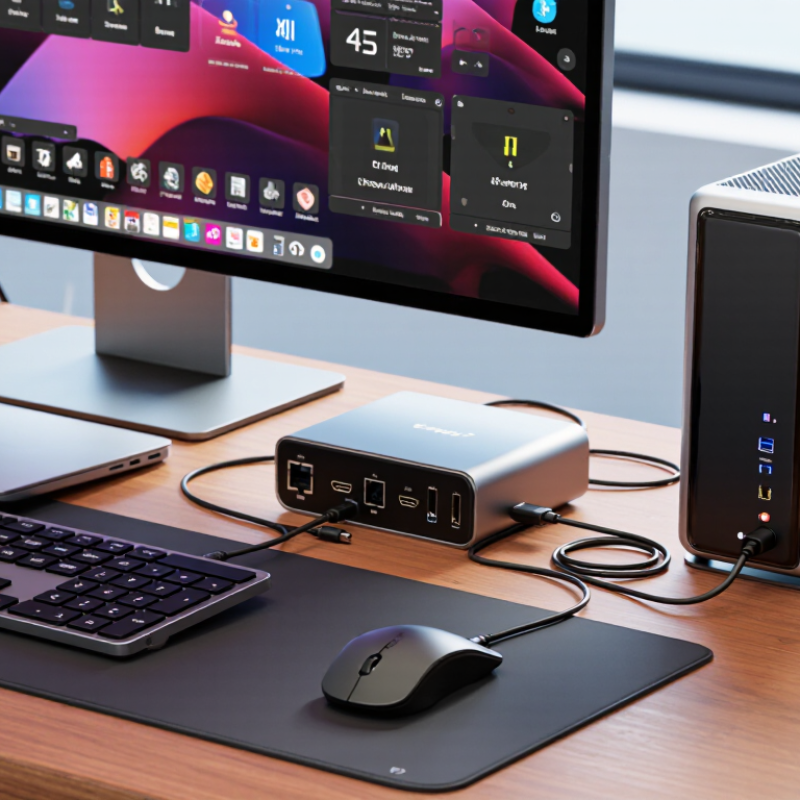
How to Choose a Type C Docking Station for Your Laptop?

Identify Your Laptop’s USB-C Port Capabilities

A USB-C socket is only a shape, not a feature list. Check your laptop’s manual or support page for the exact port specifications. Look for video output, charging input, and data speed separately. A small lightning or display icon can help, but icons are not consistent across every laptop. The port beside the hinge may support different functions from the one on the other side.

The USB Implementers Forum’s USB4 Version 2.0 announcement specifies data rates up to 80 Gbps. That is a standard’s maximum, not a promise about your laptop. Some USB-C ports transfer files but cannot drive an external display. Others support video but provide limited charging power. Check the listed protocol, display support, and power delivery before choosing a dock. It is easy to miss one detail.

Tips: Search your laptop’s exact model number plus “USB-C specifications.” Match the dock’s video resolution and refresh rate to your monitor. If the manual is vague, ask the laptop maker to confirm the port’s capabilities. Annoying, but safer than guessing.

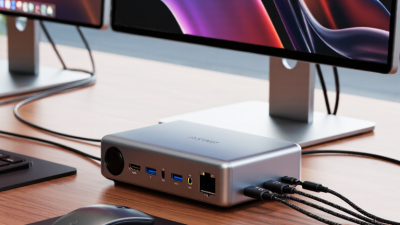
List the Devices and Ports You Need to Connect

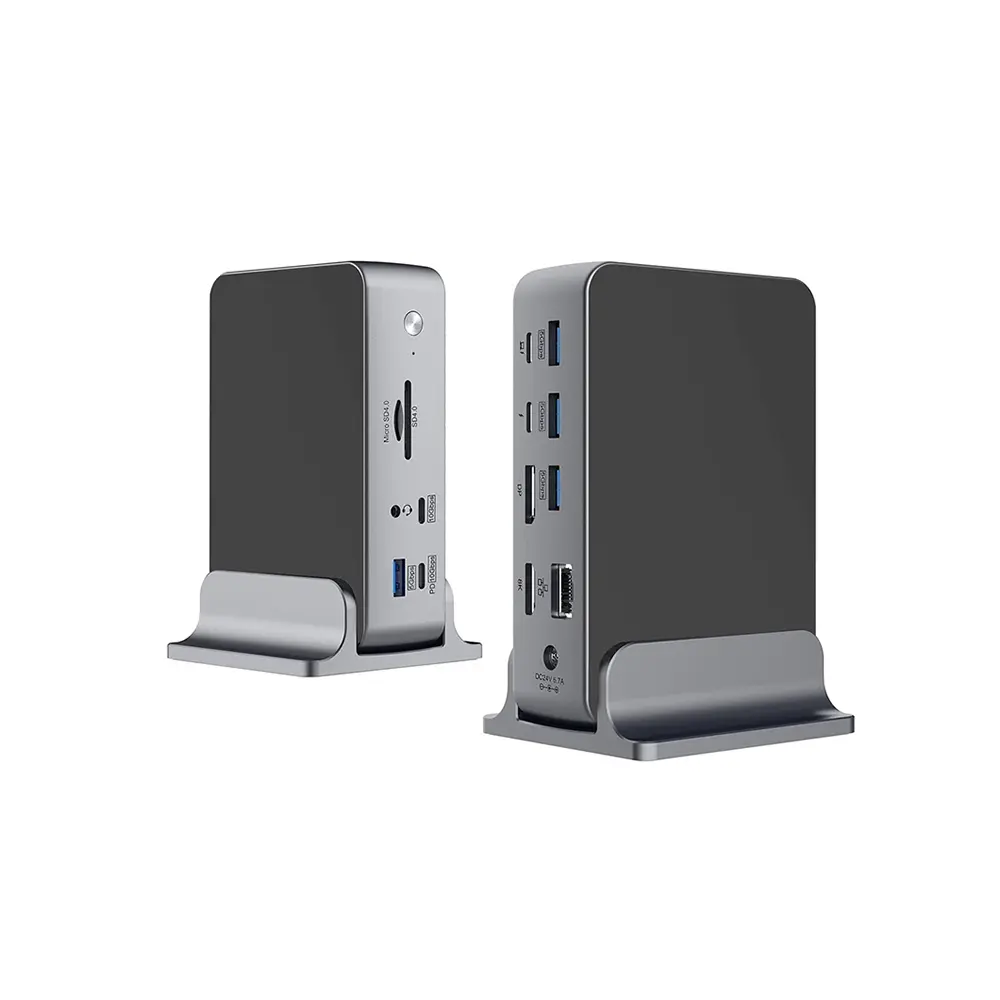
Before choosing a Type-C dock, list every device you actually use: laptop charger, external display, keyboard, mouse, storage drive, headset, and network cable. Add occasional items, such as an SD card or a second monitor. Then write down each required connection: USB-C with charging, USB-A, HDMI or DisplayPort, Ethernet, audio, and card reader. Count plugs, not devices; a wireless mouse may still need a USB receiver. Leave one spare port if possible. I still find it easy to overbuild this list.

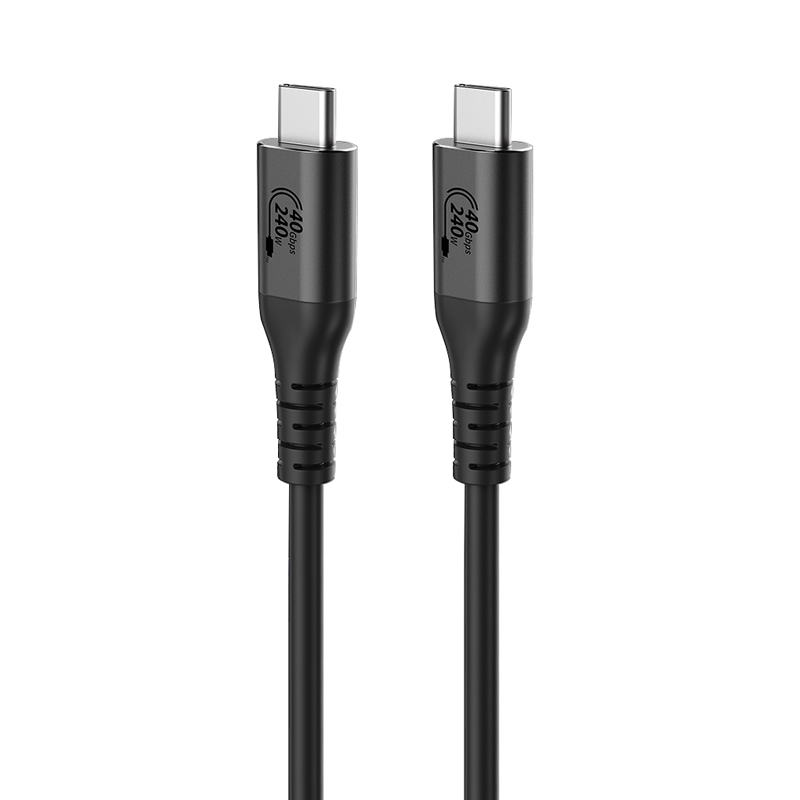
Check the laptop’s capabilities, too. A USB-C-shaped port does not guarantee video output or high-wattage charging. USB-IF’s USB Power Delivery 3.1 announcement introduced power levels up to 240 watts, but the laptop, dock, and charger must all support the needed profile. For monitors, VESA’s DisplayPort 2.1 specification defines UHBR20 bandwidth up to 80 Gbps; that does not mean every dock can deliver it. Check the dock’s supported resolution and refresh rate for each display combination. Small print matters.

A practical checklist might say: one 4K monitor, wired network, two USB-A accessories, and charging through the dock. If the listed ports match that real setup, you are less likely to pay for connections that stay unused.

Match Dock Power Delivery to Your Laptop’s Requirements

Before choosing a Type-C docking station, check your laptop’s power requirement in its specifications or on its original adapter. A laptop marked for 65W charging may not charge reliably from a dock that supplies only 45W, especially during video calls or heavy workloads. Check the dock’s host-charging output, not just the wattage printed on its power adapter. Some power is used by the dock itself, so the amount reaching your laptop can be lower.

USB Implementers Forum’s USB Power Delivery 3.1 announcement states that the specification raises the maximum delivery level from 100W to 240W. That is a ceiling, not a promise that every Type-C port or dock can provide it. Match the dock’s stated laptop output to your computer’s supported input, then leave practical headroom when possible. Still, wattage alone is not the whole story. Cable capability and port support matter, too.

Tips: Compare the laptop’s adapter rating with the dock’s host output. If you often run demanding apps, test charging under load; a battery that slowly drains is a useful warning. I once overlooked that detail.

Check Display Support, Resolution, and Data Bandwidth

A Type C connector does not guarantee video output. Check your laptop’s manual for DisplayPort Alt Mode or Thunderbolt support before choosing a dock. I learned this the annoying way: a dock can fit perfectly and still show nothing. Check the fine print.

Then compare the dock’s display limits with your actual setup. Look for supported resolutions and refresh rates, such as 4K at 60 Hz, rather than resolution alone. A dock might run one screen at that setting but lower the refresh rate when driving two screens. Confirm the exact combinations in its specifications. If you use a high-resolution monitor for design work, test text edges and scaling, not just whether the picture appears.

Bandwidth is shared. Video output, USB drives, webcams, and network connections can all compete for capacity, depending on the dock’s design. A fast-looking port label does not tell the whole story. Check the host connection’s stated bandwidth and whether the dock uses Display Stream Compression or display-link technology; these affect compatibility and performance. For a practical check, connect your usual monitor, copy a large file, and run a video call at the same time. Watch for flicker or sluggish transfers. Specs can be confusing, and I still find some tables unclear. Make sure the return policy gives you room to verify your setup.

How to Choose a Type C Docking Station for Your Laptop? — Check Display Support, Resolution, and Data Bandwidth

Connection Type Typical Data Bandwidth Display Support to Check Best Suited For Before You Buy
USB-C with DisplayPort Alt Mode Often 5 Gbps or 10 Gbps for USB data; video uses separate DisplayPort lanes. A single 4K display at 60 Hz may be supported when the laptop and dock provide a suitable DisplayPort link. Two displays can require lower refresh rates or a compatible multi-stream transport (MST) setup. Everyday office work with one external monitor and standard USB peripherals. Check the laptop’s DisplayPort version, the dock’s stated maximum resolution and refresh rate, and whether using two displays reduces USB data performance.
USB4, 20 Gbps Up to 20 Gbps for the USB4 connection; display and USB traffic share available link resources. Display capability depends on the laptop’s video output, the dock, and how bandwidth is allocated. Confirm the exact supported display count, resolution, and refresh rate. Single-monitor setups and general-purpose docking where moderate data transfer is sufficient. Do not assume that the 20 Gbps figure guarantees a particular display resolution. Check the dock’s specifications for your intended monitor arrangement.
USB4, 40 Gbps Up to 40 Gbps for the USB4 connection; the actual available bandwidth is shared among connected devices and displays. Can support high-resolution or multiple displays when both the laptop and dock have the necessary video capabilities. Exact results vary by system and configuration. Users who need faster peripheral connections alongside one or more external displays. Verify the dock’s display limits and the laptop’s USB4 video support. A 40 Gbps link alone does not specify a guaranteed resolution or refresh rate.
Thunderbolt 4 over USB-C Up to 40 Gbps. The standard requires support for two 4K displays or one 8K display, but the laptop, dock, operating system, and display connections still affect practical results. Multi-monitor workstations and setups that combine displays with high-speed storage or other peripherals. Confirm that both the laptop port and dock support Thunderbolt 4, and check which display outputs and refresh rates the dock provides.
Any USB-C Dock with Multiple Video Outputs Depends on the underlying connection: USB-C Alt Mode, USB4, or Thunderbolt. Two HDMI or DisplayPort sockets do not automatically mean two independent displays. Some docks rely on MST; operating-system support for multiple extended displays can differ. Users connecting two or more monitors or mixing different display types. Check whether the dock supports extended displays rather than mirroring, and confirm compatibility with your laptop’s operating system and graphics hardware.

Tip: USB-C describes the connector, not a guaranteed bandwidth or display capability. Before choosing a dock, compare the laptop port’s supported standard with the dock’s specifications, then verify the required number of displays, resolution, and refresh rate.

Compare Compatibility, Design, and Long-Term Reliability

A Type C dock may fit your laptop’s port but still lack the features you need. Check the laptop’s specifications for video output, charging support, and data speed. USB-C describes the connector, not every capability behind it. A dock that supports two displays, for example, may only run one screen at your laptop’s available resolution. Compare the dock’s listed limits with your actual monitor setup, including resolution and refresh rate. Small details matter. If possible, test your regular workload before relying on a new dock for presentations or daily work.

Design affects reliability as much as appearance. Check whether cables can reach comfortably and whether nearby ports leave room for wider plugs. A stable base helps keep the dock from sliding when you connect a drive. For a tidy desk, consider where heat can escape; a dock tucked under papers may run warmer. Inspect the power rating, cable strain relief, and warranty terms, too. These are practical clues, not guarantees. I would not assume a heavier dock is automatically more durable; connectors and cable quality can matter more. My own selection criteria might also miss a rare compatibility issue, so keep the packaging and test every port during the return period.