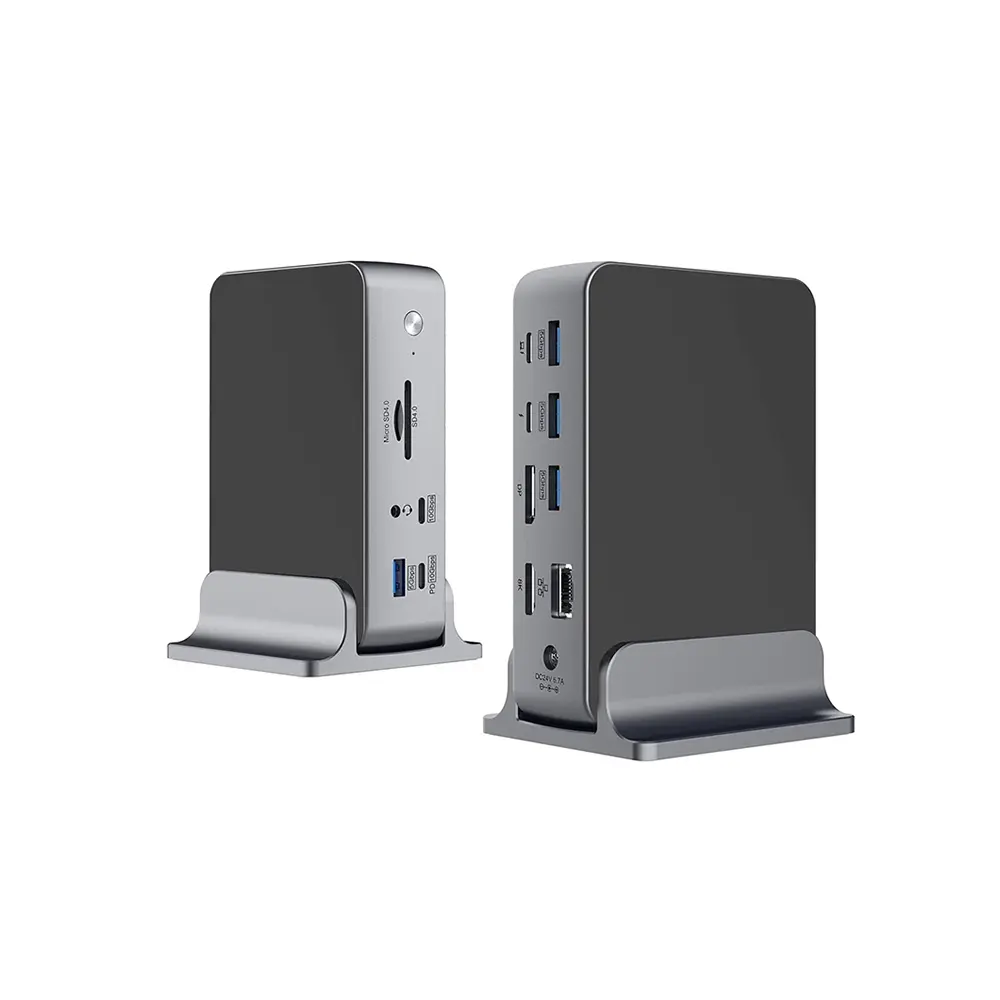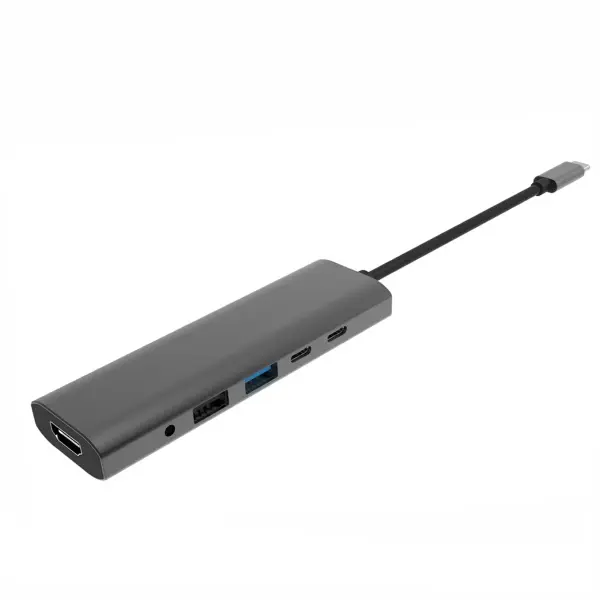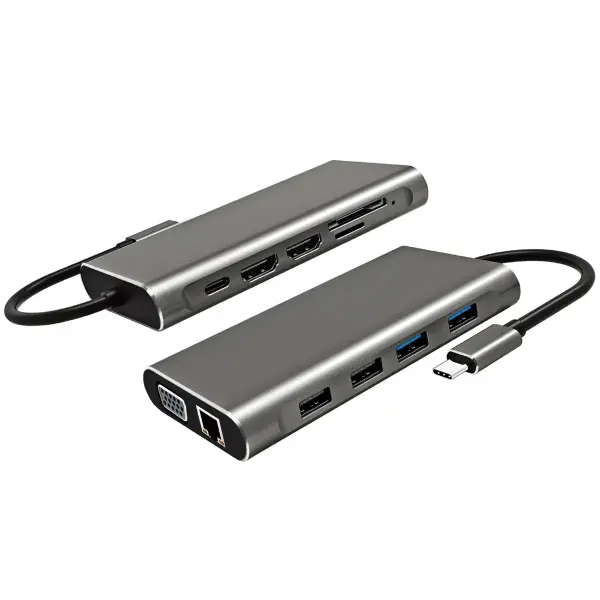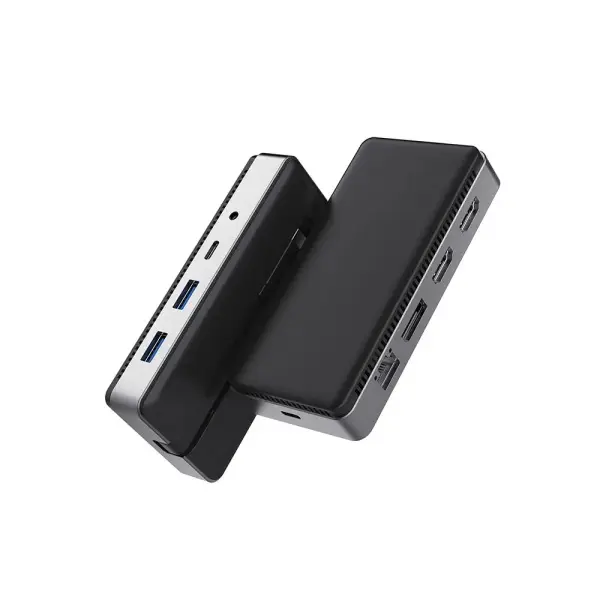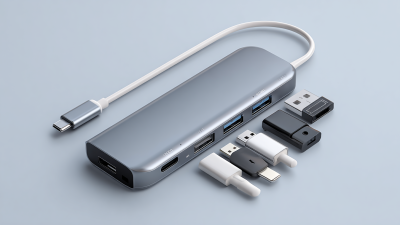
A USB hub can turn a phone into a more useful workstation, but the right choice depends on the phone’s actual ports and capabilities. A USB-C connector alone does not guarantee video output, fast data transfer, or enough power for every accessory. Check the phone’s manual before buying. Small details matter.
For this guide, fictional mobile-accessory specialist Nora Ellis offers a practical rule: “Choose a hub for the phone’s supported features, not just the ports printed on its box.” Treat that as a reminder, not a substitute for checking specifications. A compact hub with USB-A, card-reader, and charging ports may suit someone moving photos from a camera while keeping a phone charged. A model with HDMI may be useful for presentations, but only if the phone supports video output. Power delivery also deserves attention. Some hubs need an external charger, and not every phone accepts the same charging rate.
The sections ahead explain how to compare port types, power needs, compatibility, size, and build quality. They also cover common trade-offs, such as choosing between a lightweight adapter and a sturdier hub with more connections. A good Usb Hub For Mobile Phone should work reliably with your device and daily routine. Specs can look convincing. Real use may still surprise you. Check cable length, heat, and whether the case blocks the connector. Even careful buyers miss something now and then. That is worth considering before checkout.
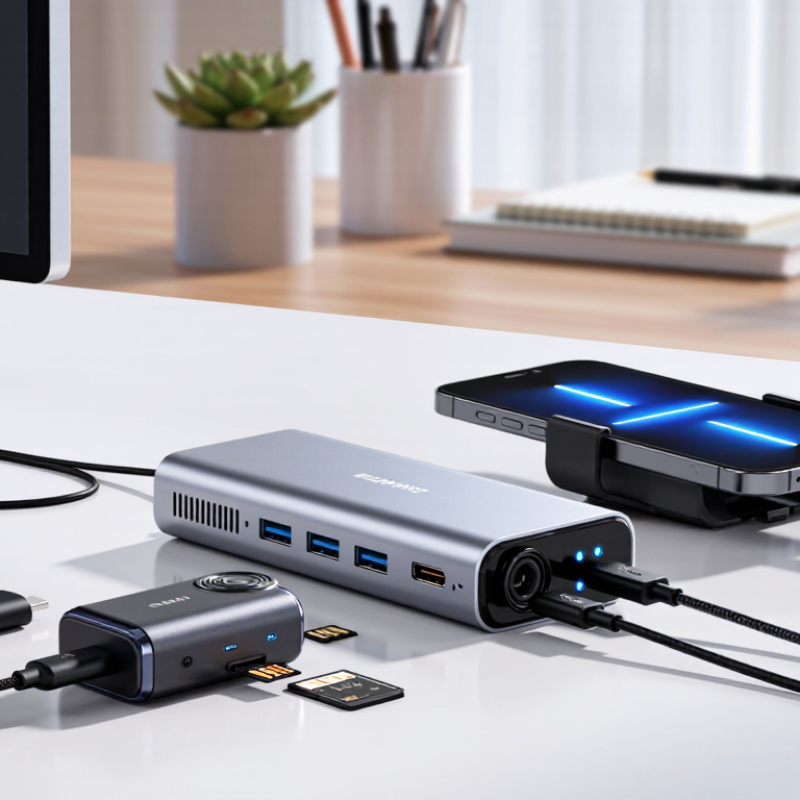
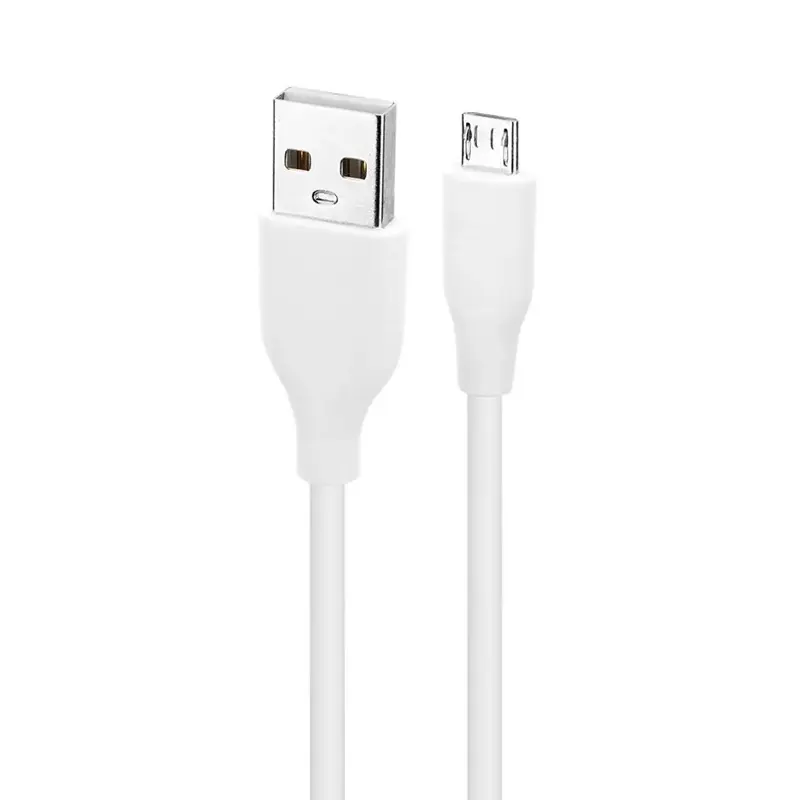
Before choosing a hub, inspect the phone’s physical port and its data capabilities. USB-C and micro-USB plugs are not interchangeable, and a USB-C socket alone does not guarantee fast transfers or video output. Check the phone manual for USB OTG support, display output, and charging limits. Looks can mislead. USB-IF specifications show the range: USB 2.0 supports up to 480 Mbps, while USB 3.2 options reach 5, 10, or 20 Gbps. These are theoretical rates, not promises for every phone or hub. A common mistake is buying by connector shape alone; I still think port labels can be frustratingly vague.
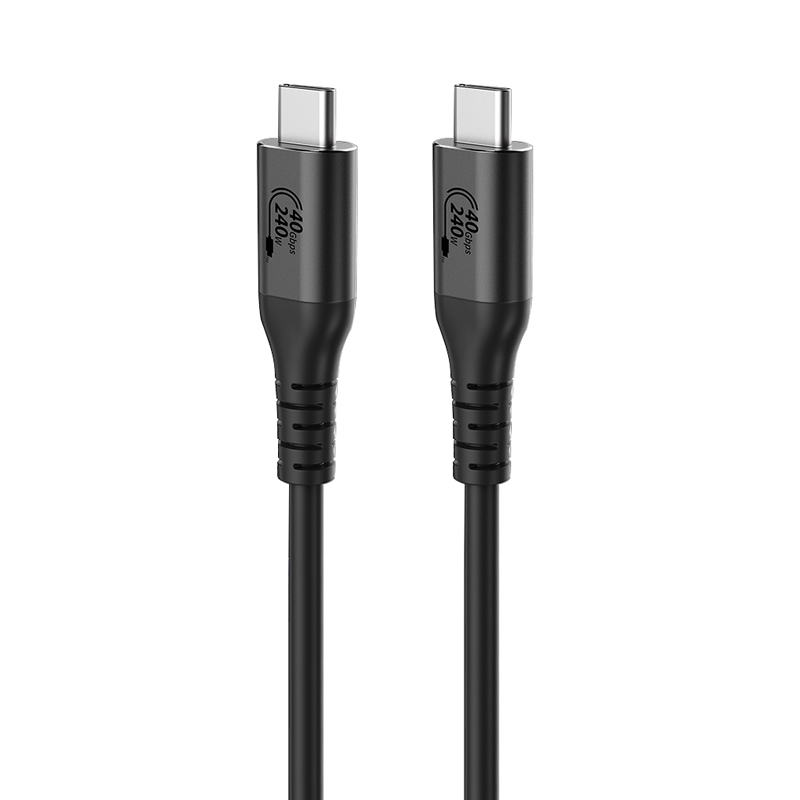
Tips: Match the hub to what you will actually connect. For photos, check the phone’s supported transfer speed and the hub’s card-reader standard. For a keyboard or flash drive, confirm OTG support and keep the hub’s power needs in mind. For charging while using accessories, choose a hub with power pass-through, then verify its rating against the phone’s requirements. USB-IF’s USB Power Delivery 3.1 specification allows up to 240 watts, but that ceiling does not mean a phone will accept that much power. Start with the phone’s own charging limit. A short cable can also make a crowded desk easier to manage.
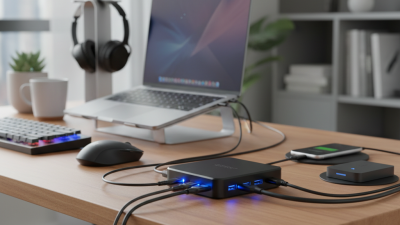
Before buying a hub, confirm that your phone supports USB host mode, often called OTG. A USB-C socket alone does not guarantee it. Check the phone’s technical specifications and operating-system help pages for support with storage, keyboards, and other peripherals. Android’s developer documentation explains how apps access USB devices in host mode; access may still depend on permissions and the phone’s software. Test your actual setup if possible. A flash drive may appear, while a card reader does not. Small differences matter.
Check the hub’s data and power limits, too. USB-IF’s USB Power Delivery 3.1 specification allows up to 240 watts in supported systems, but that ceiling does not mean your phone or hub can deliver it. Match the hub’s input, charging passthrough, and phone requirements. USB 2.0 specifies signaling rates up to 480 Mbps; real transfers are often slower, and a hub may share bandwidth among devices. Read the hub’s specifications, not just its connector list. I would still verify compatibility before relying on a hub for travel; listings can be vague, and that is easy to overlook.
| Compatibility Check | What to Verify | Practical Guidance | Example |
|---|---|---|---|
| Phone connector | Identify whether the phone has a USB-C or Lightning port, and confirm that the hub or required adapter uses the matching connection. | A matching connector is necessary, but it does not by itself guarantee that the phone supports every hub function. | A USB-C hub will not plug directly into a Lightning port; a suitable adapter may be needed. |
| USB host support | Check whether the phone supports connecting USB accessories in host mode. Android phones may describe this as USB OTG support. | Confirm support in the phone’s specifications or help documentation. The operating system and phone model can affect which accessories work. | A phone with host support may recognize a basic keyboard or flash drive connected through a compatible hub. |
| Operating-system support | Check that the phone’s operating system can use the intended peripheral without unsupported drivers or desktop-only software. | Common standards-based devices are generally simpler to use. Specialized devices may require drivers or companion apps that are unavailable on mobile operating systems. | A standard USB keyboard may work, while a specialized device that requires a computer driver may not. |
| Hub connector and adapter | For a hub with a different plug, verify that the adapter supports USB data and is compatible with the phone. | Some adapters are intended only for charging. Check the adapter’s specifications for data or accessory support. | A charge-only adapter will not provide a data connection to a storage device. |
| Power requirements | Check whether the hub and connected accessories draw more power than the phone can provide. | Power-hungry devices may disconnect or fail to start when powered only by the phone. A powered hub can help if it supports the required input and output. | An external drive may need its own power source or a hub with an appropriate power input. |
| Charging pass-through | Verify that the hub explicitly supports charging the phone while accessories are connected, and check its power-delivery specifications. | A power input on a hub does not automatically mean it can charge the phone. Available power may also be shared with connected devices. | Check the hub’s stated phone-charging support and output limits before relying on pass-through charging. |
| Data speed | Compare the phone, hub, cable, adapter, and accessory specifications; the connection is limited by the slowest supported link. | USB 2.0 has a signaling rate of up to 480 Mbps. USB 3.x products can support higher rates, but actual transfer speeds are typically lower and depend on all connected components. | A high-speed drive connected through a USB 2.0 hub will operate at USB 2.0 speeds at most. |
| Storage format and access | Check that the phone’s file-management software supports the drive’s file system and that the drive is formatted appropriately. | Supported formats and file-size limits vary by operating system and device. Back up data before reformatting a drive. | A drive that works on a computer may not appear on a phone if its file system is unsupported. |
| Number and type of ports | Match the hub’s available ports to the accessories you plan to use, such as USB-A devices, USB-C data devices, or card readers. | Port shape does not guarantee a particular function or speed. Review each port’s stated data, charging, and display capabilities. | A USB-C port on a hub may be intended for power input rather than connecting a USB-C data accessory. |
| Multi-device use | Confirm that the phone can support the intended combination of peripherals at the same time. | Compatibility with one accessory does not guarantee that every combination will work. Test the complete setup, especially when several devices share power. | A keyboard and flash drive may work together, while adding a power-demanding device may require external power. |
When choosing a USB hub for a phone, separate charging from data transfer. A USB-C port may support one, both, or neither. Check the hub’s specifications for Power Delivery passthrough, its maximum input wattage, and the speed of each data port. USB-IF’s USB Power Delivery 3.1 specification allows power delivery up to 240 watts, but a phone will only draw what it supports. A hub’s total output may also be shared across connected devices.
For file transfers, USB-IF lists USB 3.2 data rates up to 20 Gbps. That is a theoretical link rate, not a promise of matching real-world copy speeds. The phone, cable, hub, and storage device must all support compatible modes. A cable that charges reliably might still transfer files slowly. Small detail, big difference. Check whether the hub can transfer data while charging; some ports are power-only, and product labels can be vague.
Tips: For a phone, look for clearly stated PD input and per-port data speeds. Connect the charger to the hub’s marked PD port, then test with a large photo or video file. I would not choose by wattage alone: a high power rating cannot make a slow data port faster. Also check the hub’s own power needs when several devices are attached.
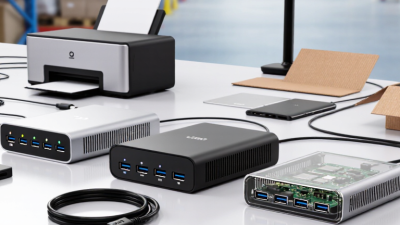
When choosing a USB hub for a mobile phone, count the devices you actually use at the same time. A keyboard, flash drive, and card reader may need three ports. Add one spare if you often connect another accessory. More ports can mean a larger hub, though, and that is not always convenient in a small bag.
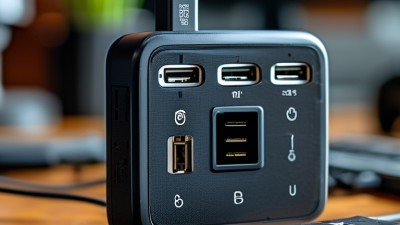
Check the port types, not just the total. USB-A ports suit many older accessories, while USB-C ports can connect newer drives and cables. If you want to charge your phone while using the hub, look for USB-C power pass-through and check the hub’s power requirements. HDMI is useful only if your phone supports video output over USB-C; the connector alone does not guarantee it will work. A little annoying, but worth checking.
Tips: Match each port to a real device. For a short trip, two USB-A ports and one USB-C port may be enough. Check your phone’s compatibility notes before buying, especially for card readers and external storage. Avoid assuming every port can transfer data and charge at full speed. I have found that port labels can be vague, so verify the specifications rather than relying on a product photo. Keep it simple.
A phone hub should fit the way you carry it: beside a power bank, in a pocket, or on a crowded desk. Choose a compact body, but leave room for plugs. Side-by-side ports can block wide adapters. An aluminum shell may help dissipate heat, while rounded edges and cable strain relief reduce wear in a bag. Still, metal alone proves little. Check the seams, port stability, and cable flexibility—not just the product photo.
Safety depends on more than appearance. USB-IF’s USB Power Delivery 3.1 specification supports power levels up to 240 W. That is a system ceiling, not a promise for every hub or phone. Check the hub’s input rating, per-port output, and total shared output. Look for over-current, over-temperature, and short-circuit protection, along with credible testing against IEC 62368-1. An unclear power rating is a warning sign. It is easy to overlook.
Tips: Match pass-through power to your charger, then test the hub with your phone and one accessory. After several minutes, check for unusual heat; warm is normal, sharply hot is not. A slightly larger hub with secure ports may be a better trade-off than the smallest option.
Standard USB-A downstream ports provide up to 500 mA under USB 2.0 and 900 mA under USB 3.x specifications. These are standard limits, not a guarantee of a particular hub’s output; actual performance depends on the hub, its power source, and connected devices. Check the hub’s specifications, choose a suitable powered model if needed, and look for protections against overcurrent and overheating.