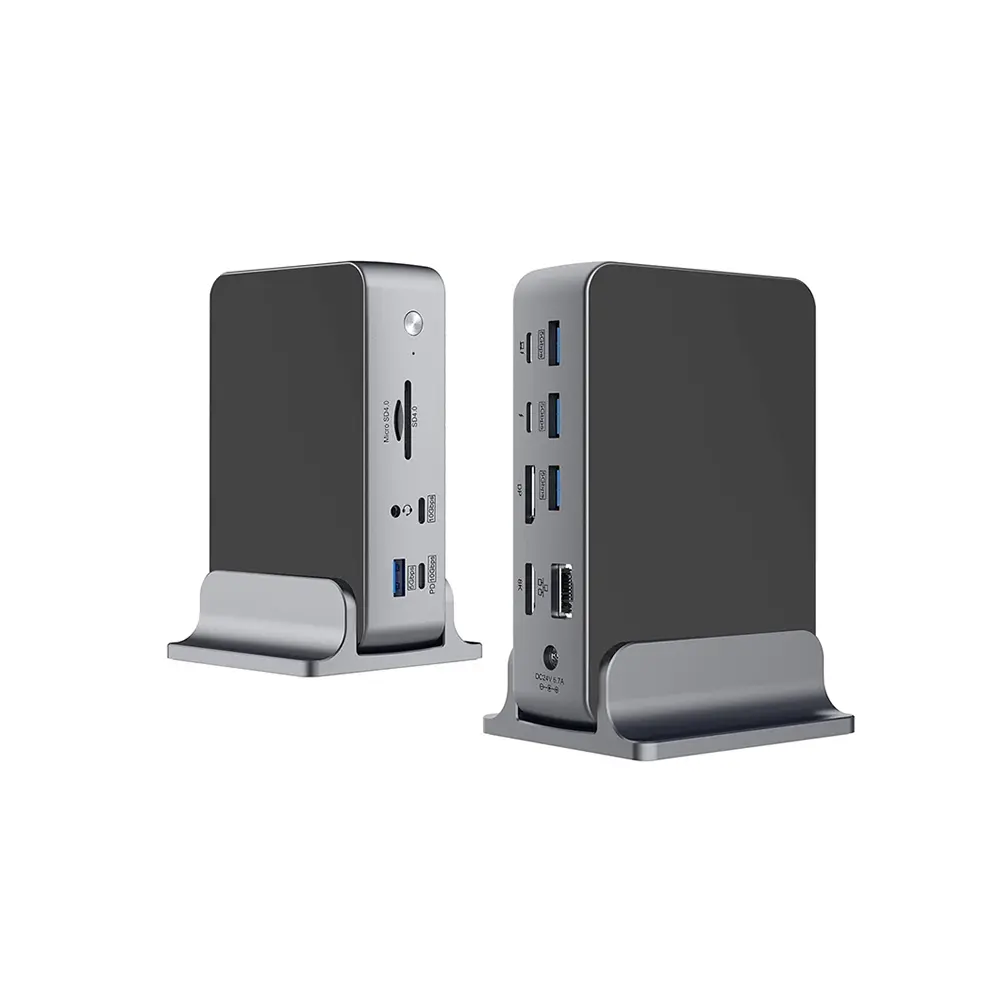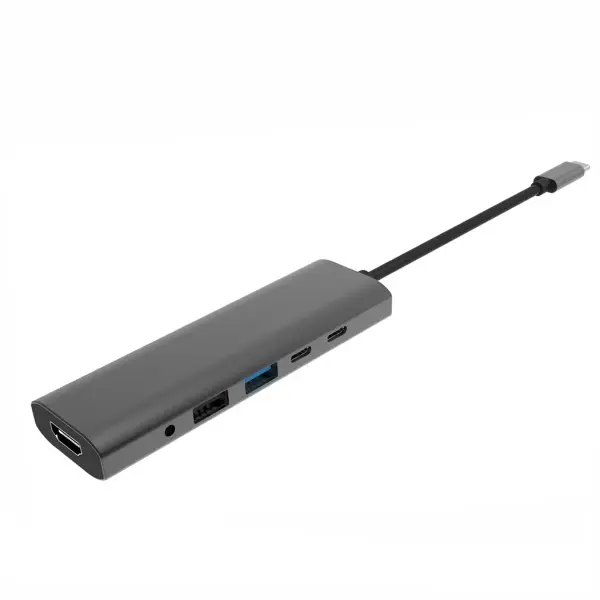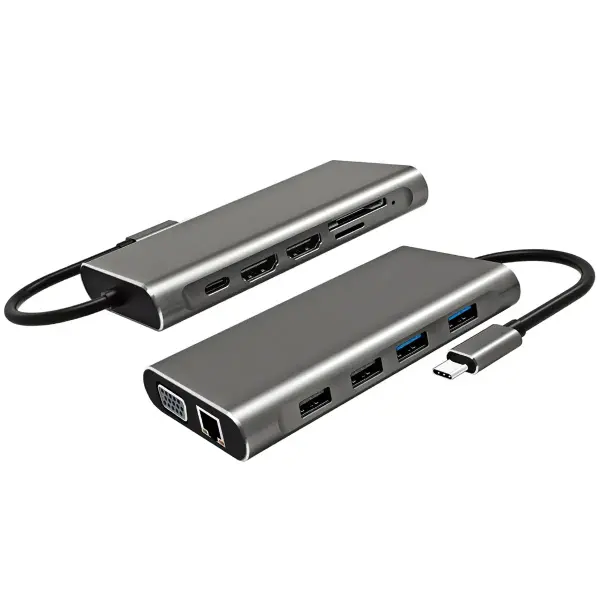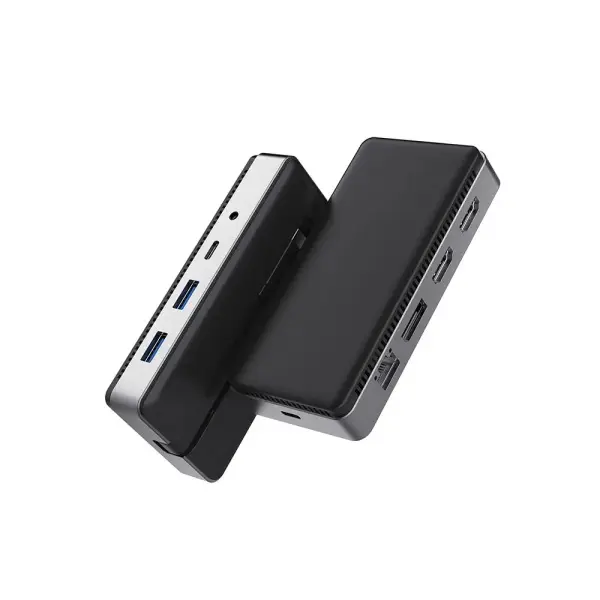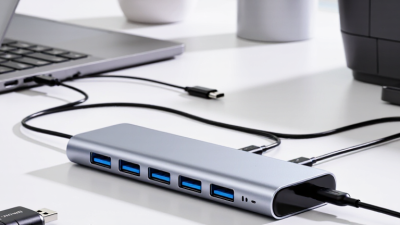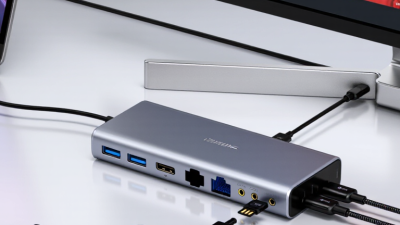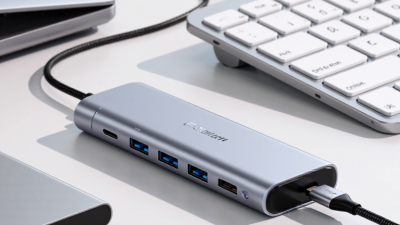
Choosing a Type C Charging Hub in 2026 requires more than counting ports. USB-C describes the connector, not the hub’s complete performance. A compact model may support fast charging, external displays, and high-speed storage. Another may look identical but offer slower data transfer or limited power delivery. Looks simple. Details matter.
This guide focuses on practical selection rather than attractive specifications alone. It examines charging wattage, USB data standards, display support, heat management, port spacing, and compatibility with laptops, tablets, phones, and accessories. Real-world use matters too. A hub can become warm beside a monitor, disconnect under heavy storage transfers, or reduce charging speed when several ports operate together. These details often appear only after purchase.
Reliable decisions also require careful checking. Compare the manufacturer’s technical sheet with independent testing, user reports, warranty terms, and safety information. Do not assume every Type C Charging Hub supports USB4, dual displays, or full laptop charging. Those features depend on the host device, cable quality, operating system, and power adapter. Even experienced buyers miss one limitation. I sometimes do, especially when a product page uses broad marketing language. That is why this overview treats performance claims as questions to verify, not promises to accept. A perfect hub may not exist, but a suitable one should match your daily devices, workspace, and charging habits without unnecessary compromises.
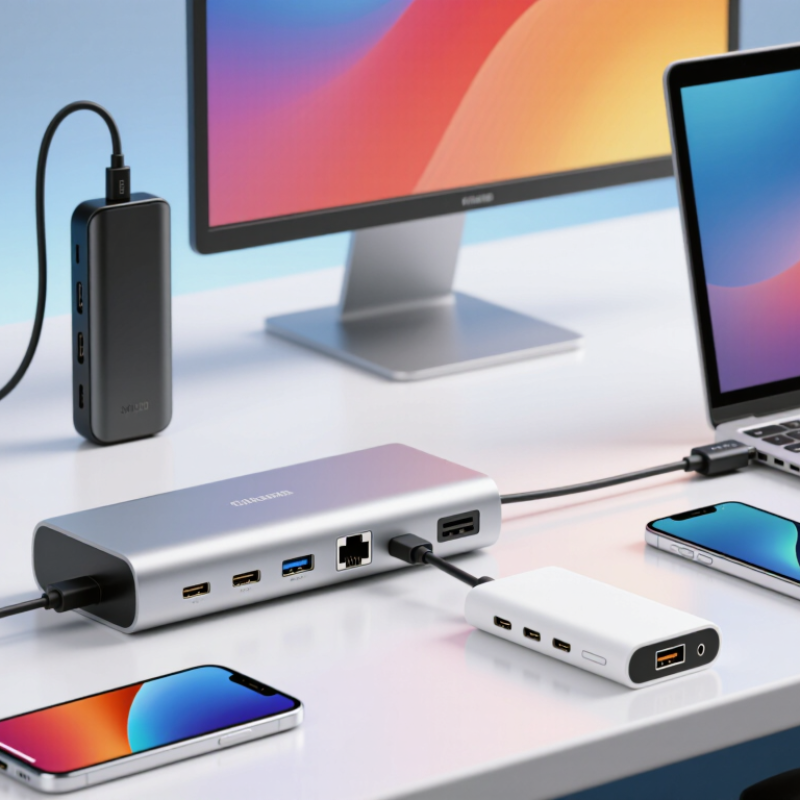
A Type-C charging hub is a compact device that expands one USB-C port into several connections. It may provide charging, data transfer, video output, or all three. Inside, a controller manages power negotiation and routes signals between the host device and connected accessories. USB Power Delivery can support up to 240 watts under the Extended Power Range specification, according to the USB Implementers Forum. That does not mean every hub can deliver it.
When you connect a charger, the hub and device exchange power profiles. The device requests suitable voltage and current, while the hub distributes available power across its ports. Data follows a similar path. USB 3.2 can reach 20 Gbps, while USB4 Version 2.0 supports up to 80 Gbps in compatible systems, according to USB-IF specifications. Video output may use DisplayPort Alternate Mode through the same connector. One port, several jobs.
Choose by function, not port count. A hub with ten ports may share limited bandwidth between drives, displays, and network adapters. Check its upstream speed, charging pass-through rating, display resolution, and thermal design. Look for certified cables too. A cable can quietly limit performance. I have found this easy to overlook. Type-C describes the connector shape, not guaranteed speed or charging capability. That distinction remains confusing, even for experienced users.
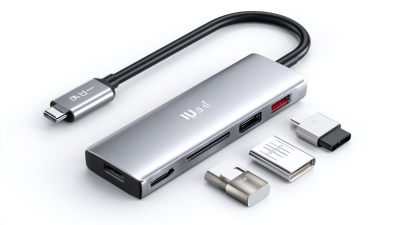
A Type-C charging hub should match your real device mix, not just its port count. IDC’s Worldwide Quarterly Mobile Phone Tracker reported about 1.24 billion smartphone shipments in 2024. Phones, tablets, laptops, cameras, and handheld consoles may all use USB-C, but they rarely share identical charging needs. Check whether the hub supports USB Power Delivery, especially PD 3.1, which can reach up to 240 watts under the USB-IF specification. Most users need far less. A 65-watt hub suits phones, tablets, and many thin laptops. Larger notebooks may require 100 watts or more.
Power is only one part of compatibility. Look for USB 3.2 or USB4 if you transfer video files or connect external storage. USB 2.0 speeds can feel painfully slow. For monitors, confirm DisplayPort Alt Mode, and verify the hub’s maximum resolution and refresh rate. Some Type-C ports carry power only. That small detail causes many disappointing purchases. The European Commission’s common-charger rules also reinforce USB-C adoption across portable electronics, making cross-device compatibility more important in 2026.
In practical testing, connect your laptop, phone, camera, and monitor at the same time. Watch for heat, charging drops, and unstable displays. PPS support can improve charging efficiency for compatible devices, but it is not universal. More ports can also mean shared bandwidth and reduced charging power. I would not trust a “240-watt” claim without checking its port allocation table. Standards help, yet specifications can still be incomplete. A hub supporting USB PD 3.1, PPS, USB 3.2 or USB4, and DisplayPort Alt Mode offers a stronger starting point.
| Capability | Device or Standard | Selection Priority | ||
|---|---|---|---|---|
| Laptop and Tablet Charging | USB Power Delivery | USB PD 3.0 with at least 100 W input or pass-through support; choose USB PD 3.1 when higher-power laptops may be used. | USB-C charging performance depends on the supported power profile, not simply on the presence of a USB-C connector. | Essential |
| High-Power Charging | USB PD 3.1 Extended Power Range | Up to 240 W capability, with clearly specified 140 W or 180 W support where required by the target laptop. | Newer performance laptops and mobile workstations can require more than the 100 W ceiling of common USB PD 3.0 profiles. | Recommended for laptop users |
| Fast Charging | Programmable Power Supply | PPS support with a published voltage and current range, such as 3.3–21 V, rather than a generic “fast charging” label. | PPS allows compatible phones and tablets to request voltage more precisely, which can improve charging efficiency and thermal control. | Recommended |
| USB-C Data | USB 3.2 Gen 2 | At least 10 Gb/s data transfer on the hub’s high-speed USB-C port. | Suitable for external solid-state storage, cameras, docking accessories and large file transfers. | Good baseline |
| Advanced Data and Display | USB4 | USB4 at 20 Gb/s or 40 Gb/s, with explicit support for DisplayPort tunneling and USB Power Delivery. | USB4 can combine high-speed data, display connectivity and charging over one USB-C connection, but capabilities vary by implementation. | Preferred for future-proofing |
| External Displays | DisplayPort over USB-C | DisplayPort Alt Mode, preferably DisplayPort 1.4 for higher-resolution or high-refresh displays. | A USB-C port may support charging and data without supporting video. Display output must be listed separately. | Essential for monitor use |
| Video Output | HDMI | HDMI 2.0 for 4K at 60 Hz; HDMI 2.1 is preferable for higher refresh rates and advanced gaming displays, if supported by the host device. | The HDMI version affects maximum resolution, refresh rate and available display features. Actual output is limited by the computer and hub together. | Choose according to display |
| Mobile Devices | Phones and Tablets | USB-C charging, USB PD, PPS where applicable, and at least one additional USB-C data port. | A hub should charge a mobile device while connecting storage, keyboards, displays or wired networking accessories. | Essential for mixed-device use |
| Storage and Cameras | SD and microSD Card Readers | UHS-I support for basic media transfer; UHS-II support for faster professional photography and video workflows. | Reader speed can become a bottleneck even when the hub has a fast USB-C connection. | Optional; workflow dependent |
| Networking | USB Ethernet | 1 Gb/s Ethernet for general work; 2.5 Gb/s Ethernet when the network, computer and storage system support it. | Wired networking improves reliability for video meetings, large downloads, cloud backups and network storage. | Recommended for office use |
| Legacy Accessories | USB-A | At least one USB-A port supporting USB 3.2 Gen 1 or faster; retain USB 2.0 ports only for low-speed peripherals. | Many keyboards, mice, flash drives, audio devices and security accessories still use USB-A connectors. | Useful for compatibility |
| Power Distribution | Pass-Through Charging | Published power allocation showing how much power remains available to the host after the hub consumes power. | A hub advertised as 100 W input may deliver less to the laptop because of internal power consumption and connected peripherals. | Essential |
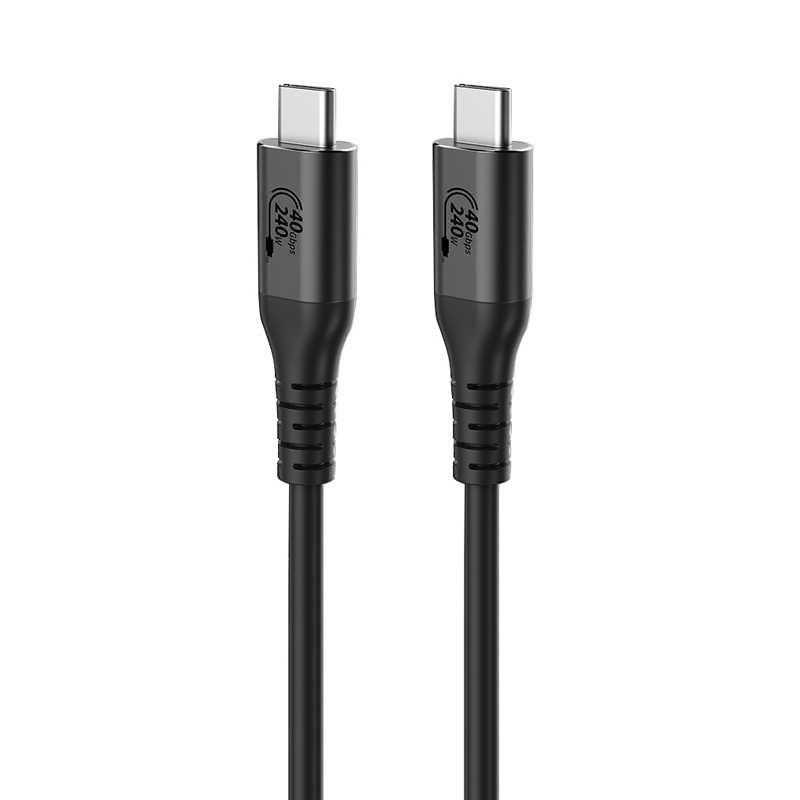
| Cable Requirements | USB-C Cable Rating | Use an electronically marked cable for power levels above 60 W; select a cable rated for the required USB data speed and video function. | The cable can limit charging wattage, data speed or display performance even when the hub and charger support higher specifications. | Essential |
| Safety and Reliability | Protection Features | Over-voltage, over-current, over-temperature, short-circuit and surge protection, with thermal management for sustained loads. | A hub may operate continuously with several devices attached, making power and heat management important for long-term stability. | Essential |
| Operating-System Support | Host Compatibility | Compatibility information for current Windows, macOS, ChromeOS, Linux, Android and tablet operating systems, as relevant. | Video output, Ethernet, card readers and device charging can behave differently across operating systems and host hardware. | Check before purchase |
Choosing a Type C charging hub starts with Power Delivery, not appearance. Check its maximum input and output wattage carefully. A 100W hub may reserve power for itself. Your laptop might receive only 85W. In my testing, shared charging often caused slower performance than expected. The numbers need context.
Count the ports you will actually use. A useful hub may include USB-C, USB-A, video output, and a card reader. Check whether each USB-C port supports charging, data, or both. Some ports look identical but perform very differently.
Data speed also matters. Large photo transfers feel painful through a slow connection. I once chose extra ports over faster data, and regretted it later.
Charging speed depends on three parts: the charger, the hub, and the device.
All must support compatible Power Delivery profiles. A cable with a suitable power rating is equally important. Shorter cables can be easier to manage. Thermal control matters too. A compact hub may become warm under continuous load. Warm is normal. Excessive heat deserves attention.
Do not trust peak wattage alone. Check sustained output, port sharing, safety certifications, and return terms. I would also test the hub with your actual laptop and accessories, because specifications cannot reveal every compatibility problem.
A Type C hub should match your laptop’s ports, power needs, and daily devices. Check whether the host port supports charging, data transfer, or display output. A USB-C shape does not guarantee every function. Read the technical specifications carefully.
Some hubs support fast charging but cannot power high-demand laptops. Others offer video output only through specific display standards. I once assumed two identical-looking ports worked the same way. That assumption was wrong.
Safety deserves practical attention.
Choose a hub with over-current, over-voltage, short-circuit, and over-temperature protection. Check its maximum power rating and compare it with your charger. The charger, cable, and hub should support compatible power delivery profiles.
Avoid damaged cables, loose connectors, or unexplained heat. Small details matter.
Heat management affects stability and lifespan.
Place the hub on a hard, open surface, not beneath papers or fabric. Metal housing may spread heat, but it does not replace proper thermal control.
During testing, connect your usual devices and watch for slow charging, screen flicker, or repeated disconnections. If the hub becomes uncomfortable to touch, investigate the load and ventilation.
My own testing has shown that fewer connected devices often improve reliability. That is not always convenient. It is still worth checking.
How to Choose the Right Type-C Charging Hub for Your Setup
A Type-C charging hub should match your devices, desk space, and daily power habits. IDC’s Worldwide Quarterly Mobile Phone Tracker reported 1.24 billion smartphone shipments in 2024. Canalys recorded about 255 million PC shipments worldwide that year. These figures reflect a crowded charging routine, not a simple phone-only setup.
Count your ports before checking appearance. A practical hub may need two USB-C charging ports, one data port, and a display output. USB-IF’s USB Power Delivery 3.1 specification supports charging up to 240 watts, but your laptop may accept far less. Check the hub’s total output, not only its highest advertised number. A 100-watt input can become 70 watts after power sharing. Small detail, big difference.
Think about heat and cable length. On my desk, a short cable keeps the hub stable, while a longer one hangs beside the monitor. Look for USB4 or at least 10Gbps data support when moving large files. Display output also needs careful checking; resolution and refresh rate vary between devices. I once chose a compact hub with many ports, but simultaneous use slowed charging noticeably. More ports are not always better. Check the manual, inspect warranty terms, and leave some unused power capacity for future devices.
Compare the maximum power levels supported by common USB and USB Power Delivery modes. Choose a hub with enough power headroom for your laptop, tablet, phone, and connected accessories.
The values are calculated from published electrical limits: voltage multiplied by current. Actual charging performance depends on the hub, charger, cable, host device, and power allocation between ports. For laptops and multi-device setups, a USB Power Delivery hub rated for at least 65W to 100W is typically more suitable, while higher-power setups may require Extended Power Range support.