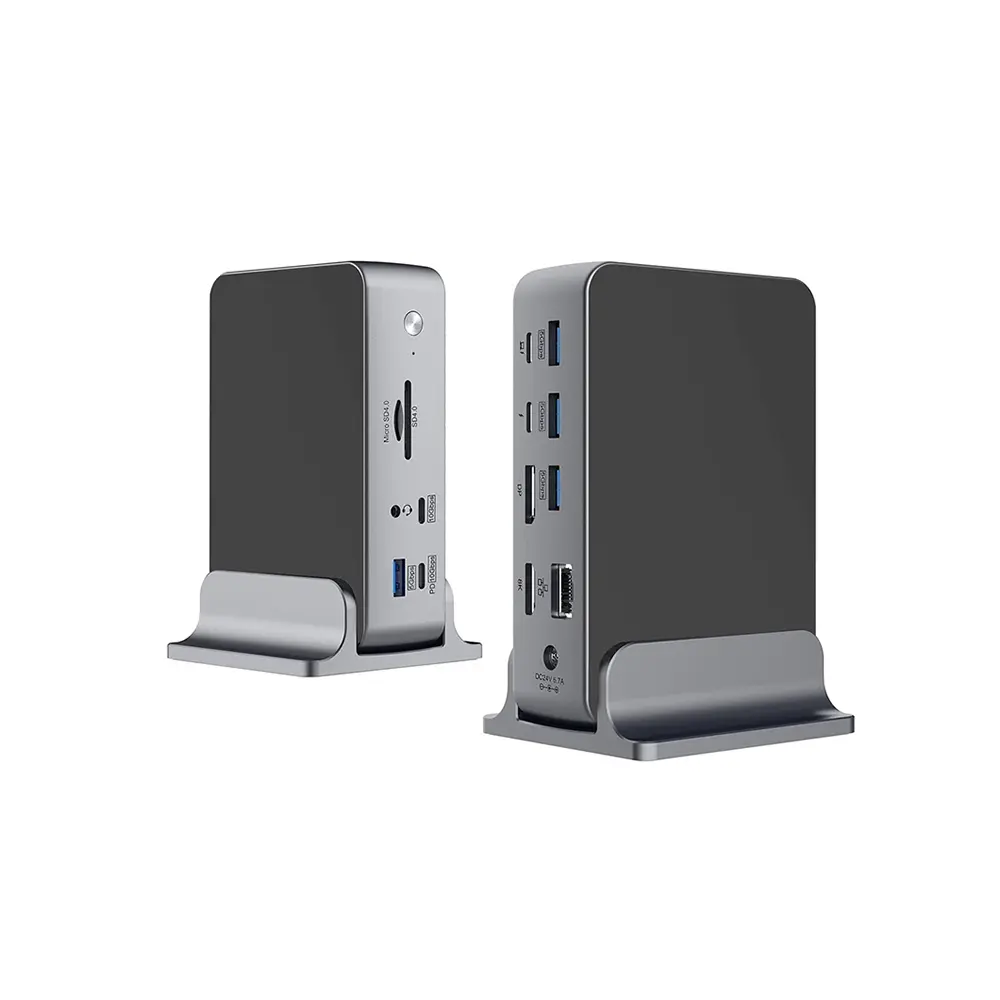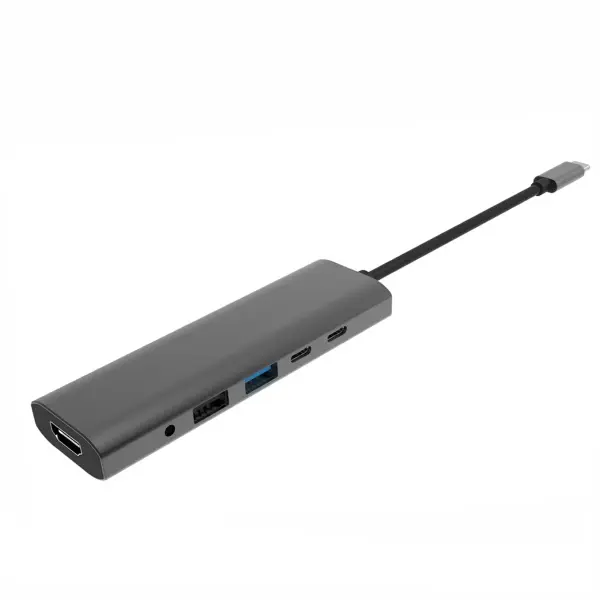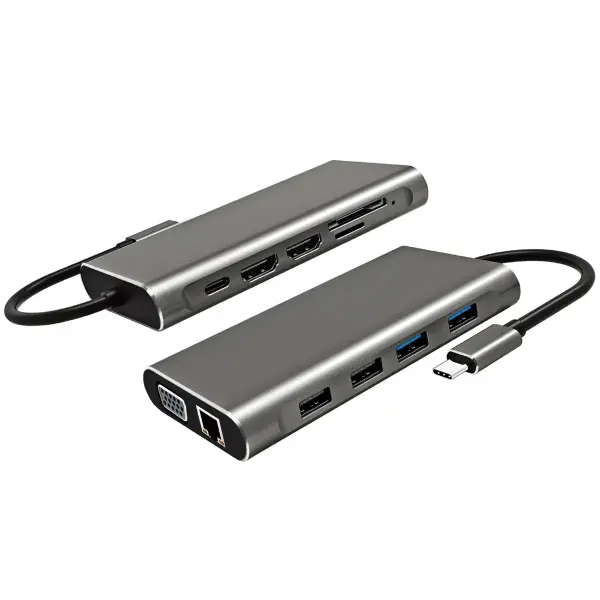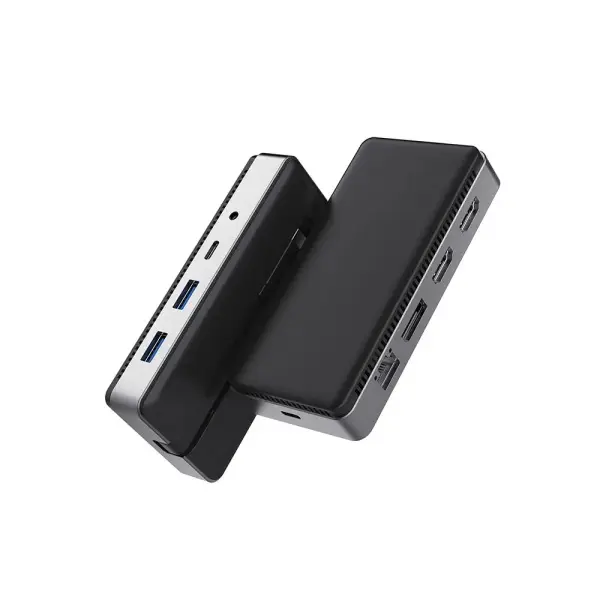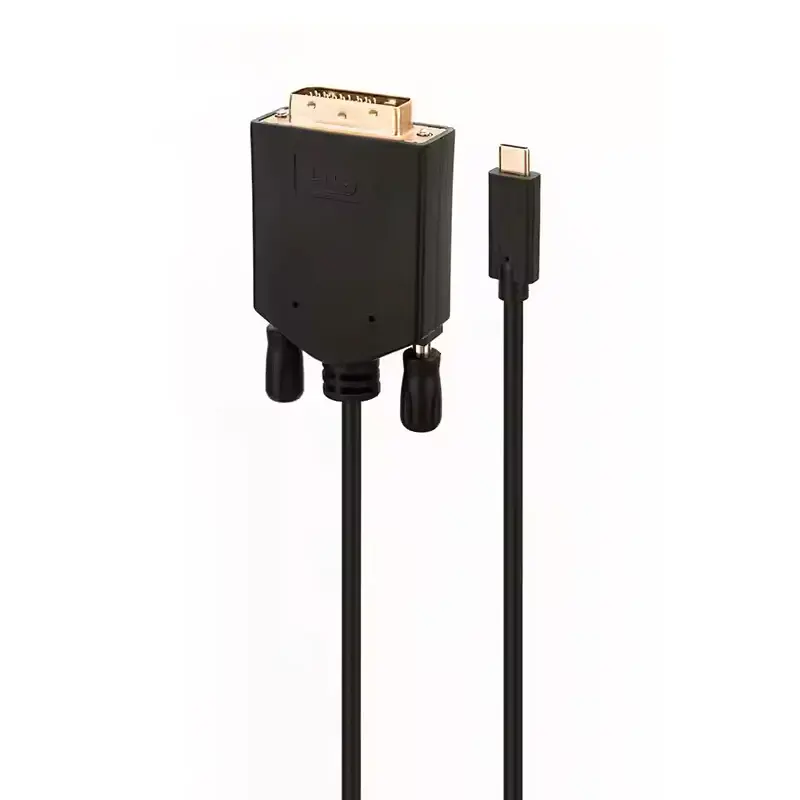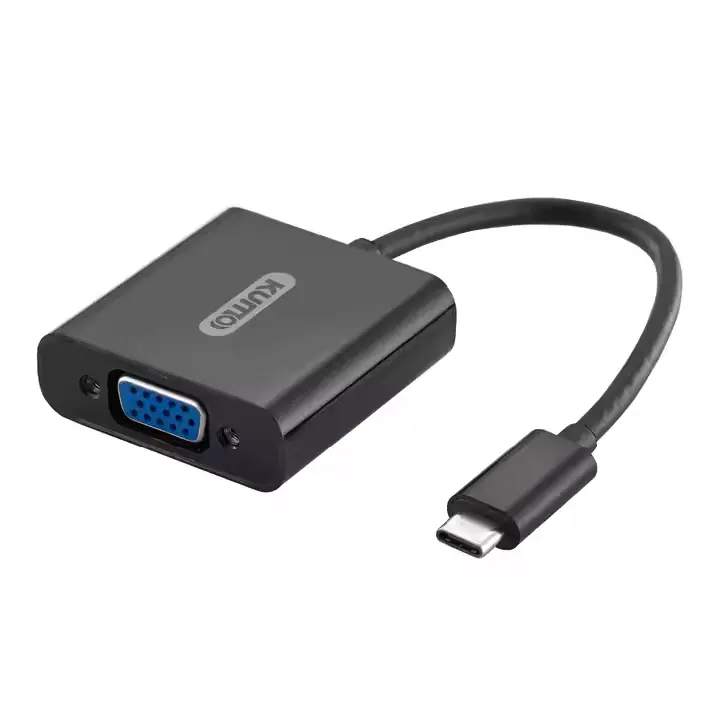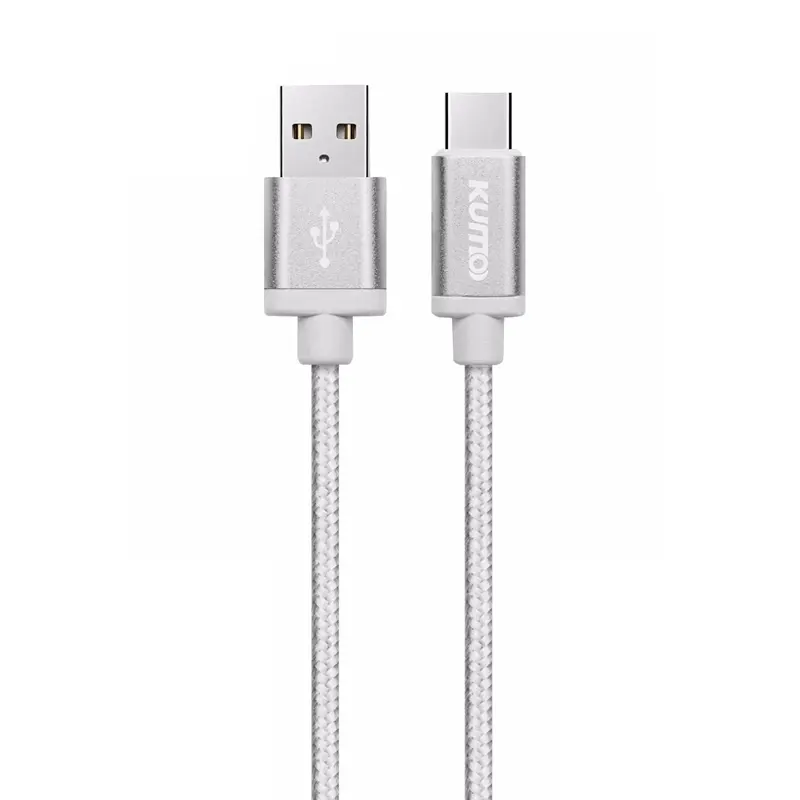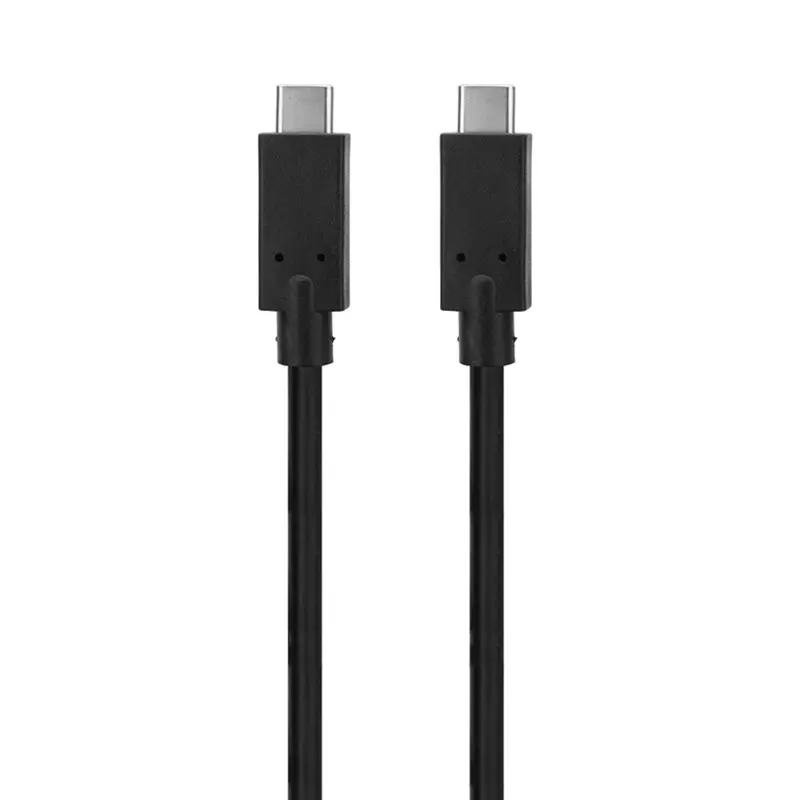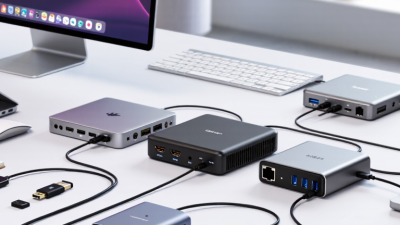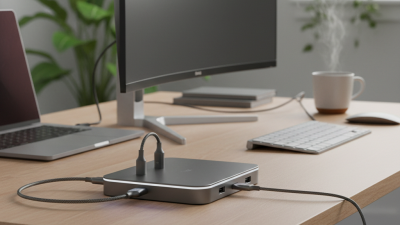
Choosing a Type C Docking Station For Laptop is less about buying the model with the most ports and more about matching it to your laptop, monitor, and daily routine. USB-C describes the connector, not every feature it supports. A laptop port may handle charging but not video, or support display output with limited bandwidth. Check the laptop’s specifications before comparing docks. Small details matter.
Think about the devices you connect each day. A desk setup might need two monitors, a wired keyboard, an Ethernet cable, and an external drive. Check the dock’s display resolution and refresh-rate support, because these can change with the number of connected screens. For charging, compare the dock’s power delivery with your laptop’s requirements; the dock’s advertised maximum may not be what reaches the computer. That distinction is easy to miss.
Compatibility should guide the shortlist. Confirm support for your operating system, laptop model, and preferred display arrangement, then check whether the dock needs a driver or external power adapter. Read manufacturer specifications, not just product photos or port counts. Reviews can help reveal practical issues, such as a short cable or a warm enclosure, but individual experiences may not predict yours. I would not treat any checklist as perfect: future devices and work habits can change. Still, a careful comparison helps you choose a dock that fits your current setup without paying for features you will rarely use.
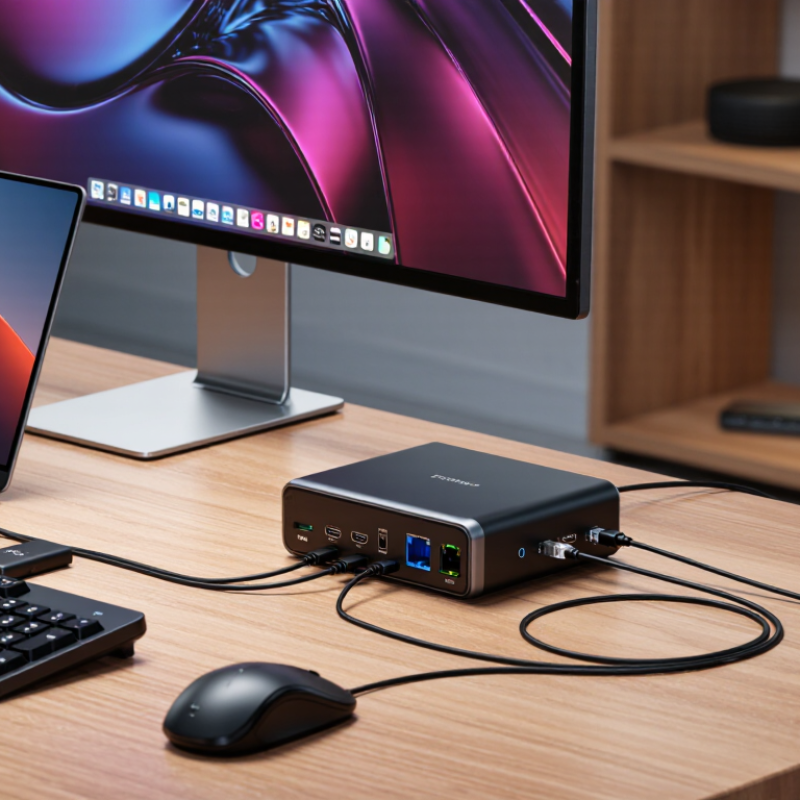
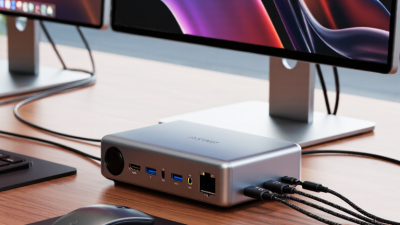
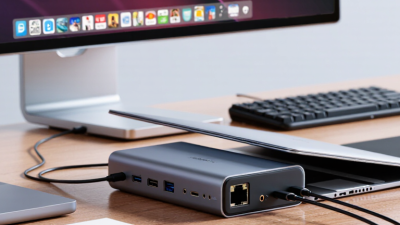
A USB-C docking station turns one laptop connection into a compact desktop hub. With a single cable, it can add ports for a monitor, keyboard, mouse, wired network, and external storage. Some docks also charge the laptop through that same cable, which can reduce desk clutter. It is not magic. The dock still depends on what the laptop’s USB-C port supports. A matching connector alone does not guarantee video output, fast data transfer, or charging.
That distinction matters when choosing a dock. Check the laptop’s specifications for display support and charging, then compare them with the dock’s listed capabilities. For example, a dock may offer two monitor ports, yet the laptop may support only one external display. Power delivery matters too: a low-wattage dock may charge slowly while the laptop is working. The cable is easy to overlook. Some cables carry power and data but lack the bandwidth needed for a high-resolution display. In everyday use, a dock can make it easier to connect everything before a meeting or move the laptop without unplugging several devices. Still, port counts can be misleading; supported features are what count. Check twice. A little compatibility research can prevent an expensive, frustrating mismatch.
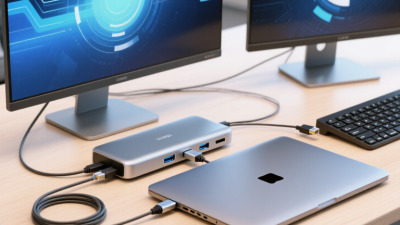
Compare the dock’s USB standard with your laptop’s capabilities and workload. These are maximum theoretical link rates; actual speeds can be lower because of the laptop, cable, dock, and bandwidth shared among connected devices. A USB-C connector alone does not guarantee a particular data speed.
A USB-C socket does not guarantee that a laptop can drive a dock’s displays or charge through it. Check the laptop’s manual for video output support, such as DisplayPort Alt Mode or USB4, and confirm its charging input wattage. Looks can mislead. Two identical-looking ports may offer different data speeds or functions. The USB Implementers Forum’s USB4 Version 2.0 specification describes bandwidth up to 80 Gbps, with an optional mode reaching 120 Gbps in one direction. Those figures describe the interface, not guaranteed dock performance; connected drives, monitors, and other devices share available bandwidth.
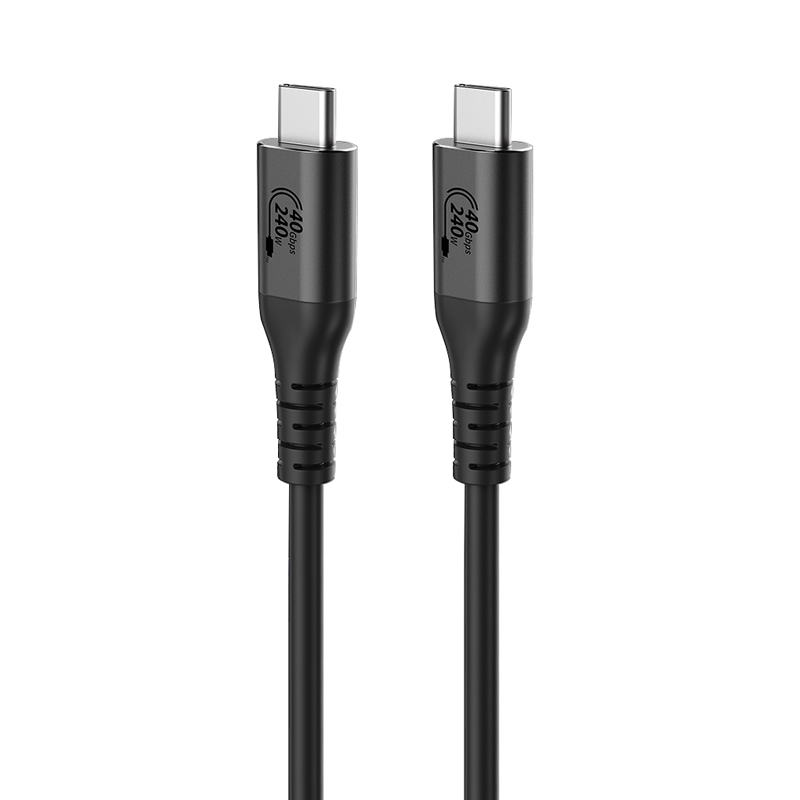
Check the exact port specifications, not just the USB-C symbol. If you plan to connect two monitors, verify supported display count, resolution, and refresh rate in the laptop documentation. Also compare the dock’s power-delivery rating with the laptop’s supplied charger. A lower-rated dock may charge slowly or fail to keep up under heavy workloads. The USB-IF’s USB Power Delivery 3.1 specification allows up to 240 watts, but a laptop and dock must both support compatible power profiles. A small detail, but an easy one to miss. When documentation is unclear, ask the laptop maker to confirm the port’s video and charging capabilities before buying.
| Compatibility check | What to look for on the laptop | What it means for the dock | Practical check |
|---|---|---|---|
| USB-C connector and data | A USB-C-shaped port confirms the connector type, but not its data speed or other capabilities. | A basic USB-C dock may provide USB data, but port shape alone does not guarantee display output or laptop charging. | Check the laptop’s specifications or manual for the port’s supported USB data standard and features. |
| USB data speed | Specifications may list USB 5 Gbps, USB 10 Gbps, or USB 20 Gbps. The exact support depends on the laptop port and device. | Connected storage and other USB devices cannot exceed the capabilities of the slowest link in the connection. | Compare the laptop port, dock’s upstream connection, cable, and connected device. A faster-rated dock does not make a slower laptop port faster. |
| Display support | Look for DisplayPort over USB-C, DisplayPort Alternate Mode, USB4 display support, or Thunderbolt display support. | Without a compatible video signal from the laptop, a standard USB-C dock’s display outputs may not work. Some docks use DisplayLink technology, which requires compatible software. | Confirm the laptop supports video over the specific USB-C port, then check the dock’s supported display outputs and operating-system requirements. |
| Monitor resolution and refresh rate | Check the laptop’s maximum supported external-display resolution, refresh rate, and number of external displays. | Actual results depend on the laptop, dock, display connection, available bandwidth, and sometimes display-stream compression. | Compare the dock’s stated display configurations with the laptop’s specifications. Check whether using multiple monitors changes the maximum resolution or refresh rate. |
| USB Power Delivery charging | Check whether the USB-C port accepts charging and the laptop’s required charging wattage. | A dock can charge the laptop only if its host connection supports USB Power Delivery. The dock’s stated power output may be shared with connected devices. | Choose a dock that supplies sufficient power to the laptop after accounting for any power reserved for the dock and its peripherals. |
| USB4 or Thunderbolt | Look for an explicit USB4 or Thunderbolt specification; a USB-C connector by itself does not indicate either one. | These interfaces can support high-speed data and display features, but supported capabilities vary by laptop, dock, and connection. | Verify the exact interface and feature support on both the laptop and dock. Do not infer compatibility from the connector’s appearance alone. |
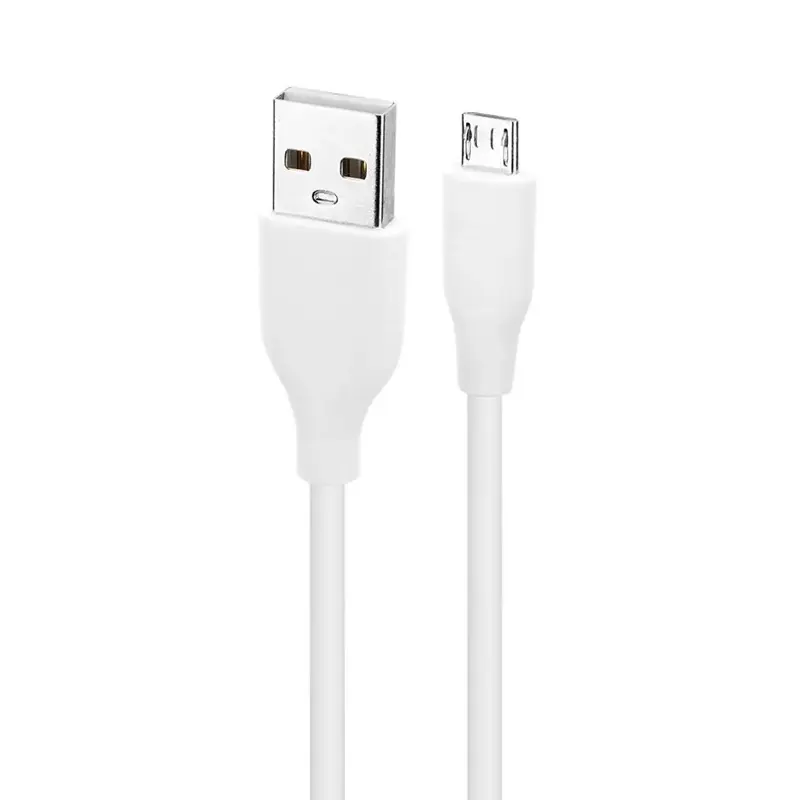
| Cable and port arrangement | Identify which port supports the required features and whether the laptop has enough available ports for other devices. | The dock’s supplied or recommended host cable must support the required data, display, and power capabilities. | Use a cable rated for the dock’s required features, and connect it to the laptop’s compatible USB-C port rather than an unrelated charging or data-only port. |
| Operating-system support | Check the laptop’s operating system and whether it supports the dock’s display, network, audio, and other functions. | Most standard USB functions use built-in operating-system support; docks relying on additional display software may require installation and permissions. | Review the dock’s operating-system requirements and confirm that any required drivers or software are supported and permitted. |
A Type-C dock only works well when its ports match your laptop and the devices you actually use. Check the laptop’s specifications, not just the shape of its USB-C port. Some ports carry data and power but do not support video. Others support display output through DisplayPort or Thunderbolt-compatible connections. That difference matters. For a monitor, compare the dock’s HDMI or DisplayPort output with the screen’s resolution and refresh rate. If you use two displays, verify that the dock supports both at your desired settings; some laptops limit external screens.
Tips: List your devices before shopping: monitor, keyboard, storage drive, and charger. Count the ports each needs. Check the dock’s power delivery against your laptop’s charging requirement. Leave a little headroom if possible. Read the fine print on included cables, too.
It is easy to focus on port count and overlook bandwidth. A dock may have several USB ports, yet share data speed among them. For large file transfers, check the stated USB speed. For a desk setup, confirm that the Ethernet, audio, and card-reader ports are useful to you. I would still double-check compatibility with the laptop’s exact model; specifications can be surprisingly easy to misread. A quick port map can prevent buying a dock with one impressive feature and one missing connection.
When choosing a Type-C dock, check its actual power delivery, not just the largest number on the box. USB-IF’s USB Power Delivery 3.1 announcement sets a maximum of 240 watts, but many laptops accept far less. A dock rated for 100 watts may also reserve some power for itself. Match the dock’s output to your laptop’s charger requirements, and leave a little headroom. I check the laptop manual, too.
Data speed affects real desk work. USB-IF’s USB4 Version 2.0 announcement specifies up to 80 Gbps in supported configurations; that does not mean every dock port reaches that rate. Shared bandwidth can slow a large file transfer when an external drive and other devices are active. Check which ports share the dock’s connection. Small detail. Easy to miss.
Display support depends on the laptop’s USB-C capabilities, the dock’s video standard, and the cable. VESA’s DisplayPort 2.1 specification describes UHBR20 links reaching 80 Gbps across four lanes. Actual resolution and refresh rate can still be limited by lane allocation or display compression. For two monitors, verify the dock’s published resolution-and-refresh combinations, not merely its monitor count. I have found this part oddly confusing, and specifications do not always make the trade-offs obvious.
A Type C dock earns its place through solid construction, useful ports, and a price that matches your daily workload. Check the casing, connector fit, and cable strain relief; a loose plug can interrupt a meeting when the laptop shifts. Metal may shed heat well, but it can add weight. Plastic is lighter, though thin panels may flex. Small details matter.
Read the specifications, not just the port count. USB-IF’s USB4 Version 2.0 announcement describes signaling rates up to 80 Gbps, but that figure does not guarantee every port, cable, or laptop supports the same features. VESA’s DisplayPort 2.1 specification also defines bandwidth up to 80 Gbps for its highest tier. Check your laptop’s output limits, then confirm the dock supports your monitor resolution, refresh rate, and charging needs. More ports are not always better.
Price the whole setup. A low-cost dock may omit a power adapter, offer slower data transfer, or support only one external display. Compare those limits against the cost of separate adapters and cables. Warranty length and clear technical documentation also help judge value. I still find port labels confusing. That is worth admitting. A neat specification sheet can hide a frustrating setup.