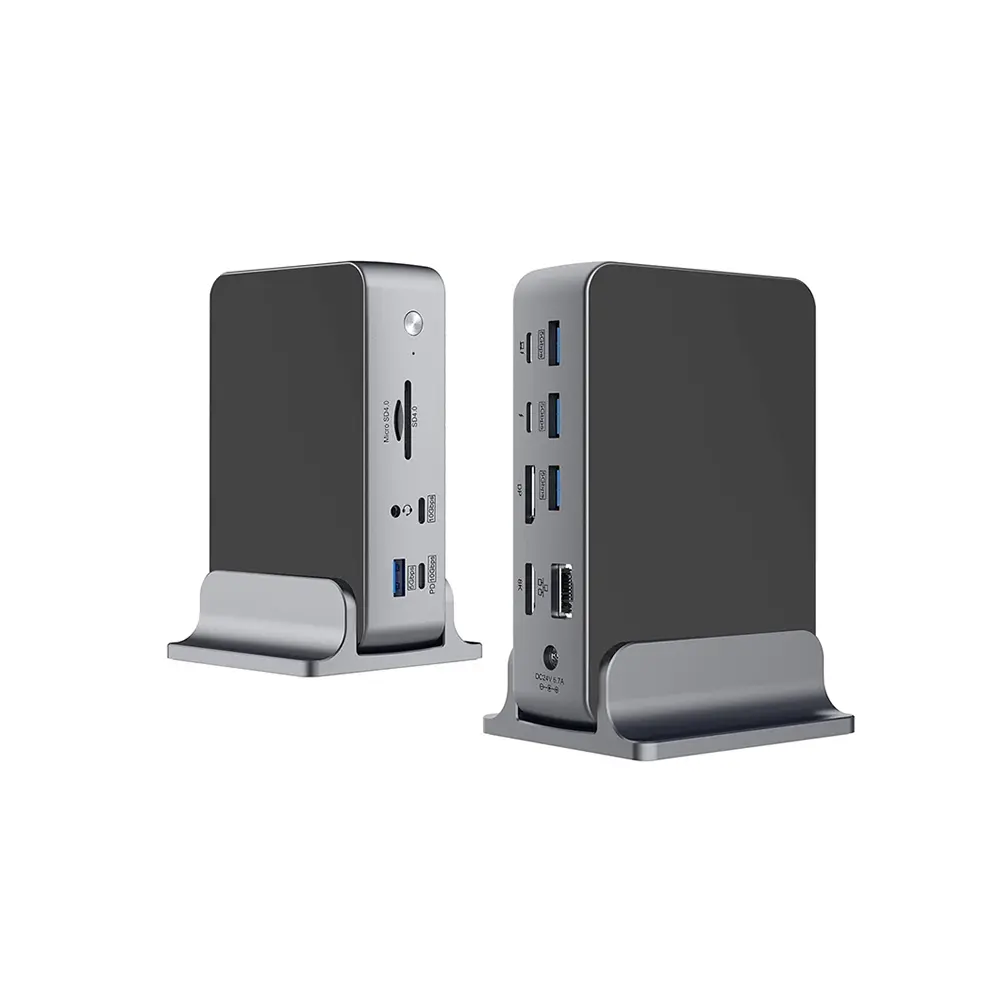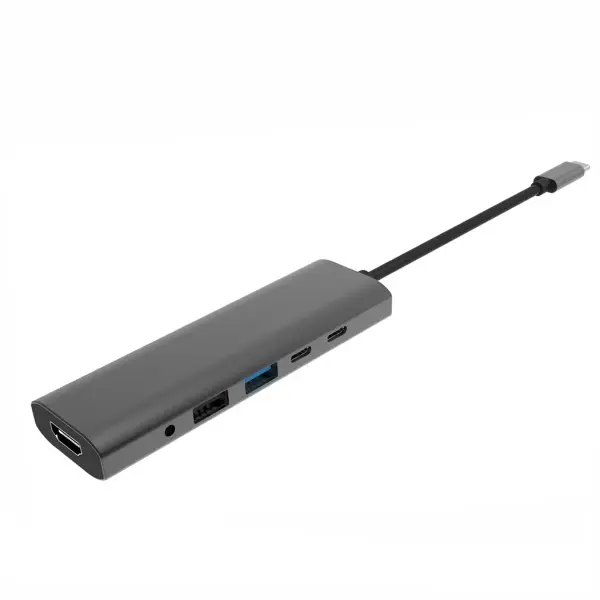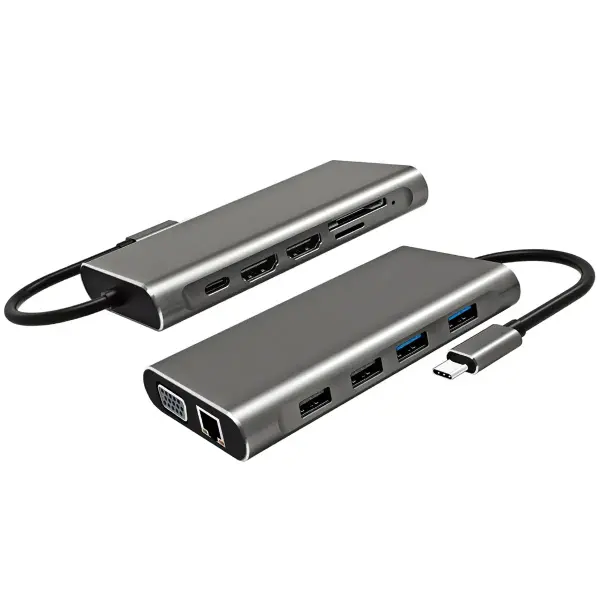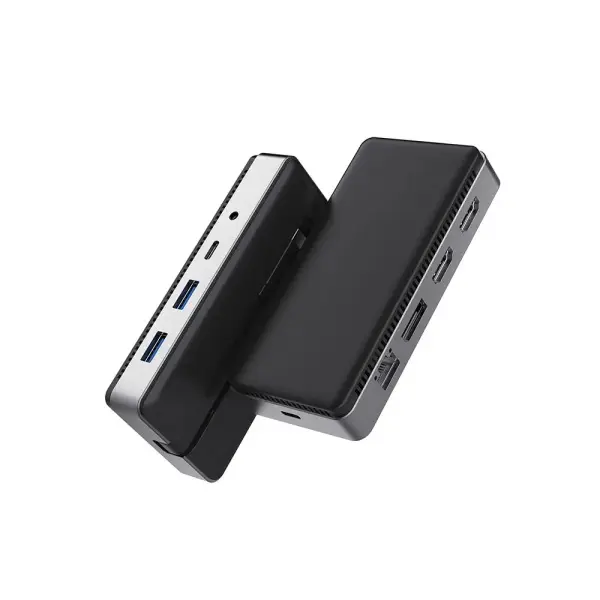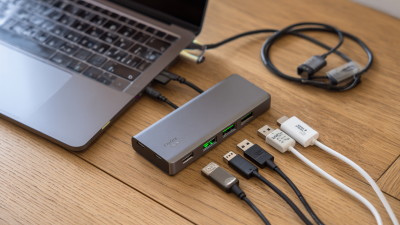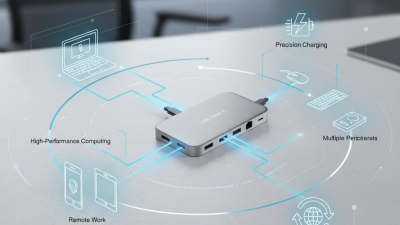
Choosing the Best USB Type C Multi Port Adapter is no longer a simple port-counting exercise. Modern laptops often replace HDMI, USB-A, Ethernet, and card slots with one compact USB-C connection. IDC’s Worldwide Quarterly Personal Computing Device Tracker continues to monitor changing PC form factors and connectivity trends. Canalys PC market analysis also reflects the growing importance of portable, versatile computing accessories.
The right adapter should match your actual workflow. A photographer may need a stable UHS-II card reader. A remote worker may prioritize gigabit Ethernet, dual-display support, and reliable USB Power Delivery. A student might need only HDMI, USB-A, and charging passthrough. Small details matter. Check whether the USB-C input supports data, charging, or video output. Confirm the advertised 100W input before connecting a high-power laptop. The adapter itself may consume part of that power.
Look beyond impressive specifications. USB-IF documentation helps clarify USB-C and USB Power Delivery capabilities, while HDMI licensing information supports more careful display compatibility checks. Independent industry reports can show adoption trends, but they cannot guarantee one model’s thermal performance. That requires practical testing.
Heat matters. Cable length matters too.
During real use, an adapter may sit beside a warm laptop, drive, and monitor for several hours. Poor airflow can cause unstable connections or reduced transfer speeds. I would not choose solely by brand reputation or the number of ports. That approach sounds reasonable, but it often fails in daily use. This guide compares performance, compatibility, build quality, power handling, and long-term reliability, helping readers choose with evidence rather than attractive packaging.
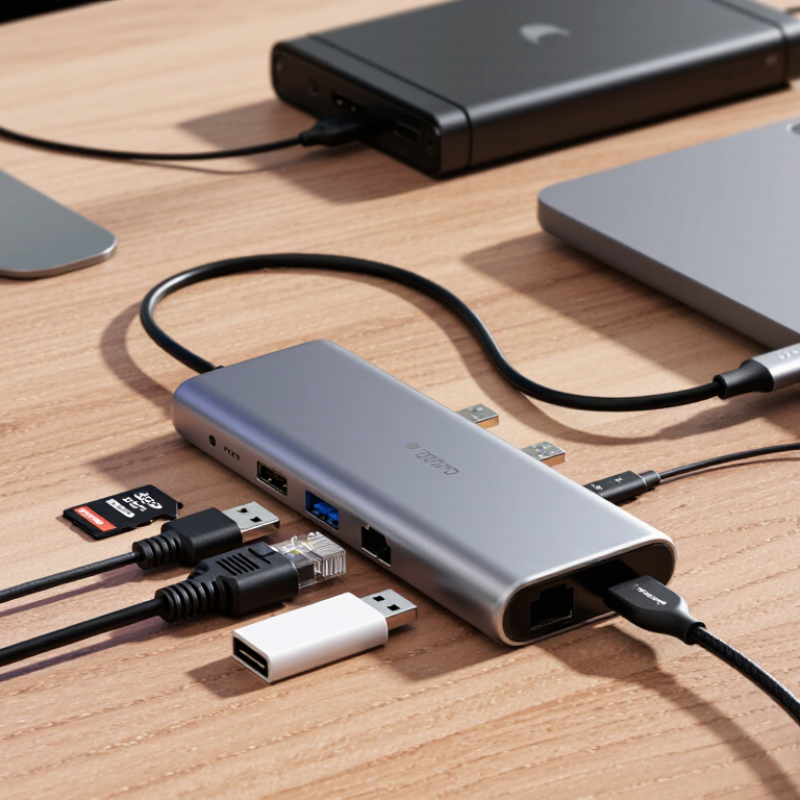
A USB Type-C multi-port adapter expands one compact port into practical connections for modern workspaces. Its functions may include USB data ports, HDMI output, Ethernet, memory-card readers, and power delivery. Each port has a different limit. A fast-looking USB port may support charging only, not high-speed data transfer.
Check the adapter’s specifications carefully. USB data speeds can range from basic transfer rates to much faster standards. Video output also depends on the computer’s USB-C port, display resolution, refresh rate, and supported display mode. For example, a 4K monitor may work at 30 Hz instead of 60 Hz. That difference is noticeable when scrolling or editing video. Power delivery matters too. An adapter may pass through 100 watts, but its own circuitry usually consumes several watts.
In daily use, I connect a laptop to a monitor, wired network, keyboard, and external drive through one adapter. The setup is clean, but heat can build near the ports during large file transfers. I once assumed every USB-C port supported identical features. That was wrong. Port markings and device manuals deserve attention. A reliable choice should state tested data speeds, display support, power limits, operating-system compatibility, and safety certifications. Small details matter. If you use memory cards, confirm the reader’s supported formats and transfer speed. If stable network access is important, check whether the Ethernet port supports the required connection speed. Some compromises remain unavoidable. A smaller adapter may offer convenience, while a larger model can provide better cooling and more stable performance.
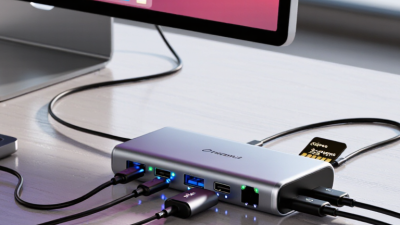
Before choosing a USB Type-C multi-port adapter, list every device you plan to connect. Include a laptop, monitor, phone, camera, storage drive, keyboard, and network cable. Note each device’s connector and expected performance. A compact drive may need fast data transfer, while a monitor may require video output. Do not assume every Type-C port supports every function. Check the device manual or port symbols. Small details matter.
Your laptop might support charging and data, but not external display output through its Type-C port. Some ports also share bandwidth, causing slower storage when several devices operate together. Record the monitor’s resolution and refresh rate. Then check whether the adapter supports those requirements. For example, a high-resolution display, wired network connection, and external drive may compete for limited bandwidth. More ports do not always mean better performance.
Power needs deserve careful attention. Add the wattage required by your laptop and connected accessories, then choose an adapter with suitable power delivery support. A phone charger may not provide enough power for a demanding computer. I have seen people focus on port count and overlook charging limits. That mistake is easy to make. Check the specifications twice. If your setup changes often, leave one port unused for unexpected equipment, such as a card reader or temporary backup drive.
| Device or Requirement | Recommended Adapter Feature | Typical Specification | What to Verify Before Buying |
|---|---|---|---|
| USB-C laptop or tablet | Host USB-C connection with data, video, and charging support | USB 3.x data; USB Power Delivery pass-through; DisplayPort Alt Mode where required | The host USB-C port may support charging only, data only, or full video output. Confirm its capabilities in the device specifications. |
| External monitor or projector | HDMI or DisplayPort output compatible with the display | HDMI commonly supports up to 4K at 60 Hz on suitable hardware; actual output depends on the host, adapter, cable, and display | Check maximum resolution, refresh rate, HDR support, multi-monitor limitations, and whether the computer supports video over USB-C. |
| USB flash drive or external SSD | USB-A or USB-C data port with an appropriate transfer rate | USB 3.0/3.2 Gen 1: up to 5 Gb/s; USB 3.2 Gen 2: up to 10 Gb/s | A faster adapter cannot exceed the speed of the host port, storage device, cable, or shared internal hub bandwidth. |
| Keyboard, mouse, printer, or receiver | At least one USB-A or USB-C data port | USB 2.0 is generally sufficient for keyboards, mice, and many printers | Check the number and physical type of ports, especially if several low-power peripherals will be connected at once. |
| Wired network connection | RJ45 Ethernet port | Gigabit Ethernet supports up to 1 Gb/s under suitable network conditions; some adapters support 2.5 Gb/s | Confirm operating-system support, network speed, cable category, and whether the adapter requires additional drivers. |
| SD or microSD card | Integrated card reader matching the card format | UHS-I cards can reach up to 104 MB/s under ideal conditions; UHS-II requires compatible hardware for higher performance | Check supported card type, maximum capacity, simultaneous card-reader use, and whether the stated speed is read or write performance. |
| Charging while using peripherals | USB-C Power Delivery pass-through port | Common power ratings include 60 W, 85 W, or 100 W input; some power is consumed by the adapter | Use a charger and cable with sufficient wattage. The adapter’s advertised maximum may be higher than the power delivered to the computer. |
| Headphones or speakers | 3.5 mm audio output | Analog stereo audio through a combined 3.5 mm port is common | Verify operating-system compatibility, microphone support, headset wiring standards, and whether digital audio is required. |
| Multiple high-bandwidth devices | Adapter with a high-speed host interface and clear bandwidth specifications | All connected devices may share the adapter’s upstream bandwidth | Avoid judging performance by the number of ports alone. Check the host interface speed and whether ports operate simultaneously at full rate. |
| Travel and mobile use | Compact, lightweight enclosure with a short, durable host cable | A practical travel layout may include HDMI, USB-A, USB-C data, USB-C PD, and card slots | Consider dimensions, cable storage, heat management, port spacing, and whether the adapter can be used without blocking neighboring ports. |
| Desktop workstation setup | Powered multi-port dock or adapter with several display and peripheral connections | May include multiple video outputs, Ethernet, USB ports, audio, and power delivery | Check display-count support, operating-system requirements, power capacity, and whether DisplayLink or other software is needed. |
| Gaming or high-refresh display | Video output supporting the required resolution and refresh rate | High refresh rates depend on the video standard, resolution, GPU, cable, and monitor | Confirm the exact combination of resolution and refresh rate. An adapter may support 4K but not 4K at the desired refresh rate. |
Selection principle: identify the devices you use most often, list the ports and performance levels they require, then choose an adapter whose host interface, video support, power delivery, and total bandwidth meet those requirements.
Choosing a USB Type-C multi-port adapter starts with your actual devices, not the largest port count. A laptop may need USB-A for a keyboard, USB-C for storage, and an SD slot for camera files. USB-IF specifications identify USB 3.2 speeds up to 20Gbps, while USB4 Version 2.0 can reach 80Gbps with compatible hardware. However, the adapter, cable, and computer must all support the same standard. A 10Gbps label does not guarantee 10Gbps in daily use.
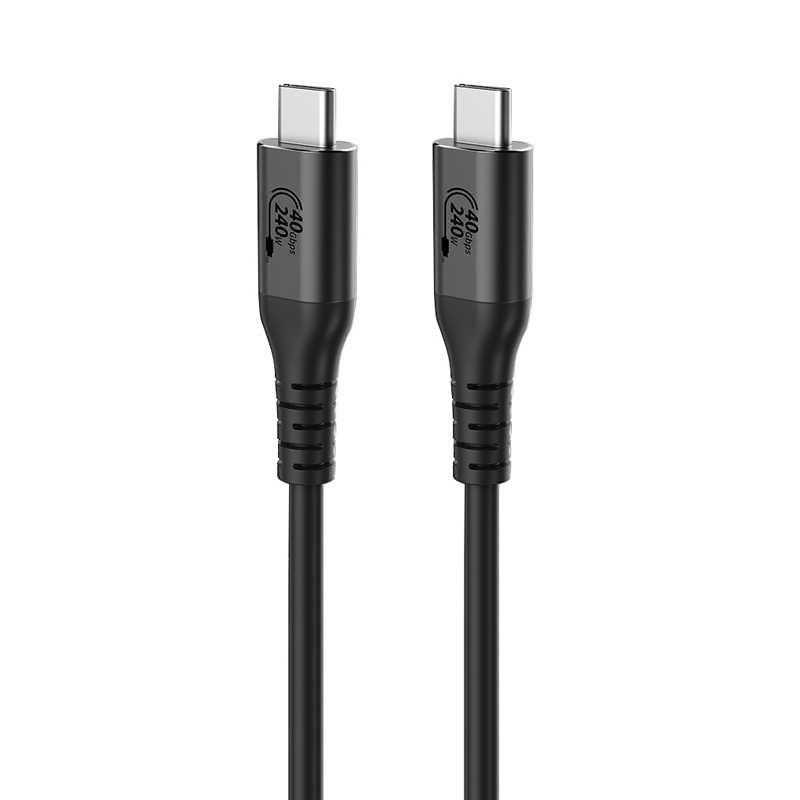
Display support requires closer inspection. Check whether the USB-C host port supports DisplayPort Alt Mode. VESA documentation explains that DisplayPort bandwidth depends on the supported version and link configuration. A display may reach 4K at 60Hz, but another setup may fall to 30Hz when data traffic shares bandwidth. That difference is noticeable when moving windows or editing video. Charging also deserves careful measurement. USB-IF’s USB Power Delivery 3.1 specification allows power levels up to 240W, yet many compact adapters accept far less. I still prefer testing charging under load, because advertised wattage can hide power sharing.
Tips: Match the adapter’s speed to your fastest drive. Count ports while the display is active. Use a certified cable. Leave thermal headroom; a warm adapter can throttle storage performance. Speed is not everything. An adapter with fewer ports may feel better if its display output remains stable and its charging power stays consistent. Industry figures are useful, but your own laptop’s port limits matter more.
Compare generic adapter profiles by total port count, maximum USB data speed, external display refresh rate, and USB Power Delivery pass-through capacity. These are standards-based reference values; actual specifications vary by model.
Selection tip: Choose 5 Gbps USB ports for everyday peripherals, 10 Gbps ports for external storage, HDMI or DisplayPort support up to 4K at 60 Hz for smoother displays, and sufficient Power Delivery capacity for your laptop.
Choosing a USB Type-C multi-port adapter starts with compatibility, not appearance. Check whether the host device supports USB Power Delivery, DisplayPort Alt Mode, and the required data standard. USB-IF specifications allow USB Power Delivery up to 240W and USB4 data rates up to 80Gbps, but an adapter may support only a fraction of those limits. Read the technical table carefully. A 4K display, fast SSD, and charging input can compete for bandwidth.
Build quality matters during daily use. Look for a firm connector, flexible strain relief, and a metal or reinforced enclosure. The adapter should not become uncomfortably hot beside your laptop. IEC 62368-1 addresses safety requirements for audio, video, and information technology equipment, while USB-IF certification helps verify relevant USB performance claims. Certification is useful, but it is not a substitute for checking the actual port layout and power limits.
Safety features deserve plain attention. Seek overvoltage, overcurrent, short-circuit, and thermal protection, especially when several devices connect simultaneously. Portability is more practical than extreme thinness. A short integrated cable reduces desk clutter, while a compact body fits beside a notebook in a crowded train seat. I once chose the lightest adapter and ignored cable flexibility; the connector loosened within months. That mistake still changes how I evaluate travel accessories. Less weight is not always better.
Choosing the best USB Type-C multi-port adapter starts with your daily routine, not a long feature list. I first count the devices I connect. A laptop, monitor, keyboard, and memory card may need different ports. An adapter with many ports is not always the better choice. That sounds obvious, but I have made this mistake before.
For everyday work, prioritize stable power delivery, reliable data transfer, and useful video support. Check whether the adapter supports your laptop’s charging requirements. A low-cost model may provide several ports but limit their speeds. Read the technical specifications carefully. USB port labels can be confusing. If you transfer large photos, choose faster data support. If you use an external display, confirm the required resolution and refresh rate. For simple office tasks, paying extra for unused ports may waste your budget.
Physical design also matters. A short cable can strain a side-mounted port. A loose connector can interrupt a presentation. Look for solid construction, ventilation, and clear compatibility information.
I prefer testing each port before regular use, especially with memory cards and displays. Heat is worth watching. Some adapters become warm during charging and data transfer, which may be normal, but excessive heat deserves attention. My own choices are not always perfect; I once selected a compact adapter that lacked enough power for my external drive. That experience changed how I compare practical performance with advertised features.