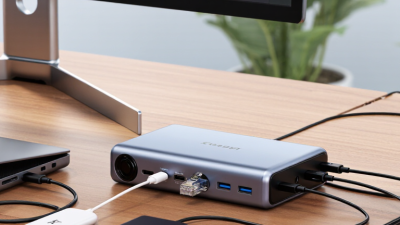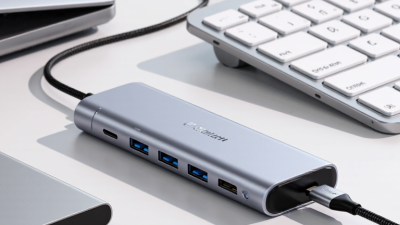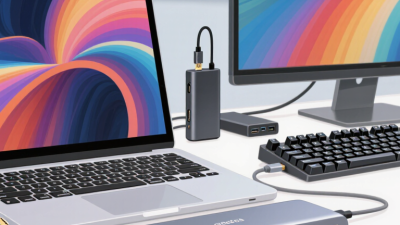
A Type C Hub can turn one compact USB-C port into a practical workspace connection for displays, storage, charging, and accessories. Yet the connector shape tells only part of the story. A hub may look suitable on a shop page, then fail to support a monitor’s resolution or charge a laptop while several devices are connected. Small detail. Big difference.
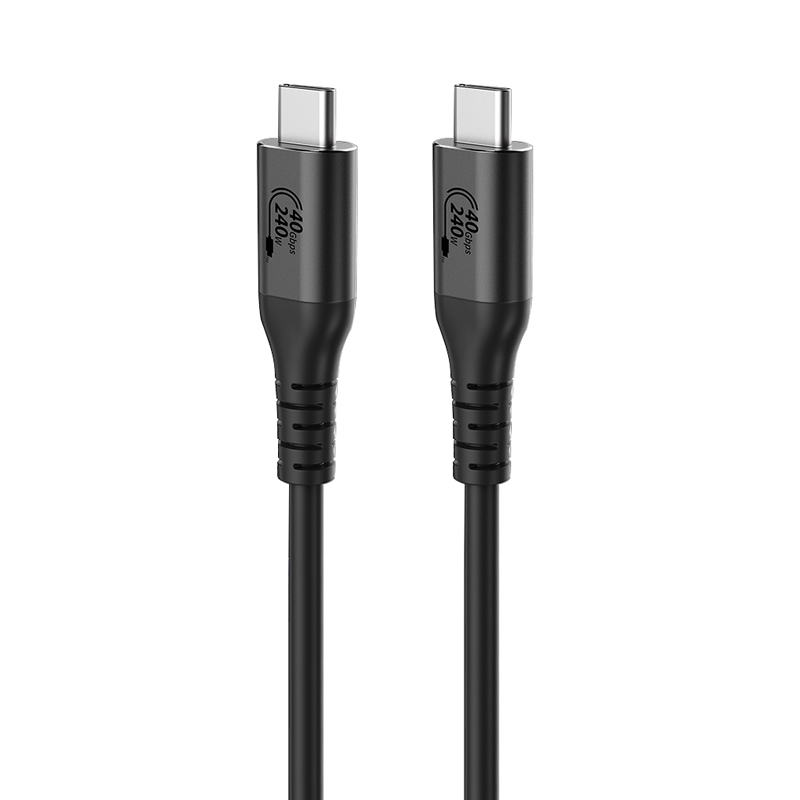
Google engineer Benson Leung is known for testing USB-C cables and highlighting compatibility concerns. In paraphrase, his work offers a useful reminder: “A USB-C plug alone does not guarantee every feature.” That is not a verbatim quotation, but it captures an important buying principle. Check the hub’s supported data speeds, video output, power delivery, and host-device requirements. Also check the cable. A short, clearly rated cable can matter more than a crowded list of ports.
This guide explains what a Type C Hub does and how to choose one for your actual setup. It compares common ports, explains the difference between charging capacity and data transfer, and shows which specifications deserve attention. A photographer copying large files may need fast card readers; a laptop user presenting slides may care more about reliable HDMI output. There is no universal best hub. Even this advice has limits: product specifications can be confusing, and manufacturers do not always describe them consistently. Read the fine print, match it to your devices, and leave room for a little uncertainty.
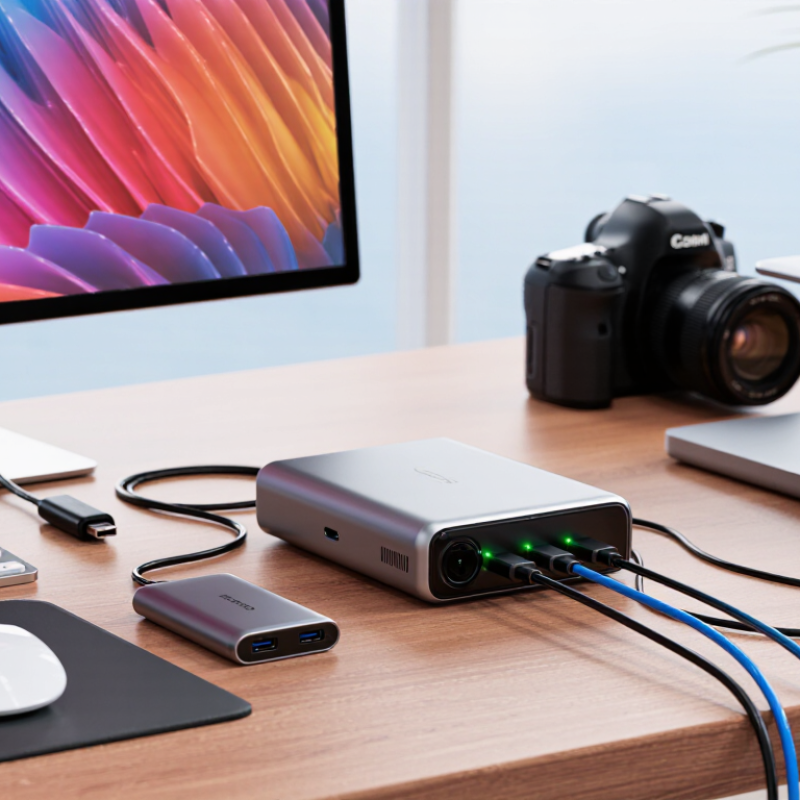
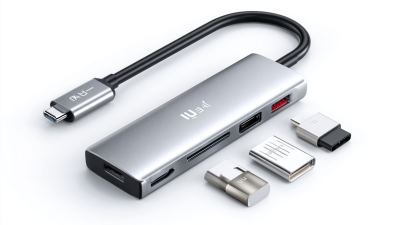
A Type-C hub is a small adapter that turns one USB-C port into several connections, such as USB-A, HDMI, Ethernet, or card-reader slots. It is useful when a thin laptop has only two ports and you need to connect a monitor, keyboard, and storage drive at once. The connector shape alone does not guarantee specific features. USB-C describes the plug and port; data speed, video output, and charging depend on the device, hub, and cables. That distinction is easy to miss.
Power is another detail worth checking. USB-IF’s USB Power Delivery 3.1 specification supports power levels up to 240 watts, but a hub does not automatically deliver that amount. Its rated input, output, and pass-through limits matter. Check the labels. For example, a hub may accept a 100-watt charger yet reserve some power for its own operation, leaving less for the laptop. Video output also varies: a USB-C port may support DisplayPort Alt Mode, while another similar-looking port may not. Read the computer’s specifications before buying. I’ve seen this cause avoidable confusion. A compact hub can look capable, but the port behind it sets the real limits.
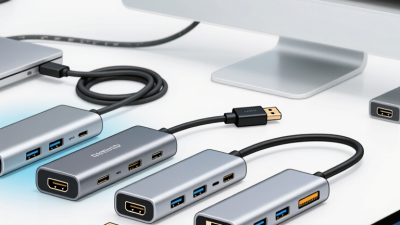
A Type-C hub connects to a computer, tablet, or phone through one USB-C plug. Inside, a controller directs data between the host device and the hub’s ports. A keyboard may send keystrokes while a flash drive transfers files. They share the same connection, so heavy transfers can slow other tasks. That matters.
The hub can also pass power from a charger to the host, if both support USB Power Delivery. Video output works only when the host’s USB-C port supports a compatible display mode, such as DisplayPort Alt Mode. A USB-C socket alone does not guarantee video. Check the device specifications, not just the port shape. This small detail is easy to miss.
For a desk setup, connect the hub, then attach a monitor, mouse, and storage device. The operating system usually detects common accessories automatically, though some displays need their input selected manually. If a drive disconnects during a large copy, the hub may be drawing more power than the charger can provide. Try fewer devices or a stronger compatible power supply. I would not assume every port performs at its maximum speed when several devices are active; the hub’s shared bandwidth and cable quality can affect results.
A Type-C hub connects to a computer through its upstream USB-C port, then connects peripherals through its downstream ports. This chart compares nominal USB link rates supported by common standards; actual speeds depend on the computer, hub, cable, and connected device. Devices sharing a hub may also share its available bandwidth.
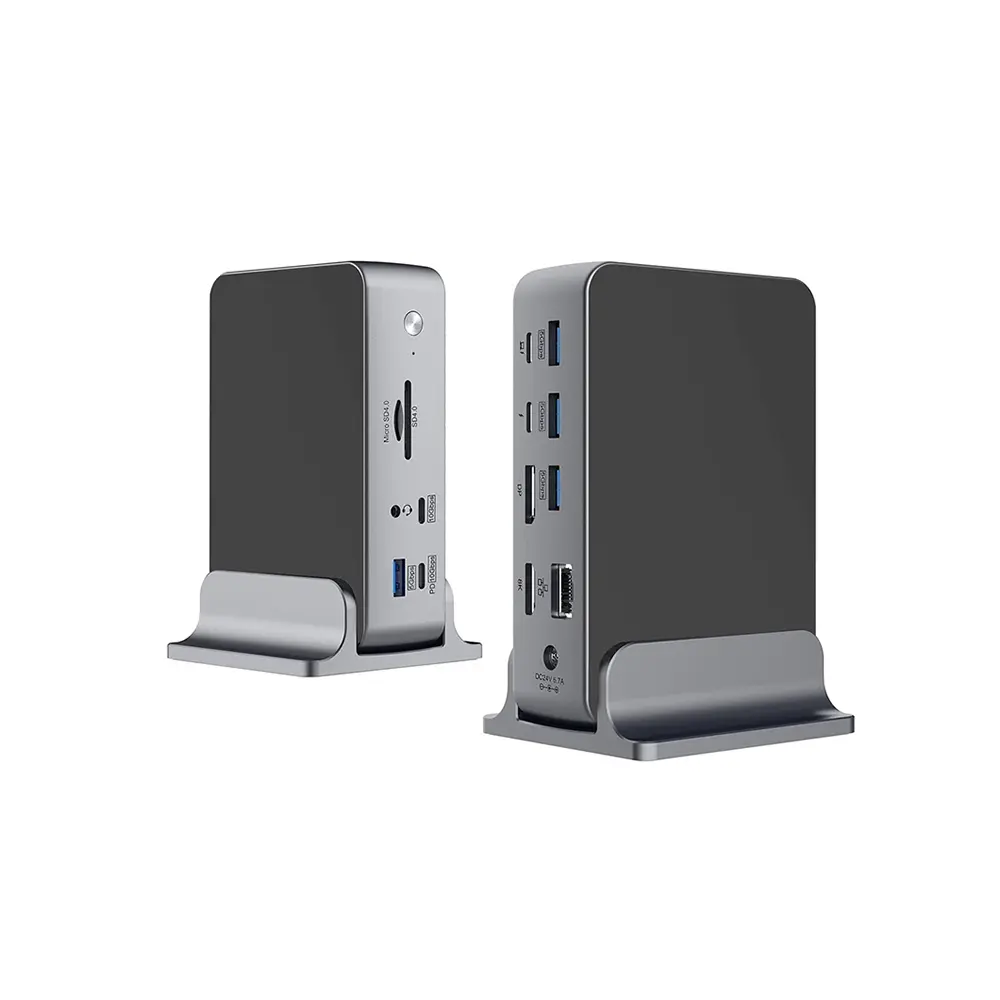
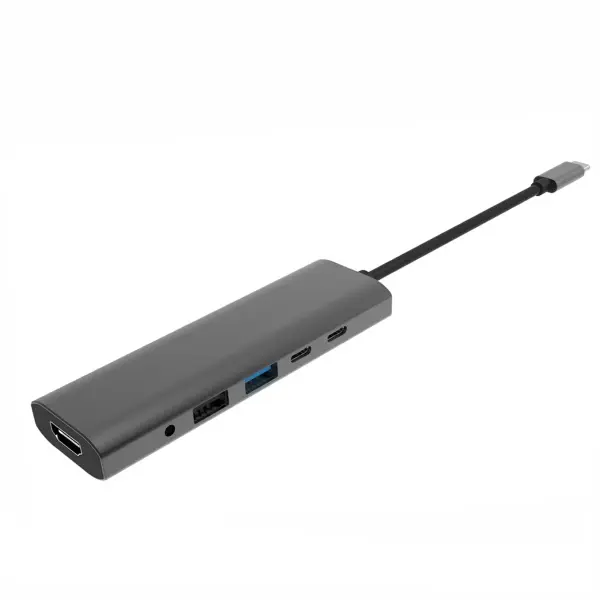
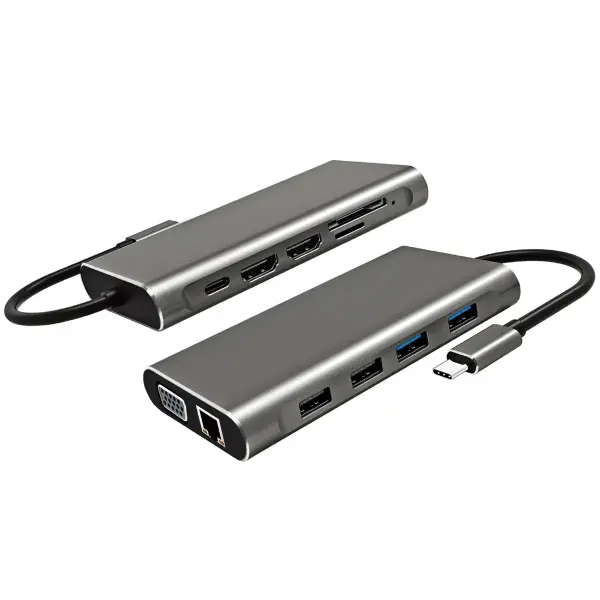
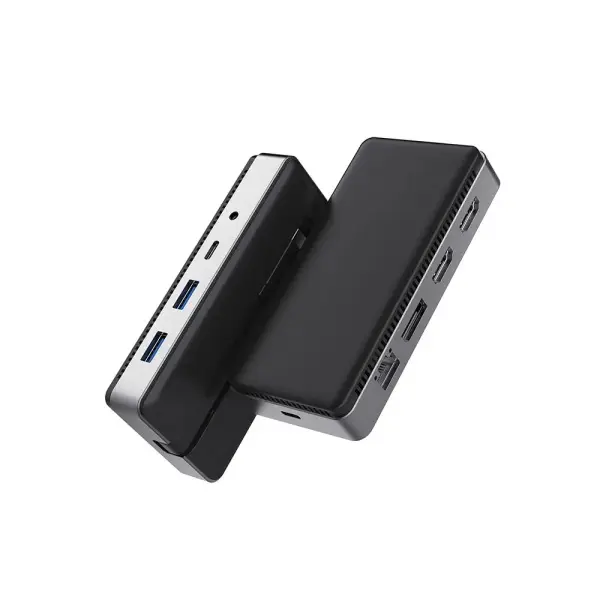
A Type-C hub can add several connections through one USB-C port, but its port mix matters more than the number printed on the box. Common options include USB-A for a mouse or flash drive, USB-C for data or charging, and HDMI or DisplayPort for an external screen. Some hubs also include SD and microSD card readers, Gigabit Ethernet, or a 3.5 mm audio jack. Small detail, big difference: a USB-C port may support charging only, data only, or both. Check the specifications rather than relying on its shape.
Power delivery passthrough can charge a laptop while the hub is connected, though the hub itself may use some power. Video output depends on both the computer’s USB-C capabilities and the hub’s supported display resolution and refresh rate. A screen that looks fine at a lower setting may not run at its maximum refresh rate through every hub. It is easy to overbuy here. Match the ports to devices you actually use, then check bandwidth if you transfer large files or connect several accessories. More ports can also mean more heat and cable clutter. That trade-off is easy to miss.
| Port or Feature | Common Options | What It Is Used For | What to Check Before Choosing |
|---|---|---|---|
| USB-A | USB 2.0, USB 3.2 Gen 1 (5 Gbps), or USB 3.2 Gen 2 (10 Gbps) | Connects peripherals such as keyboards, mice, flash drives, and external storage. | Check the supported data rate. A USB-A port may support data only and may not provide enough power to charge a laptop. |
| USB-C data port | USB 2.0, USB 3.x, USB4, or Thunderbolt, depending on the hub | Connects newer devices and can carry data; some ports also support video or power delivery. | USB-C describes the connector shape, not the supported speed or features. Confirm the port’s specific data rate and functions. |
| USB-C Power Delivery input | Pass-through charging, with supported wattage varying by model | Lets a compatible power adapter charge the host laptop through the hub. | Check the hub’s maximum pass-through wattage and account for power used by the hub itself. The laptop and charger must also support USB Power Delivery. |
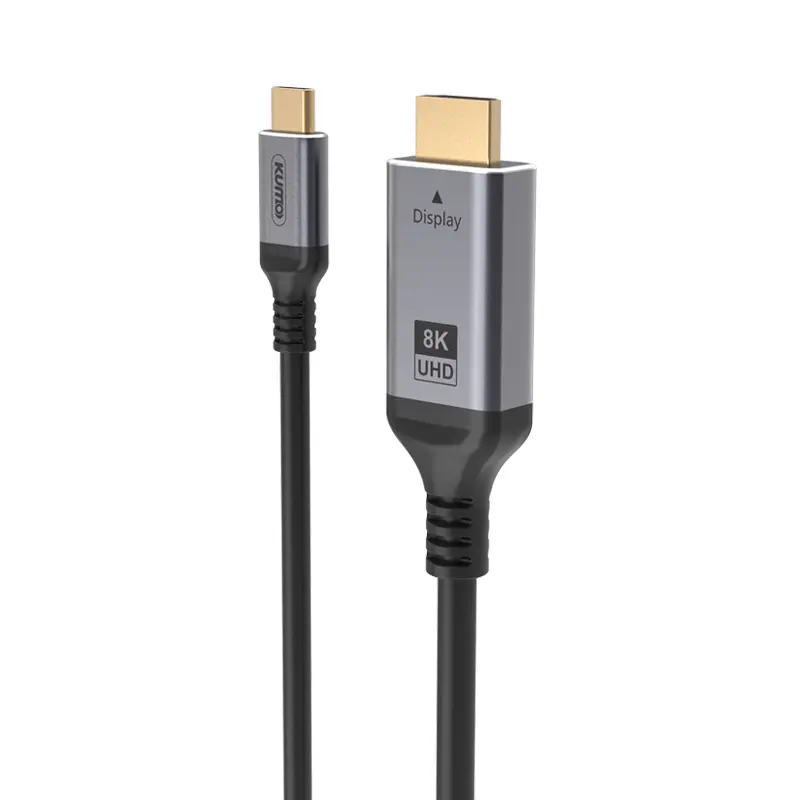
| HDMI | Commonly supports 4K at 30 Hz or 4K at 60 Hz, depending on the hub and host | Connects an external monitor, television, or projector. | Check resolution and refresh-rate support, the HDMI version, and host-device video capability. USB-C video output generally requires DisplayPort Alt Mode, USB4, or Thunderbolt support. |
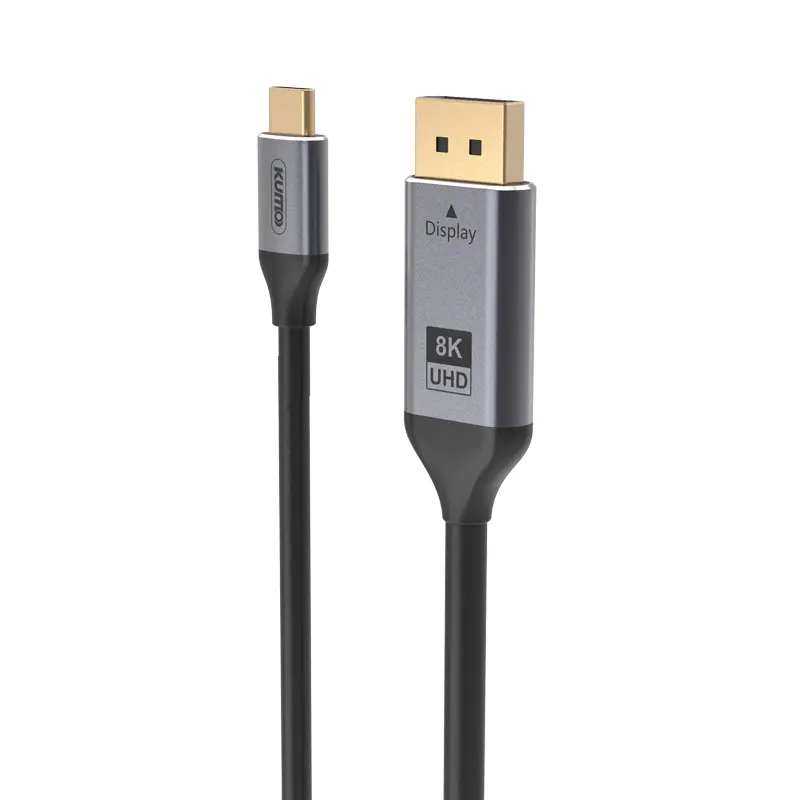
| DisplayPort | Available on some hubs for direct monitor connection | Outputs video to a compatible display, often over a DisplayPort cable. | Confirm the supported resolution, refresh rate, and number of displays. Actual performance depends on the hub, host, cable, and monitor. |
| Ethernet | Commonly 1 Gigabit Ethernet; some models support faster networking | Provides a wired network connection for compatible laptops and tablets. | Check the port speed and whether the device’s operating system supports the hub’s network adapter. |
| SD and microSD card readers | SD, microSD, or both; often UHS-I, with faster standards on some models | Transfers files from cameras, drones, and other memory-card devices. | Check which card formats are supported and the reader’s speed standard. Two slots may share bandwidth or may not support simultaneous use. |
| 3.5 mm audio jack | Headphone output, headset support, or combined audio input/output | Connects wired headphones, speakers, or a compatible headset. | Check whether the jack supports a microphone as well as audio output. |
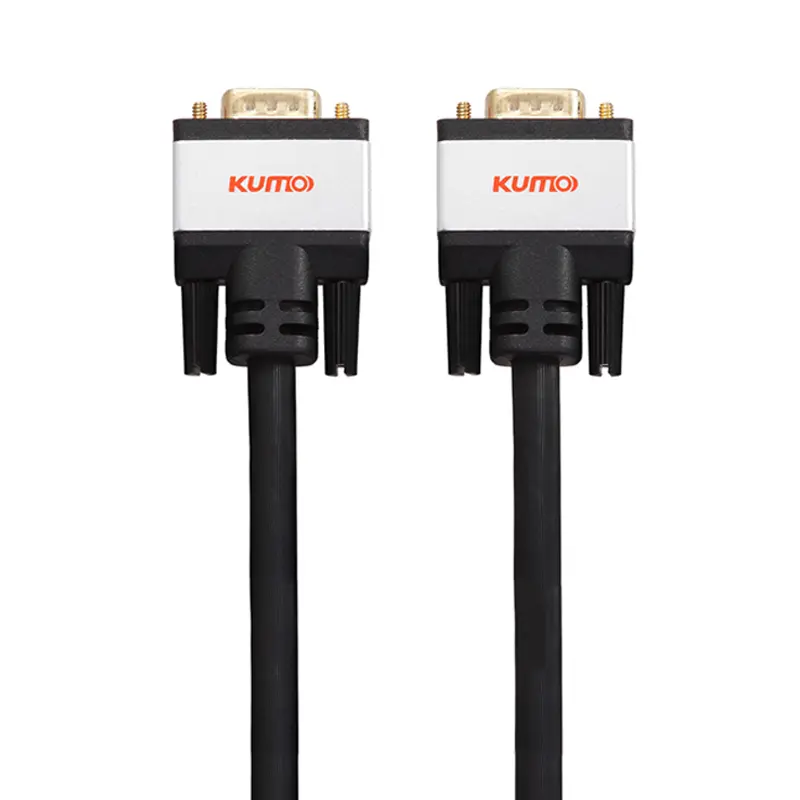
| VGA | Analog video output on some hubs | Connects to older monitors or projectors that have a VGA input. | VGA is an older analog standard and does not carry audio. Confirm the maximum supported resolution. |
| Port layout and cable | Compact fixed-cable hubs or larger hubs with longer cables | Affects desk setup, portability, and how easily connected devices can be reached. | Check the host connector, cable length, port spacing, and whether the hub may block adjacent laptop ports. |
| Host compatibility | Compatibility varies by laptop, tablet, operating system, and USB-C capability | Determines whether the hub’s ports, displays, and charging features will work as expected. | Verify that the host USB-C port supports the required data, video, and charging features; not every USB-C port supports all three. |
A USB-C plug does not guarantee that every hub feature will work. Check the computer’s port specifications for data speed, video output, and charging support. Some ports transfer files but cannot send video. Others support display output only through specific standards, such as DisplayPort Alt Mode or USB4. Match those capabilities with the hub’s specifications and your monitor’s resolution and refresh rate. Not always obvious.
Power needs attention too. If you plan to charge through the hub, compare its power-delivery limit with your computer’s requirements. Remember that connected devices may share available power. A keyboard uses little; an external drive may need more. Check operating-system support and cable specifications as well. A spec sheet can still leave room for doubt, so test your actual setup when possible.
Tips: Connect the monitor and drive, then transfer a large file while checking the display. If the image flickers or storage slows, disconnect other devices and test again. Small changes can reveal a bottleneck.
Choose a Type-C hub by matching its ports to devices you actually use. Count them: an external display, a mouse, a memory card, or wired network cable. A slim hub with two USB-A ports may suit travel, while a desk setup might need HDMI, Ethernet, and several fast USB ports. More ports are not automatically better.
Check your laptop’s USB-C port before buying. Not every port supports video output or charging, even if the connector looks identical. For a monitor, confirm that the hub and computer support your intended resolution and refresh rate. If you connect a charger through the hub, compare its power-delivery rating with your computer’s needs. The hub uses some power itself, so a charger rated just at the laptop’s limit may leave little margin.
Bandwidth matters, too. Several ports can share one connection, so copying files while using a display may feel slower than expected. Look for clear speed specifications, not vague claims like “high speed.” Consider the cable length and casing: a short cable can pull a hub off a crowded desk, and a warm metal shell is not necessarily faulty. I once underestimated card-reader access; tiny slots can be awkward beside bulky plugs. Check the return policy, and leave room for one detail you may have missed.