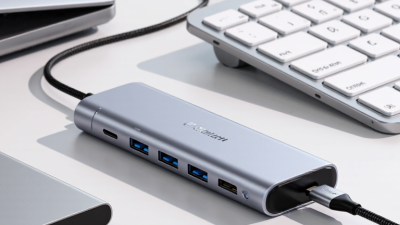
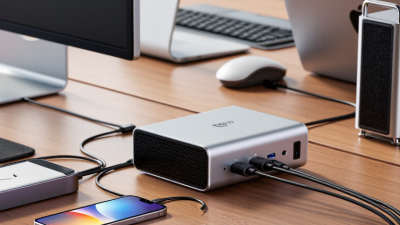
Best Type C Hub 2 HDMI in 2026 for Global Buyers
A compact hub can transform a crowded desk: one USB-C cable connects a laptop to two HDMI displays, while charging and peripherals share the same workspace. Yet the Type C Hub 2 Hdmi label does not guarantee identical results. Resolution, refresh rate, power delivery, operating-system support, and the laptop’s video-output capability all matter. Small details matter.
IDC reported approximately 262.7 million PC shipments worldwide in 2024, about 1% above 2023. That figure describes the broader computing market, not USB-C hubs specifically, but it helps explain why dependable multi-display accessories matter to buyers across regions. USB-IF specifications also make clear that USB-C describes a connector, not a promise that every device supports the same video features. Check the host device’s documentation before comparing hub listings.
This guide weighs practical evidence: supported display modes, port layout, heat under sustained use, cable length, build quality, and warranty clarity. A second screen should not flicker during a presentation. Neither should a hub become the weak link in a travel setup. There is one sourcing limit: no verifiable, verbatim quotation from a named Type-C hub specialist was provided, so I will not invent one. That omission is deliberate. Buyers deserve clear evidence, not confident-sounding claims.
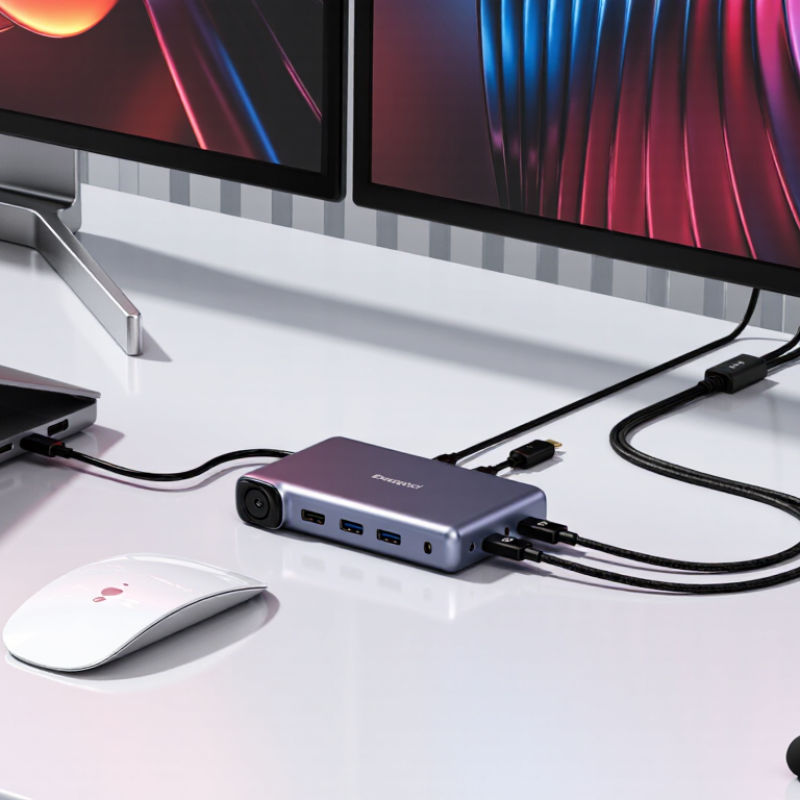
What a Dual-HDMI USB-C Hub Is and How It Works
A dual-HDMI USB-C hub takes video and data from a compatible laptop’s USB-C port, then routes video to two HDMI displays. The port must support DisplayPort Alt Mode or USB4 video; a USB-C-shaped socket alone does not guarantee it. Some hubs use Multi-Stream Transport (MST) to create separate display streams. Others rely on a graphics chip and software. That distinction matters: compatibility and setup can differ.
VESA’s DisplayPort 2.1 specification lists UHBR20 at 20 Gbps per lane, or 80 Gbps across four lanes. That is a link-rate ceiling, not a promise that a hub will run two displays at maximum resolution and refresh rate. The hub, computer, operating system, cable, and screens all affect the result. Two HDMI sockets may mirror one image rather than extend the desktop. Check the supported modes before buying. A spec sheet can still mislead. USB power delivery is separate from video: a hub may charge a laptop while driving displays, but its power supply and passthrough limit matter. In practice, confirm whether the laptop supports two external screens and whether the hub’s listed resolutions apply to both ports at once. That small detail is easy to miss.
Key Features and Specifications to Understand in 2026
A Type-C hub with two HDMI ports is only as capable as its host connection. Check that the computer supports DisplayPort Alt Mode over USB-C; a matching connector alone does not guarantee video. Then check each HDMI output’s maximum resolution and refresh rate. “4K” may mean 30 Hz, not 60 Hz. That difference is obvious when scrolling text or moving windows.
Bandwidth matters. VESA’s DisplayPort 2.1 specification defines link rates up to 80 Gbps, but many laptops provide less. A hub may therefore lower refresh rates when driving two displays. IDC reported 262.7 million PC shipments worldwide in 2024, showing the broad range of systems buyers may need to support. Still, shipment volume says nothing about a specific laptop’s video output. Check its manual. That matters.
Also compare USB data speeds, power delivery, and heat handling. Some hubs reserve bandwidth for video, leaving slower ports for external drives. Power delivery is pass-through, not extra power: the hub uses some incoming wattage itself. Look for the delivered-wattage figure, not just the input rating. Real desks are messier. Cable length, display settings, and operating-system limits can change the result, and two HDMI sockets may mirror rather than extend screens. Confirm dual-display support for the exact computer and resolution before buying.
How to Check Device Compatibility and Display Support
Before choosing a two-HDMI USB-C hub, confirm that the computer’s USB-C port carries video, not just data and power. Look for DisplayPort Alt Mode, USB4, or Thunderbolt support in the device specifications. The connector’s shape alone proves nothing. VESA’s DisplayPort 1.4 specification lists up to 32.4 Gbit/s of link bandwidth, while HDMI 2.0 specifies up to 18 Gbit/s. These figures describe standards, not guaranteed performance: the computer, hub, cables, and screens all affect the result.
Check the laptop’s maximum supported displays, resolution, and refresh rate, then compare them with the hub’s specifications. Two HDMI sockets may mirror one image rather than extend the desktop. Some systems also limit resolution or refresh rate when both outputs are active. Operating-system support matters, too; a hub’s display method may work differently across computers. One detail is easy to overlook: bandwidth may be shared with USB data, so a fast external drive can affect available display capacity.
Tips: Read the computer’s manual, then test both screens at your intended resolution and refresh rate. Use short, certified cables. If the specifications are unclear, ask the device maker before buying. A compatibility checklist can still miss a real-world quirk.
Global Considerations: Power, Ports, Standards, and Travel
For global buyers, a dual-HDMI USB-C hub is only as useful as its power and video compatibility. The USB Implementers Forum’s USB Power Delivery 3.1 specification sets a maximum charging capability of 240 watts; that does not mean a hub delivers 240 watts to a laptop. Check the hub’s pass-through limit and subtract its own power needs. Small print matters. A 100-watt charger may leave less available for the computer.
Port labels can mislead. USB-C describes the connector, not guaranteed video output: the host device must support DisplayPort Alt Mode or another compatible video standard. Two HDMI sockets also do not guarantee two independent displays; operating-system support, graphics hardware, and resolution settings all matter. The HDMI Forum’s HDMI 2.1 specification lists bandwidth up to 48 Gbps, but a hub may support less. Check its stated resolution and refresh rate for both screens together.
Travel adds ordinary hassles. A hub cannot make a wall charger fit every outlet, so check the charger’s input range and carry the right plug adapter. Look for a short, sturdy cable, a clear power rating, and ports you will actually use. An Ethernet jack can help in a hotel with unreliable wireless; a card reader may be more useful at a camera desk. I would verify the host device’s display limits before buying. It is an easy detail to miss.
How to Compare Dual-HDMI Hubs for Different Buyer Needs
When comparing a Type-C hub with two HDMI ports, start with your display setup, not the port count. Check that your laptop’s USB-C port supports video output; a hub cannot create this feature. Then verify whether your operating system can extend two external screens. Some computers mirror both displays instead. Small detail, big difference.
Look closely at the resolution and refresh-rate limits when both HDMI ports are active. A hub may support a high resolution on one screen but reduce it when driving two. For spreadsheets and video calls, stable 1080p output may matter more than the highest advertised figure. For design work, confirm the exact resolution you need. Spec sheets can be unclear here, so check the manufacturer’s technical documentation before buying.
Match the hub’s other ports to your routine. A traveler may prefer a compact body and a short cable that fits beside a laptop on a café table. A desk user may need pass-through charging, USB-A for a mouse, and an Ethernet connection. Check the charging limit and account for power shared across connected devices. Also consider heat: a hub tucked behind a monitor can become warm during long sessions. It is easy to overlook that practical detail.
Best Type-C Hub with 2 HDMI Ports in 2026: Compare Display Bandwidth Needs
Approximate HDMI TMDS link rates for common dual-display setups. Values assume 8-bit RGB and standard timing pixel clocks.
Rates are estimates calculated as pixel clock × 30 bits per pixel clock for TMDS encoding. Combined rates are the sum of both display links, not the bandwidth of one cable. Actual support depends on the laptop’s USB-C video output, operating system, GPU, hub specifications, and features such as MST or DSC. Check these details before buying.

 USB C Docking & Hub
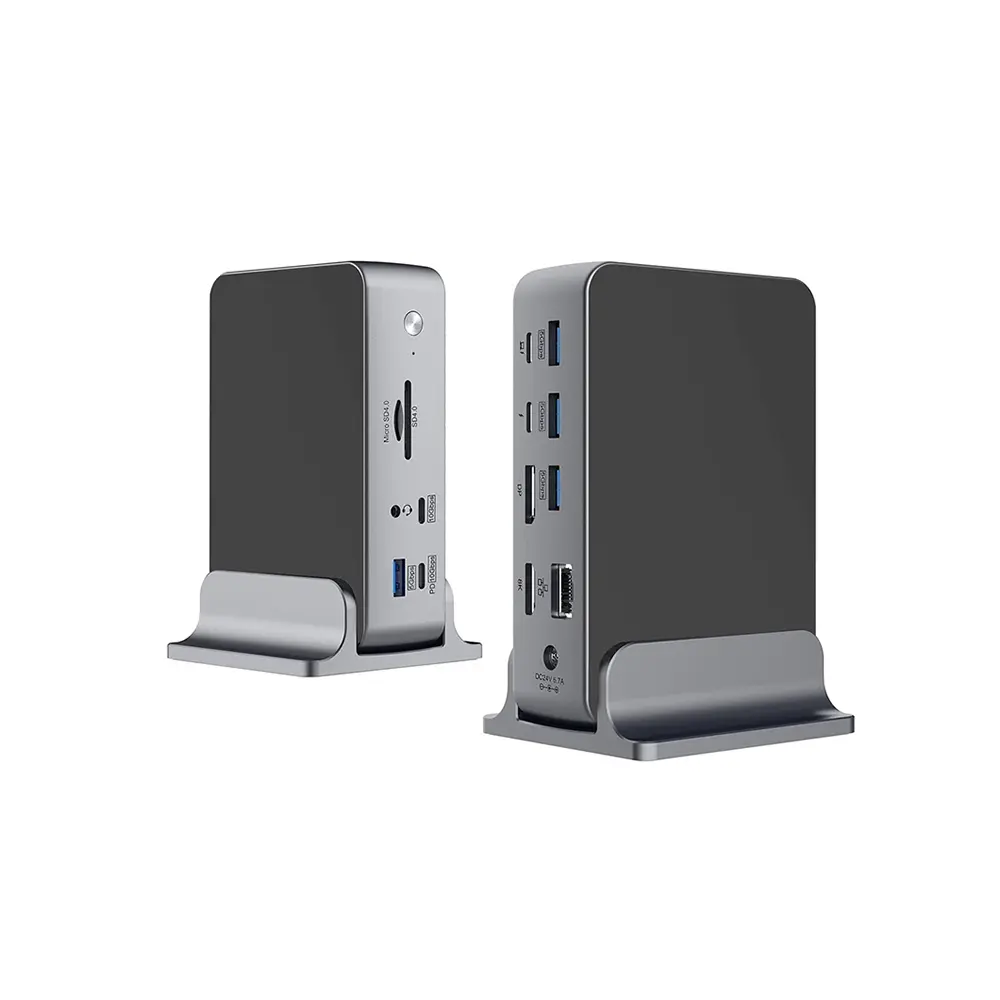 USB C Docking Station
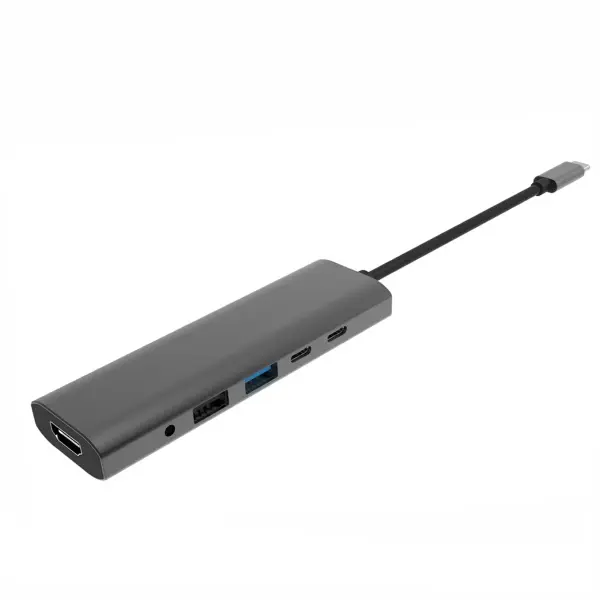 USB C Hub-H Series
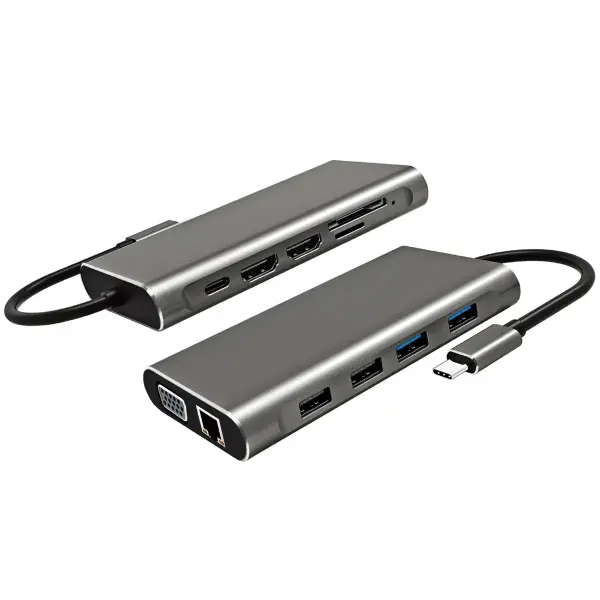 USB C Hub-H Series High End
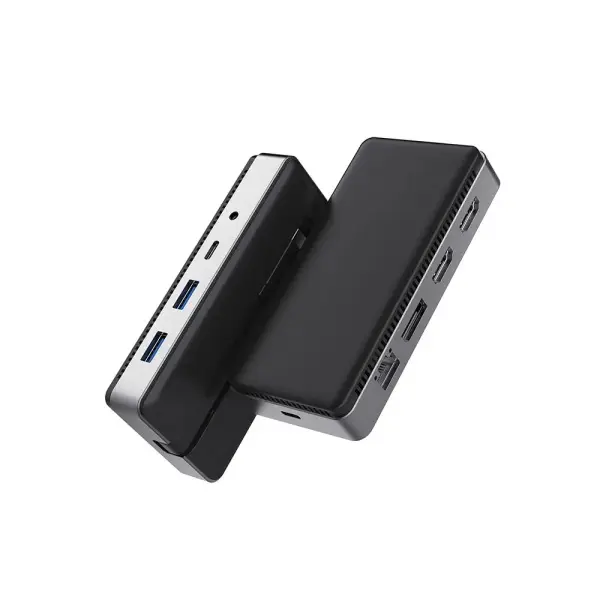 USB C Hub-X Series High End
 HDMI Cable
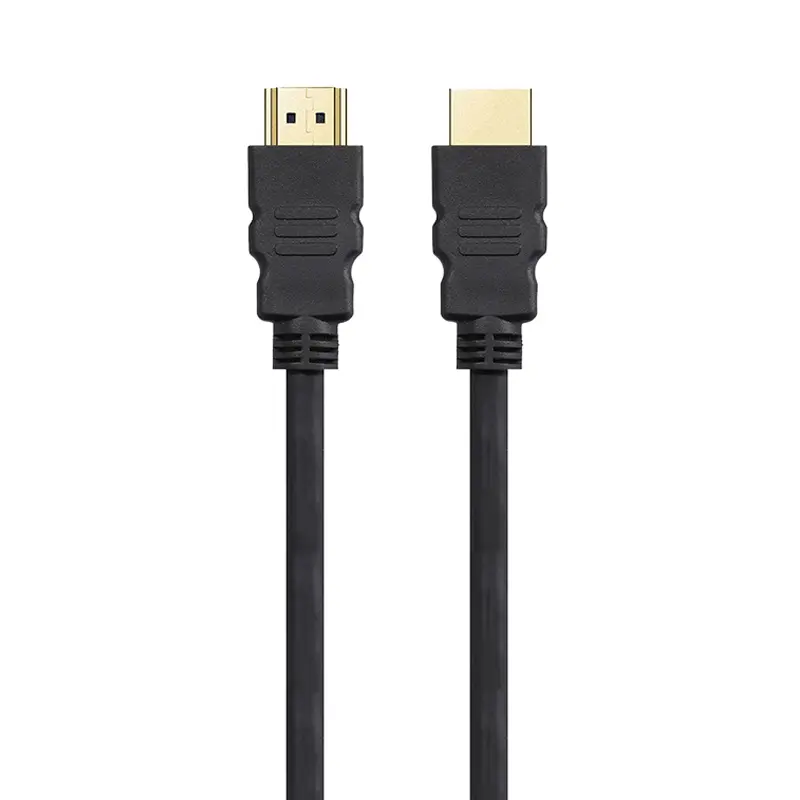 4K HDMI Cable
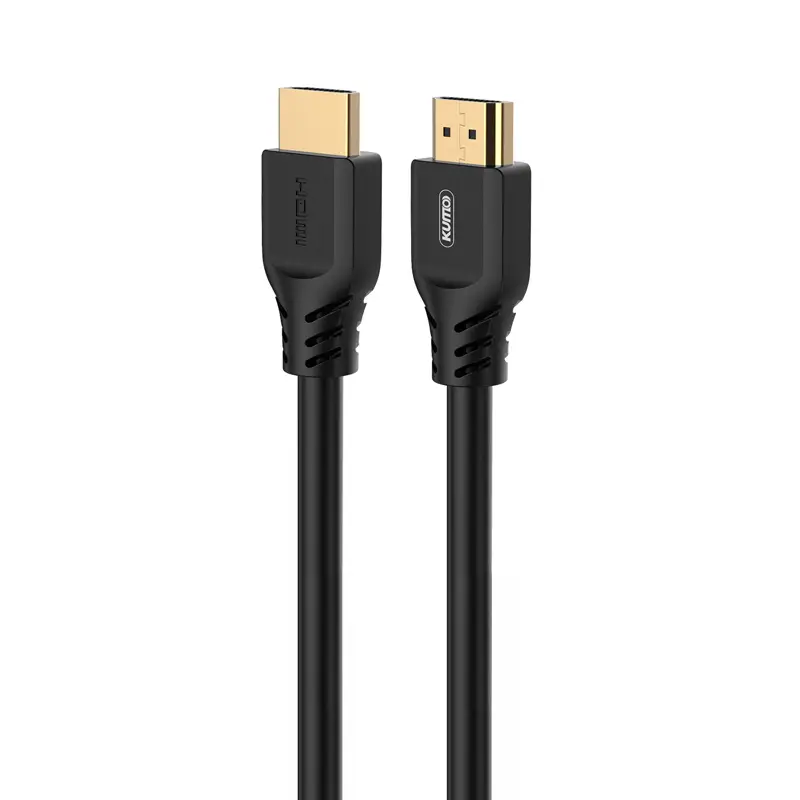 8K HDMI Cable
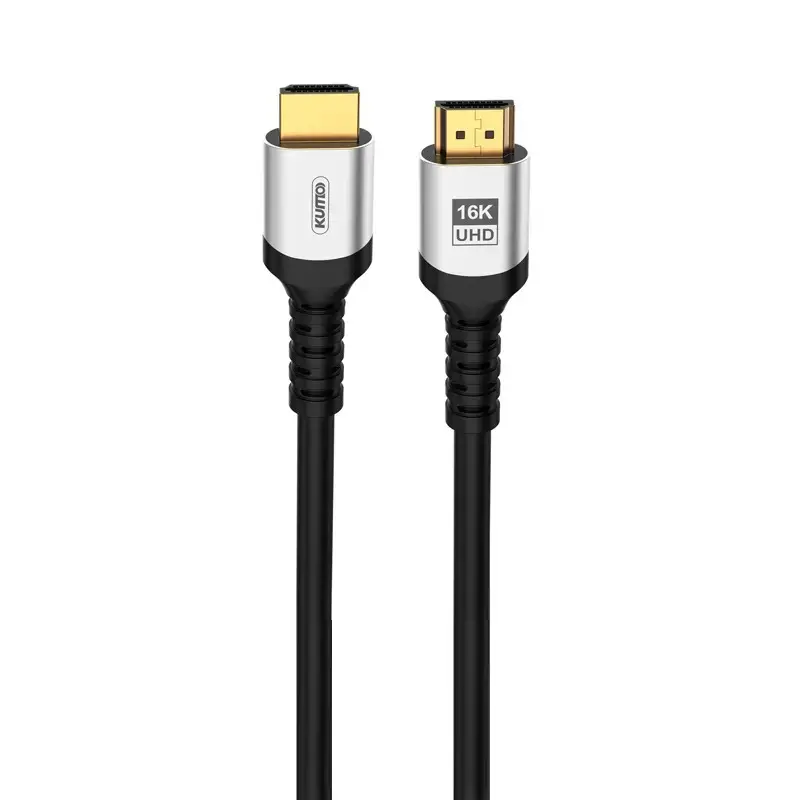 16K HDMI Cable
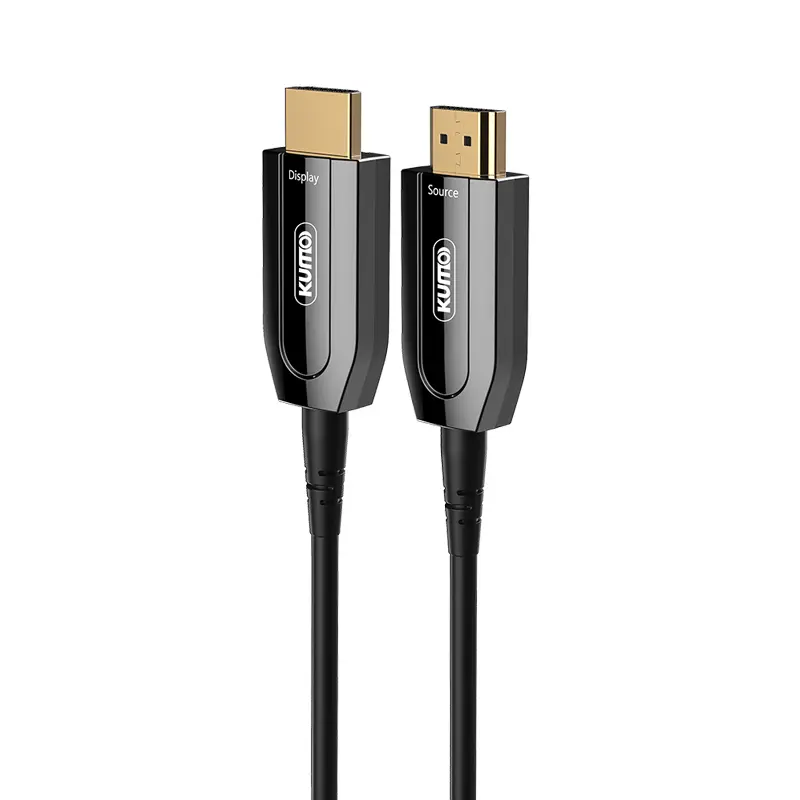 AOC HDMI Cable
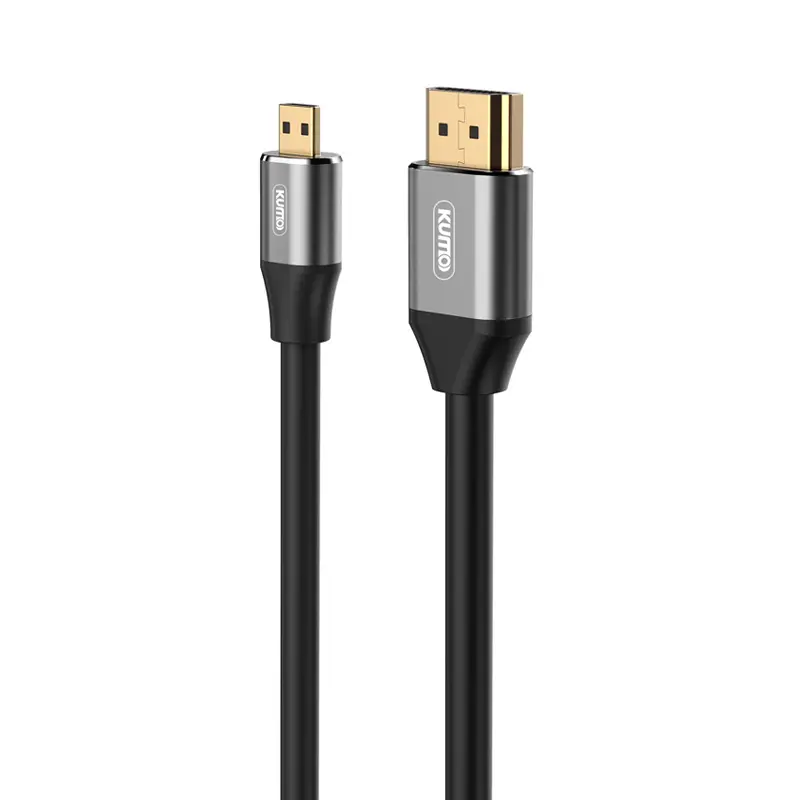 HDMI Conversion Cable
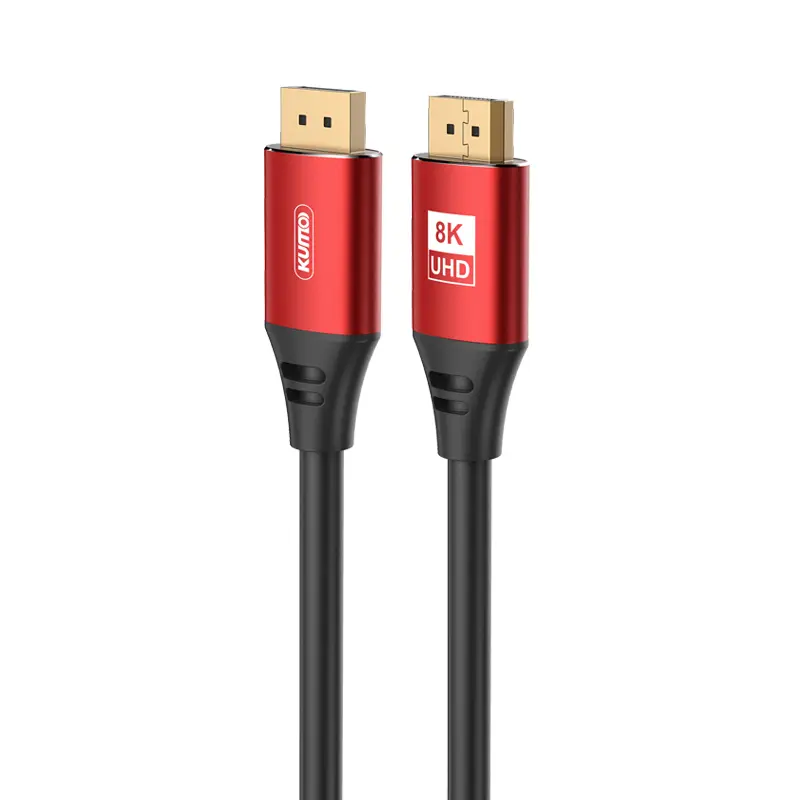 8K DisplayPort Cable
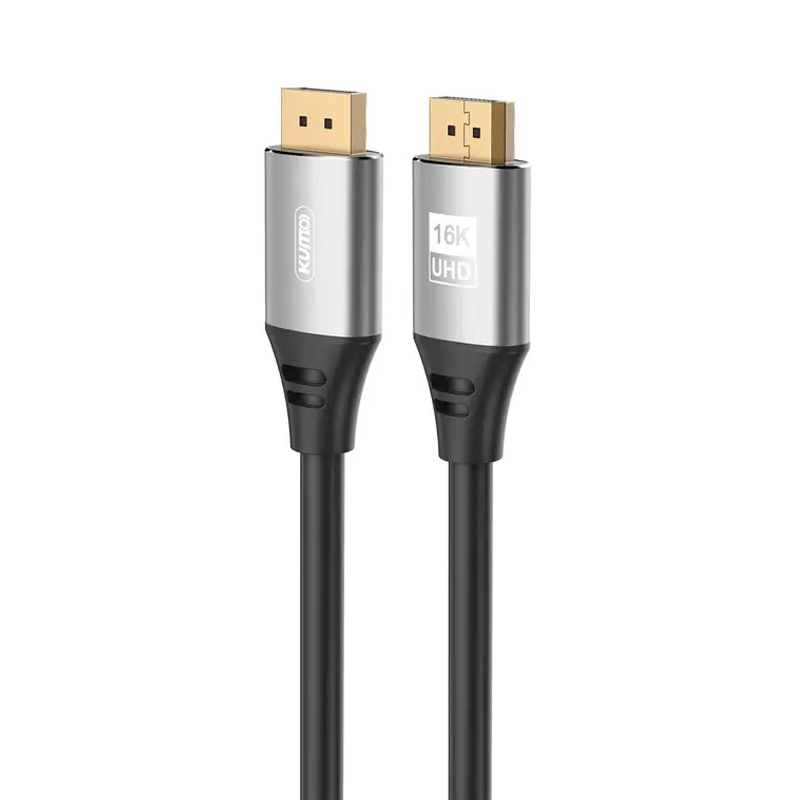 16K DisplayPort Cable
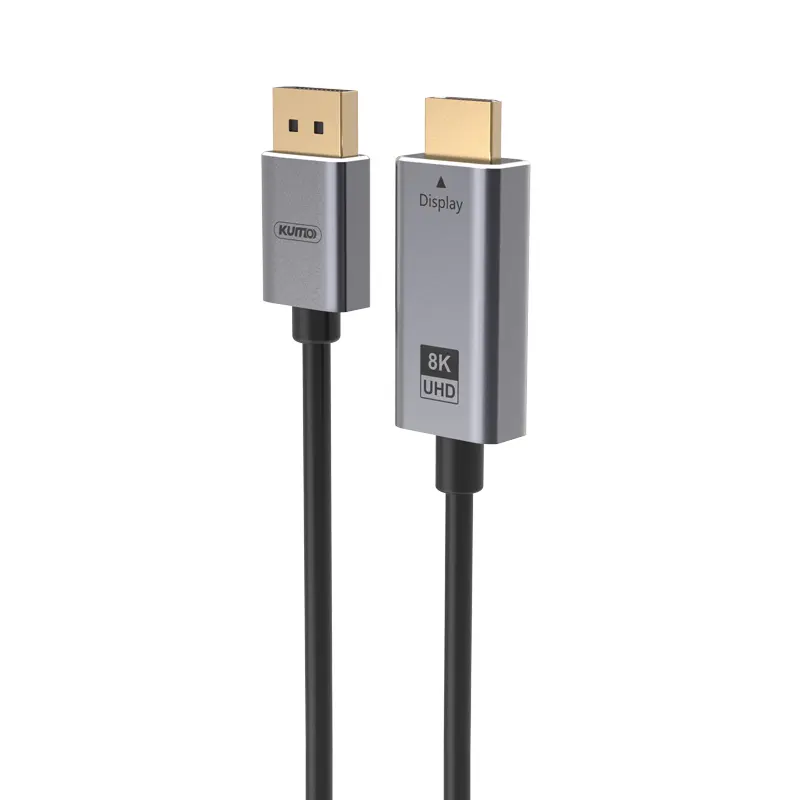 DisplayPort Conversion Cable
 XLR Cable
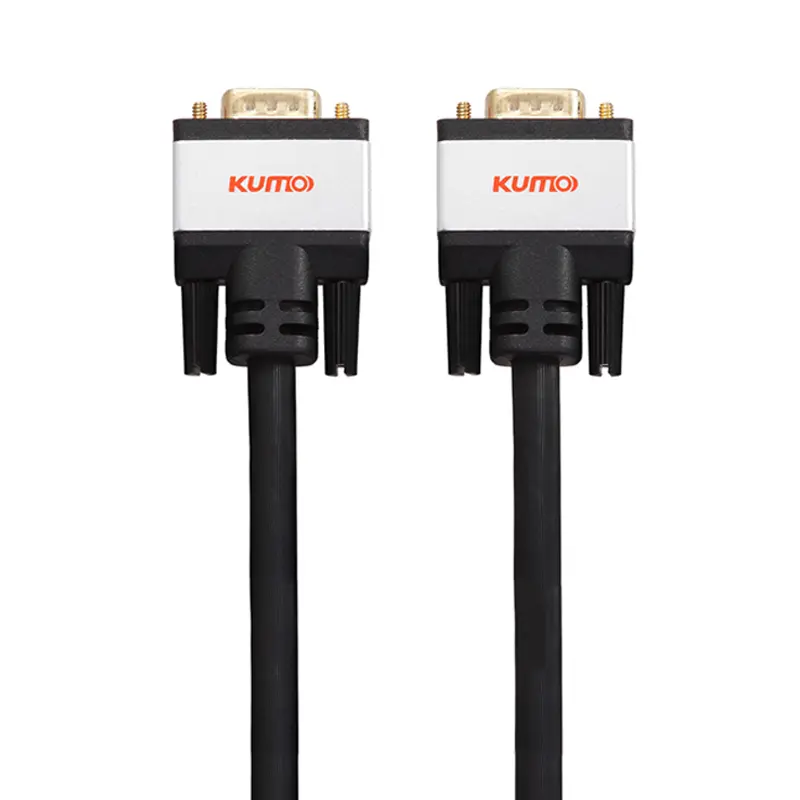 VGA Cable
 DVI Cable
 Type C To HDMI
 Type C to DP
 Type C to DVI
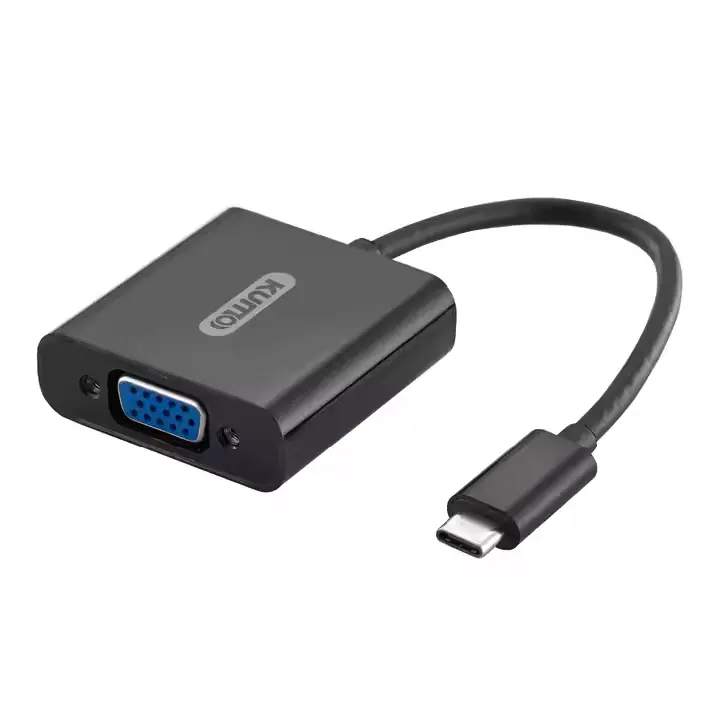 Type C Adapter
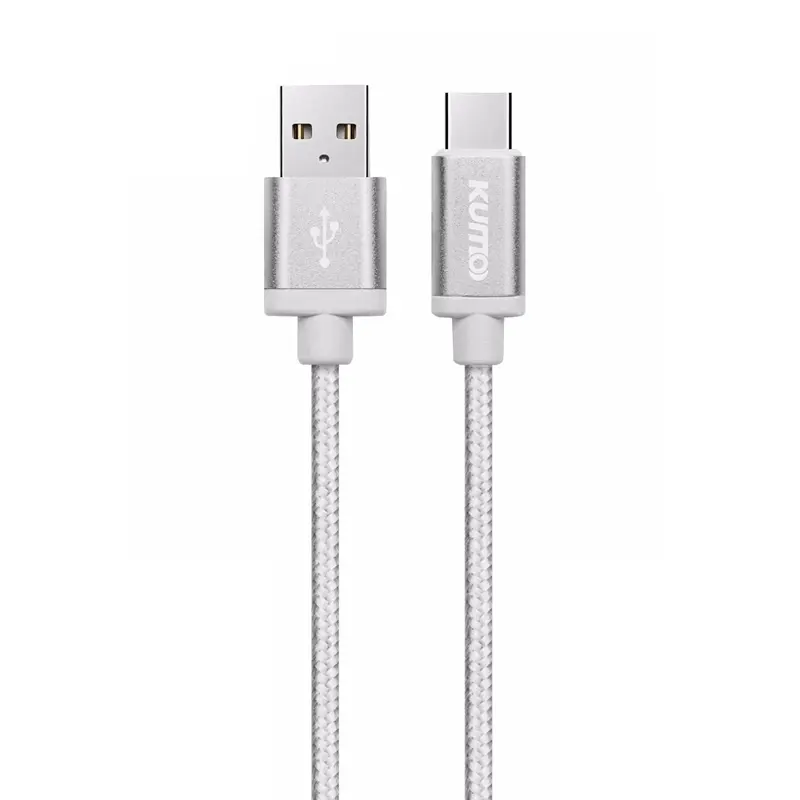 USB A to C Cable
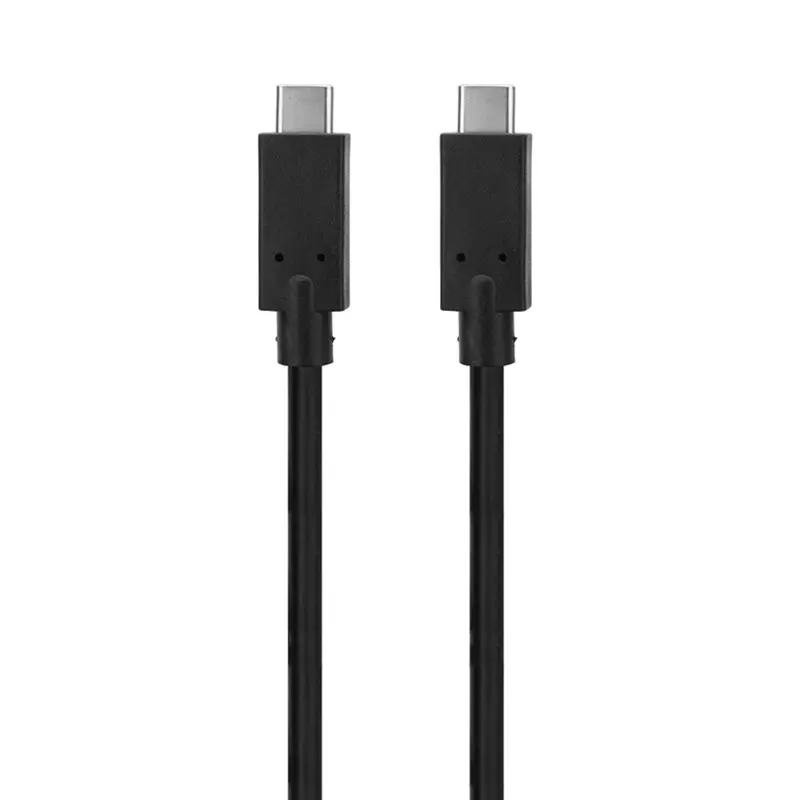 USB C to C Cable
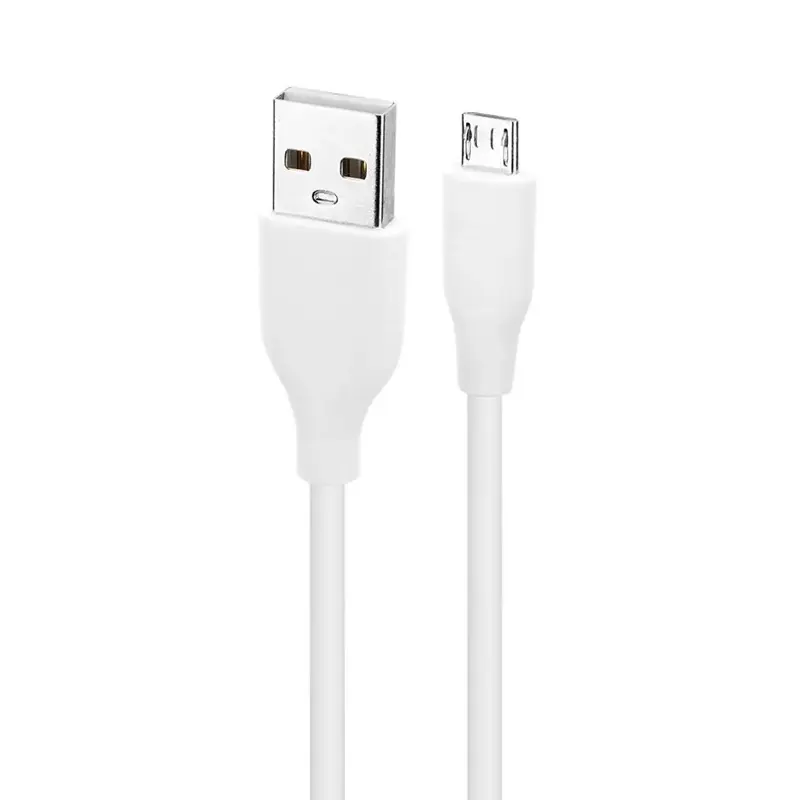 Micro USB Cable
 USB4 Cable