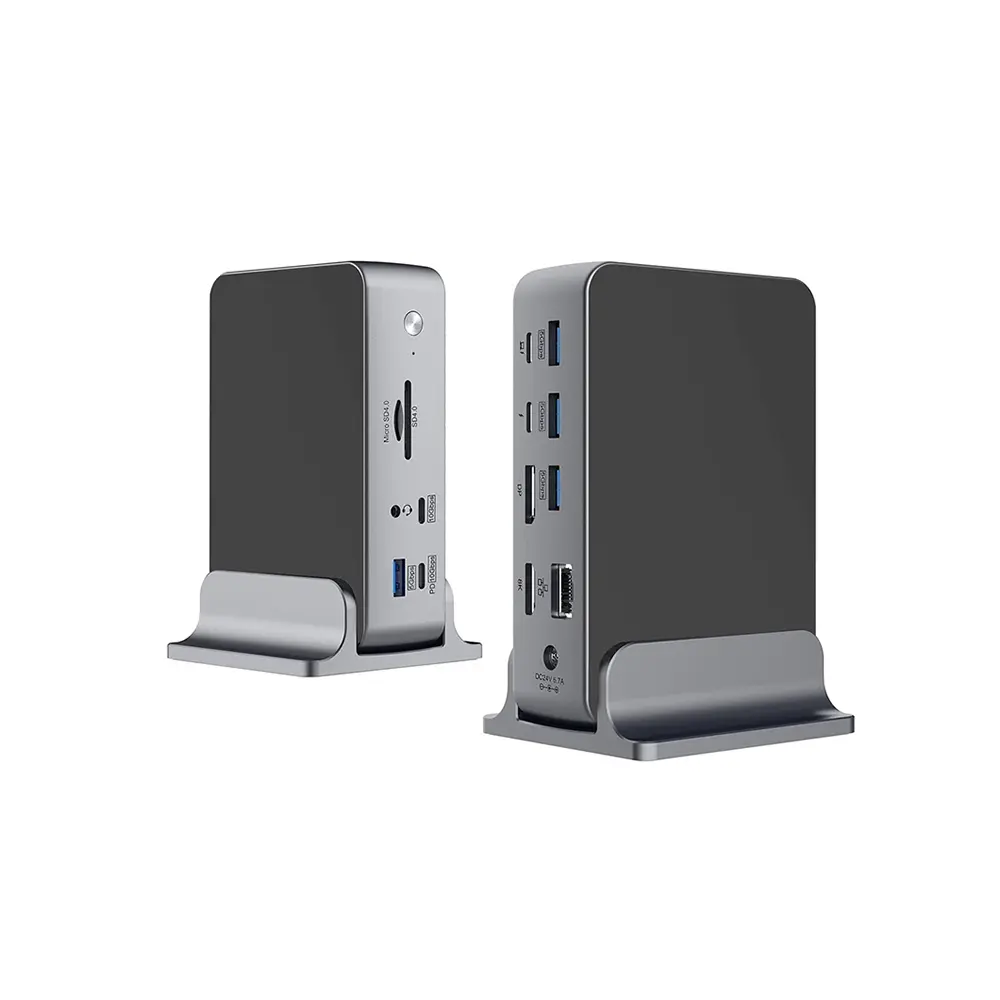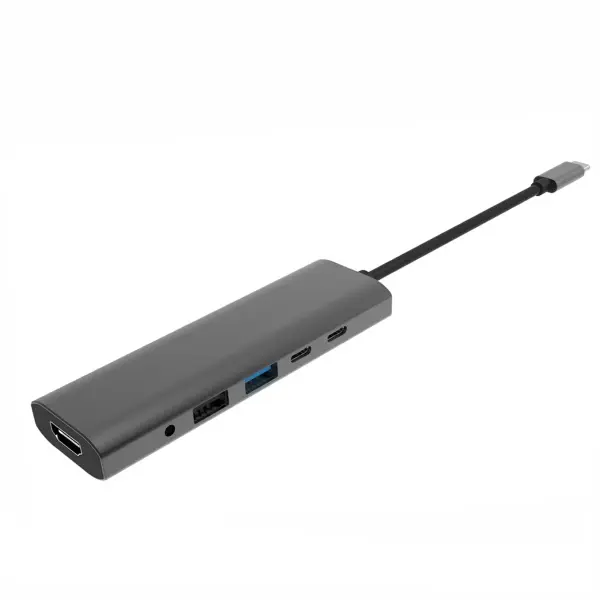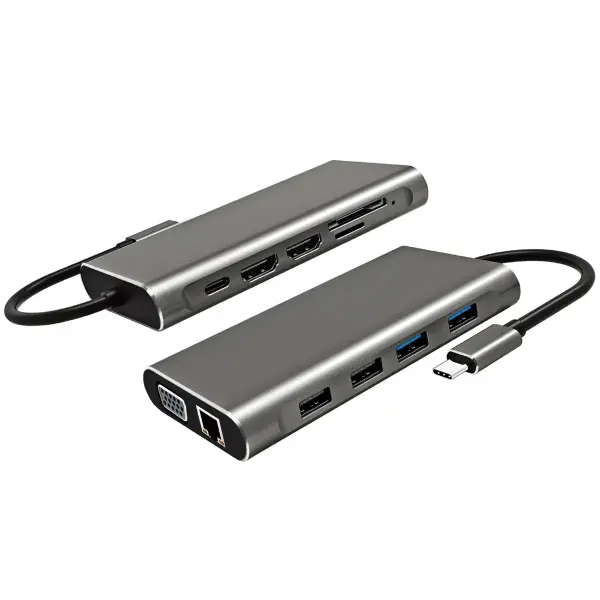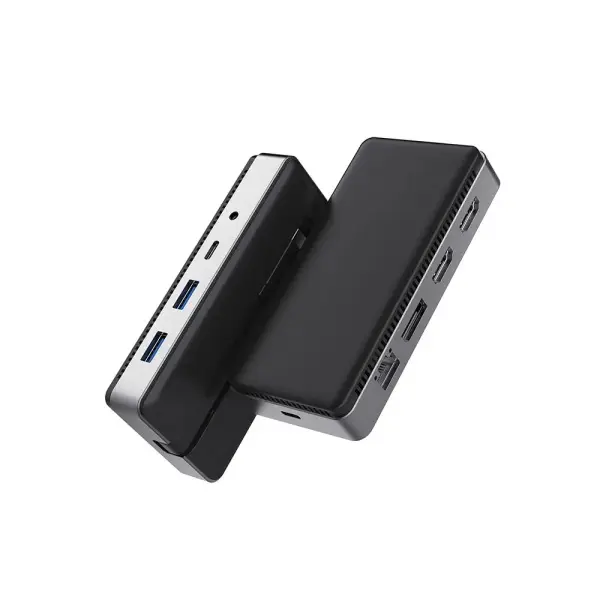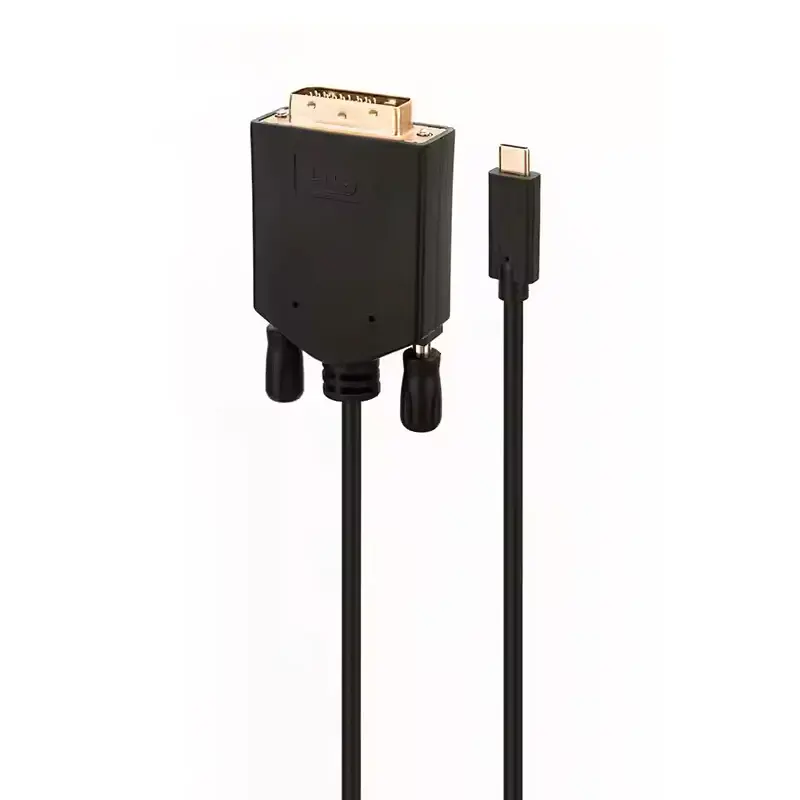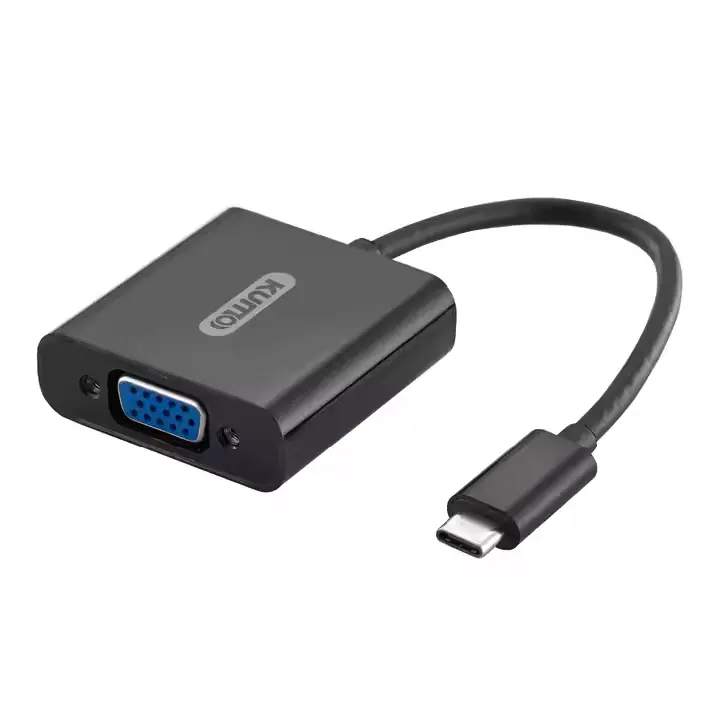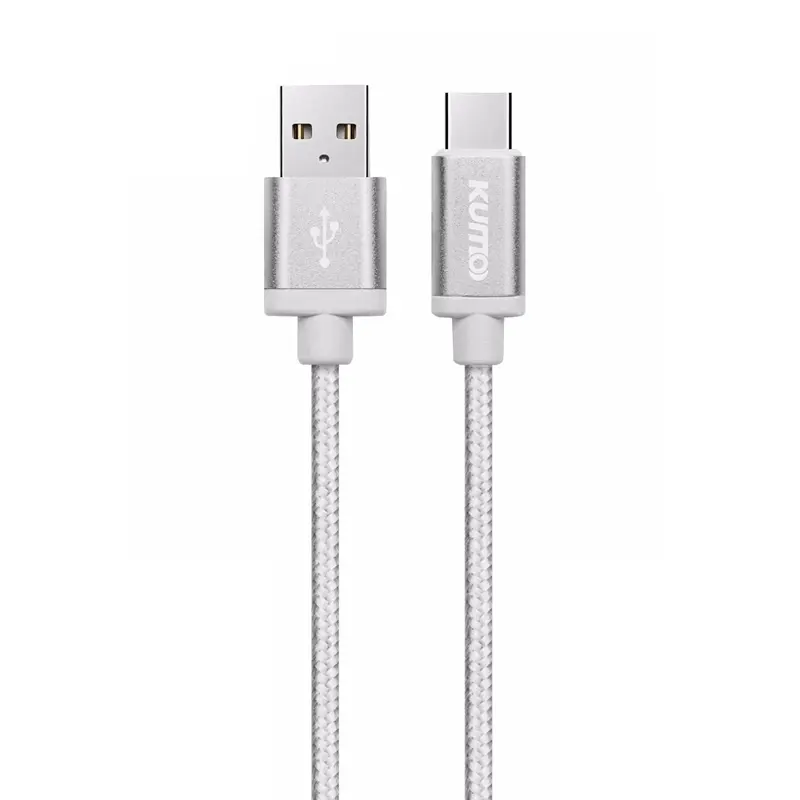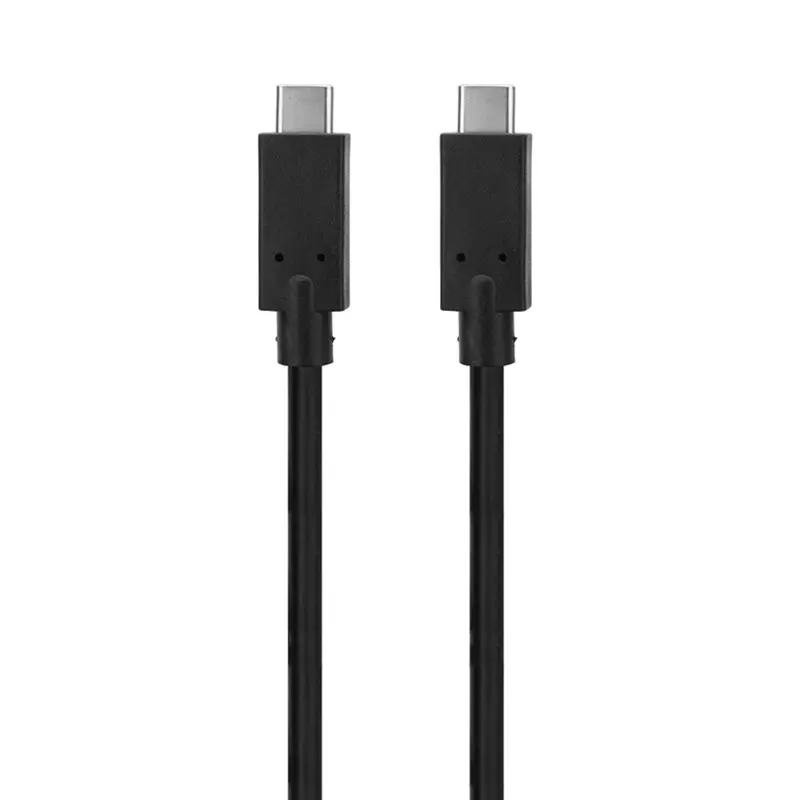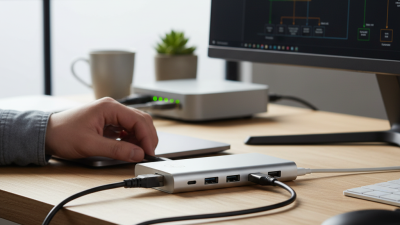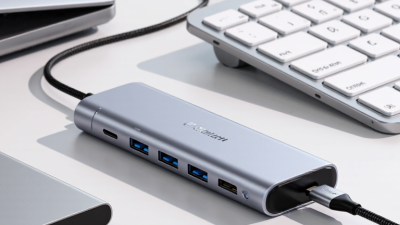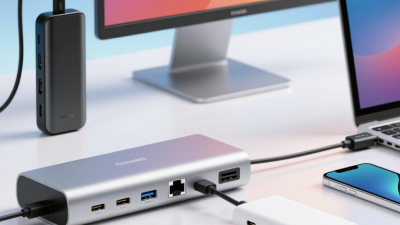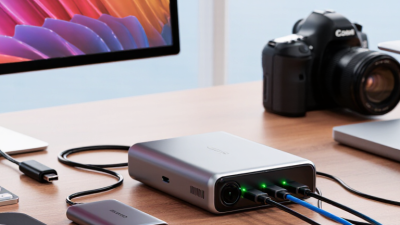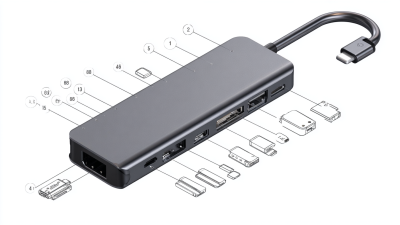
The right Type C Hub Ethernet can turn a thin laptop into a dependable desk setup. It can connect a monitor, wired network, keyboard, and charger through one compact port. Yet a familiar USB-C plug does not guarantee the same features or speed. Check the details.
Cisco’s 2018 Annual Internet Report projected 29.3 billion networked devices worldwide by 2023. That figure was a forecast, not a current device count. Still, the practical lesson holds: stable wired access matters when video calls, large file transfers, and cloud tools compete for bandwidth. Ethernet pioneer Bob Metcalfe has described Ethernet as “the plumbing of the Internet.” His phrase captures why a small adapter can matter when Wi-Fi falters.
A useful hub should match the laptop’s actual USB-C capabilities, not just its connector shape. Compare Ethernet speed, such as 1Gbps versus 2.5Gbps, and check whether your router and network plan can deliver that rate. Look for pass-through charging wattage, display resolution, and the number of ports you will use at once. Heat, cable strain, and driver support deserve attention too. Easy to miss.
This guide weighs those trade-offs before price or port count. Some specifications look impressive on a product page but offer little value in daily use. The better choice fits your laptop, desk, and network—with enough headroom, but not needless expense. Compatibility can still be annoyingly inconsistent, so check the manufacturer’s notes before buying.
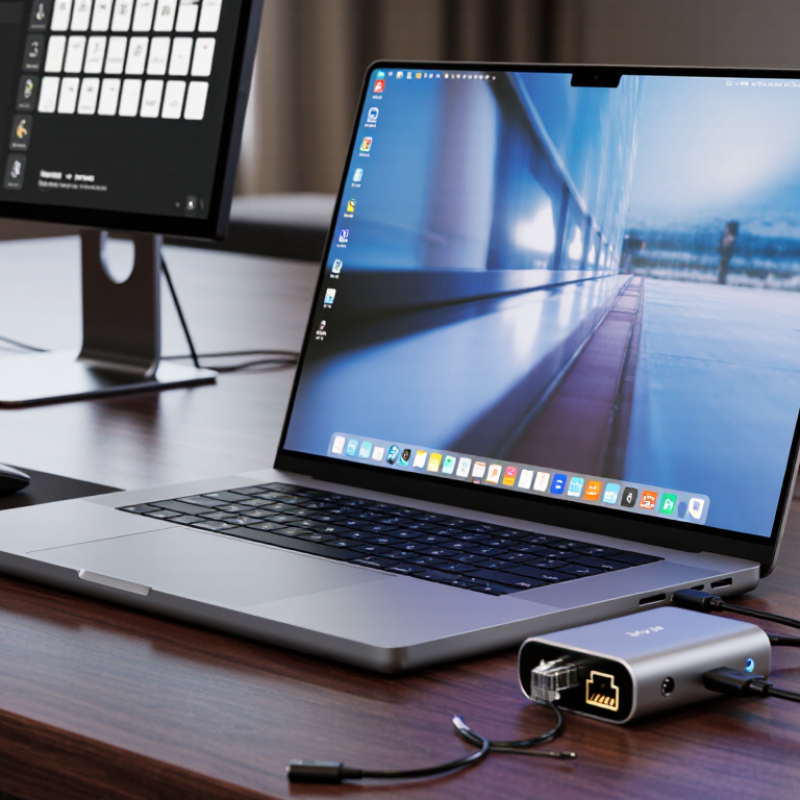
Start with the laptop or tablet, not the hub. Check its USB-C port for data, charging, and video support; the connector shape alone confirms none of these. Then list what must connect at once: a monitor, wired network, external drive, and charger. USB-IF’s USB4 specification supports data rates up to 40 Gbps, but the host, cable, and hub must all support the relevant mode. That distinction matters. A hub’s advertised maximum does not guarantee every port can reach it simultaneously.
Choose Ethernet speed to match your router, switch, and broadband plan. IEEE 802.3bz defines 2.5GBASE-T and 5GBASE-T, useful options when gigabit feels limiting but 10GbE is unnecessary. For everyday office work, gigabit Ethernet may be enough; large file transfers can change that. Check whether the hub shares bandwidth across ports, and whether its power adapter can charge your device while running a display. One easy-to-miss detail: a high-resolution monitor can consume bandwidth that you expected to use elsewhere. I would compare the actual port layout and host requirements, not just the headline speed. Even careful buyers can overlook a tiny compatibility note. The fine print matters.
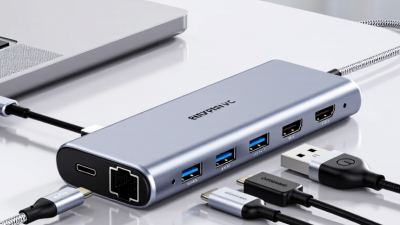
How to Choose a Type C Hub with Ethernet in 2026
Check the host device before buying. USB-C describes the connector, not every feature behind it. A laptop’s USB-C port may support data but not video or charging. Read the device specifications and confirm that the port supports the functions you need. Small detail. Big difference.
For power, look for USB Power Delivery passthrough and check its limits. A hub’s stated input wattage is not always what reaches your laptop; the hub itself uses some power. For example, a 100-watt charger may deliver less through the hub. Your laptop, charger, and cable also affect charging speed. Ethernet needs checking, too: confirm the hub’s port speed matches your network, and use a suitable Ethernet cable. Operating-system support can vary, so check compatibility rather than assuming setup will be automatic.
Tips: Test the hub with your actual charger and network cable soon after purchase. Watch for slow charging, a loose connection, or speeds below expectation. I might overlook cable quality on a busy desk; it can be the weak link. If you rely on wired internet for calls, test it before an important meeting.
| Check | What to Verify | Why It Matters | Practical Guidance |
|---|---|---|---|
| Host USB-C port | Confirm the computer’s USB-C port supports data and the functions you need. USB-C describes the connector, not a guaranteed data speed, video output, or charging capability. | A hub cannot add host features that the computer’s port does not support. | Check the computer’s specifications or manual for USB data speed, USB Power Delivery, and DisplayPort Alt Mode if video output is also required. |
| USB data speed | Look for the hub’s stated USB data rate and the host port’s supported rate. Common USB rates include 5 Gbps and 10 Gbps; the actual connection is limited by the slowest component. | Shared hub bandwidth can affect transfers when several USB devices are active at once. | For large file transfers, compare the hub’s data specification with the computer port and connected device. A USB-C plug alone does not indicate speed. |
| Ethernet speed | Check whether the Ethernet port is rated for 10/100/1000 Mbps (Gigabit Ethernet) or 2.5 Gbps. | Link speed depends on the hub, host connection, Ethernet cable, and network equipment all supporting the desired rate. | For 2.5 Gbps networking, verify that the computer, cable, and router or switch also support 2.5 Gbps. Otherwise, the connection will use a lower negotiated speed. |
| Power Delivery input | Check whether the hub has a USB-C PD passthrough input and the maximum input wattage stated by its manufacturer. | PD passthrough allows a compatible charger to power the computer through the hub, but the hub itself uses some power. | Use a USB-C PD charger within the hub’s stated limit. The power available to the computer may be lower than the charger’s rated output. |
| Computer charging support | Verify that the computer accepts charging over the specific USB-C port and note its recommended charging wattage. | A hub’s PD input does not guarantee that every computer can charge through it or at its maximum rate. | Compare the computer’s charging requirements with the charger and hub specifications. Charging may be slower if the available power is below the computer’s requirement. |
| USB-C cable | Check whether the hub’s attached cable or included cable supports the required data rate and power level. | Different USB-C cables support different data and power capabilities. | For reliable results, use a cable rated for the required USB data speed and USB PD power. Do not infer capability from the connector shape alone. |
| Operating system and drivers | Confirm compatibility with the computer’s operating system and whether the Ethernet function requires a driver. | Some Ethernet adapters work with built-in operating-system support; others may require additional software or have platform-specific limitations. | Check the hub’s compatibility information for the exact operating-system version and whether setup or driver installation is required. |
| Network setup | Check that the wired network has an available Ethernet port and that any required network settings are permitted. | A working hub still needs a connected network and appropriate network configuration to access the internet or local resources. | Use a suitable Ethernet cable and confirm that the computer recognizes the wired network connection after plugging in the hub. |
| Heat and placement | Consider the hub’s enclosure, ventilation, and placement during sustained data transfer or network use. | Compact hubs can become warm during operation, particularly when several ports are active. | Keep the hub’s vents unobstructed and follow its operating instructions. Avoid covering it during extended use. |
| Final compatibility check | Match the computer port, hub specifications, charger, cable, Ethernet link, and operating system to the intended setup. | Compatibility depends on the complete connection, not just the hub’s connector or advertised maximum. | Before purchase, verify each component’s specifications and prioritize the features you will actually use, such as Gigabit Ethernet, 2.5 Gbps Ethernet, or PD passthrough. |
Note: Advertised maximum speeds and power ratings are capabilities under specified conditions; actual performance depends on the connected computer, accessories, network, and configuration.
A Type-C hub’s Ethernet port may offer 1Gbps or 2.5Gbps, but your router and network plan must support the faster rate. IEEE 802.3bz defines 2.5GBASE-T Ethernet. Check whether the hub specifies that standard, not just “high-speed Ethernet.” That matters. A wired connection can still feel slow when the network or host computer is the bottleneck.
Count usable USB ports, then check their data rates. The USB-IF’s USB 3.2 specification lists transfer rates of 5Gbps and 10Gbps for common device generations. These are interface rates, not guaranteed file-copy speeds, and connected devices may share bandwidth. Small detail. Look for separate power input if you plan to connect a portable drive and charge a laptop at once. I’d also check port spacing; wide flash drives can block neighboring sockets.
For displays, confirm the hub supports DisplayPort Alt Mode and note the exact resolution and refresh-rate limits. VESA’s DisplayPort 2.1 specification defines link rates up to 80Gbps, but a hub won’t necessarily expose that full bandwidth. Video output can also compete with USB data lanes. One easy mistake is trusting a “dual display” label without checking whether both screens can run at your desired resolution on your specific computer. Some specifications are less clear than they should be.
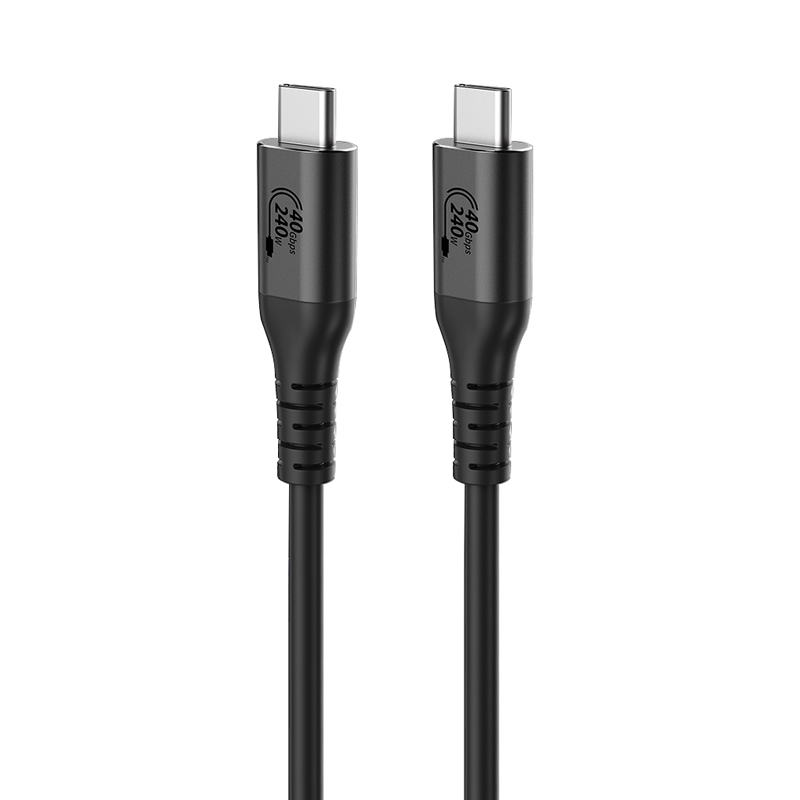
A Type-C connector does not guarantee a capable hub. Check the actual data rate, display support, and power limits in its specifications. USB-IF’s USB4 Version 2.0 announcement describes bandwidth up to 80 Gbps, but that ceiling does not mean every port or cable supports it. USB Power Delivery 3.1 allows up to 240 watts; a hub’s own input and pass-through limits may be much lower. Read the fine print.
Build quality shows in small details: a firm socket, a cable that does not kink sharply, and a casing without loose seams. Under sustained Ethernet traffic, a compact hub can grow warm. A slightly warm shell is not automatically a fault; honestly, temperature alone is a crude test. Watch for disconnects, speed drops, or heat that worsens when charging and networking run together. IEEE 802.3bz defines 2.5GBASE-T and 5GBASE-T Ethernet, so confirm that the hub explicitly lists the speed you need. A gigabit port is not a multi-gigabit port. In 2026, verify the named USB, Ethernet, and charging standards—not just “Type-C”—and test the hub with your own cable and laptop before relying on it daily.
Compare standard Ethernet link rates, then check that the hub’s upstream USB connection can support your intended network speed.
How to read this chart: These are nominal link rates defined by Ethernet standards, not guaranteed file-transfer speeds. Actual throughput depends on the hub’s USB connection, other connected devices, network equipment, and cabling.
Buying checks: For 2.5GbE, look for a USB 3.2 Gen 1 (5 Gbps) or faster upstream connection; shared bandwidth and protocol overhead can reduce performance. Check the hub’s stated operating-temperature range, ventilation, and connector fit, and avoid blocking vents during sustained use. A metal case alone does not guarantee better cooling.
Reference: IEEE 802.3 Ethernet link-rate standards. Rates shown are nominal signaling rates.
A good hub should fit your routine, not just offer the most ports. For email, video calls, and shared documents, a gigabit Ethernet port is usually enough, provided your router and internet plan support it. Faster 2.5-gigabit Ethernet can help with large local file transfers, but only when the rest of your network can keep up. Check your laptop’s USB-C capabilities, too. A USB-C socket does not always support video output or charging. Spending extra on features your device cannot use is an easy mistake.
Tips: Count the ports you use daily. Check the hub’s supported Ethernet speed and power pass-through. Leave room for a little growth.
For everyday desk use, look for a stable stand-alone hub with a cable long enough to reach your laptop without pulling. If you travel often, a smaller model may be easier to pack, though compact hubs can run warm during extended use. At home, an HDMI port and two USB-A ports may matter more than a high-end network connection. Compare the total cost with the features you will actually use. I may be overthinking the port count, but one unused connector will not improve a workday. Read the specifications carefully, and verify compatibility with your operating system before buying.